In this article 6 sections
- 1. Refresh first
- 2. Check whether the source range includes the new rows
- 3. Check the automatic refresh setting
- 4. Prevent column widths and formatting from changing
- 5. Refresh external connections first
- Summary
If you add data to an Excel PivotTable but the total or count stays the same, it is easy to suspect that the formula is wrong. However, according to Microsoft Support documentation, the most common causes are that the PivotTable has not been refreshed or that its source range still points to the old range. This article organizes the checks in order, starting with the least costly. These steps were not tested in an actual Excel file, and menu names may vary by Excel version.
1. Refresh first
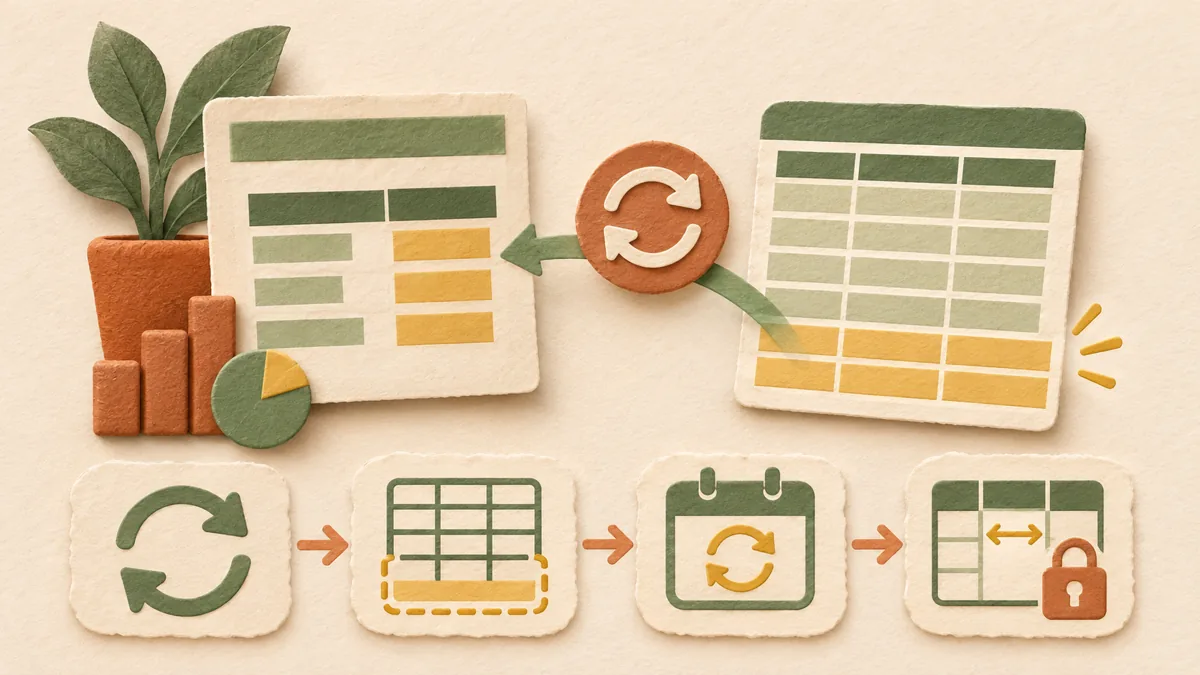
Click the PivotTable, then select “Refresh” on the Analyze tab that appears, or press Alt+F5. You can also right-click the PivotTable and choose “Refresh.” If the workbook contains multiple PivotTables, select “Refresh All” from the Refresh arrow in the Data group to update them all at once. If the values remain the same after refreshing, move on to the next step.
2. Check whether the source range includes the new rows
If you added rows to the source table but the PivotTable does not read them, the source range is likely fixed to the old range. On the Analyze tab, select “Change Data Source” and specify the table or range as the new range. Microsoft Support explains that you can change a PivotTable’s source to another Excel table or cell range. If the number of columns has increased or decreased substantially, the source structure has changed, so it may be better to create a new PivotTable.
If rows are added frequently, consider converting the source to a table (Ctrl+T). Because the range expands when you add rows to a table, you will need to update the source range manually less often.
3. Check the automatic refresh setting
If you expect the PivotTable to update automatically when the source data changes, check the automatic refresh status on the Analyze tab. This setting applies per data source, so PivotTables that use the same source will change together. To refresh the data when opening the file, turn on “Refresh data when opening the file” on the Data tab of PivotTable Options. If the menu is not available in your version, skip this step and use manual refresh as the default.
4. Prevent column widths and formatting from changing
If column widths or cell formatting change every time you refresh and this is inconvenient, check “Autofit column widths on update” and “Preserve cell formatting on update” on the Layout & Format tab of PivotTable Options. These settings are separate from the issue of values not changing, but they are worth checking at the same time because they are in the same options window.
5. Refresh external connections first
If the source is another workbook or a database, refreshing only the PivotTable may not bring in the changed values. On the Data tab, refresh the connection first under Queries & Connections, then refresh the PivotTable. This order is often mentioned in community answers, so it should not be stated as a required procedure from the official documentation.
Summary
The order of checks is refresh, source range, automatic refresh settings, column width and formatting options, and external connection order. Most issues are resolved in steps 1 and 2. If the values are still incorrect after fixing the source, also check whether numbers are stored as text and whether blank cells or spaces are included. This guidance is consistent with the content organized in What to check when COUNTIF returns 0 ↗.
Recommended reading: What to check when ##### appears in an Excel cell ↗, How to fix the Excel SUMIFS #VALUE! error ↗
Sources: Refresh PivotTable data - Microsoft Support ↗, Change the source data for a PivotTable - Microsoft Support ↗
Sources and original article
Read the Korean original on Naver ↗
This article reflects public information available when it was written. Specifications, prices and schedules can change; check the linked official documentation.
This English edition was written and translated with AI assistance, with sources provided. For errors or additional information, please request a correction. Editorial policy