AI · Software · Technology
How to Turn On and Clear Windows Clipboard History: Steps to Keep Copied Passwords from Being Stored
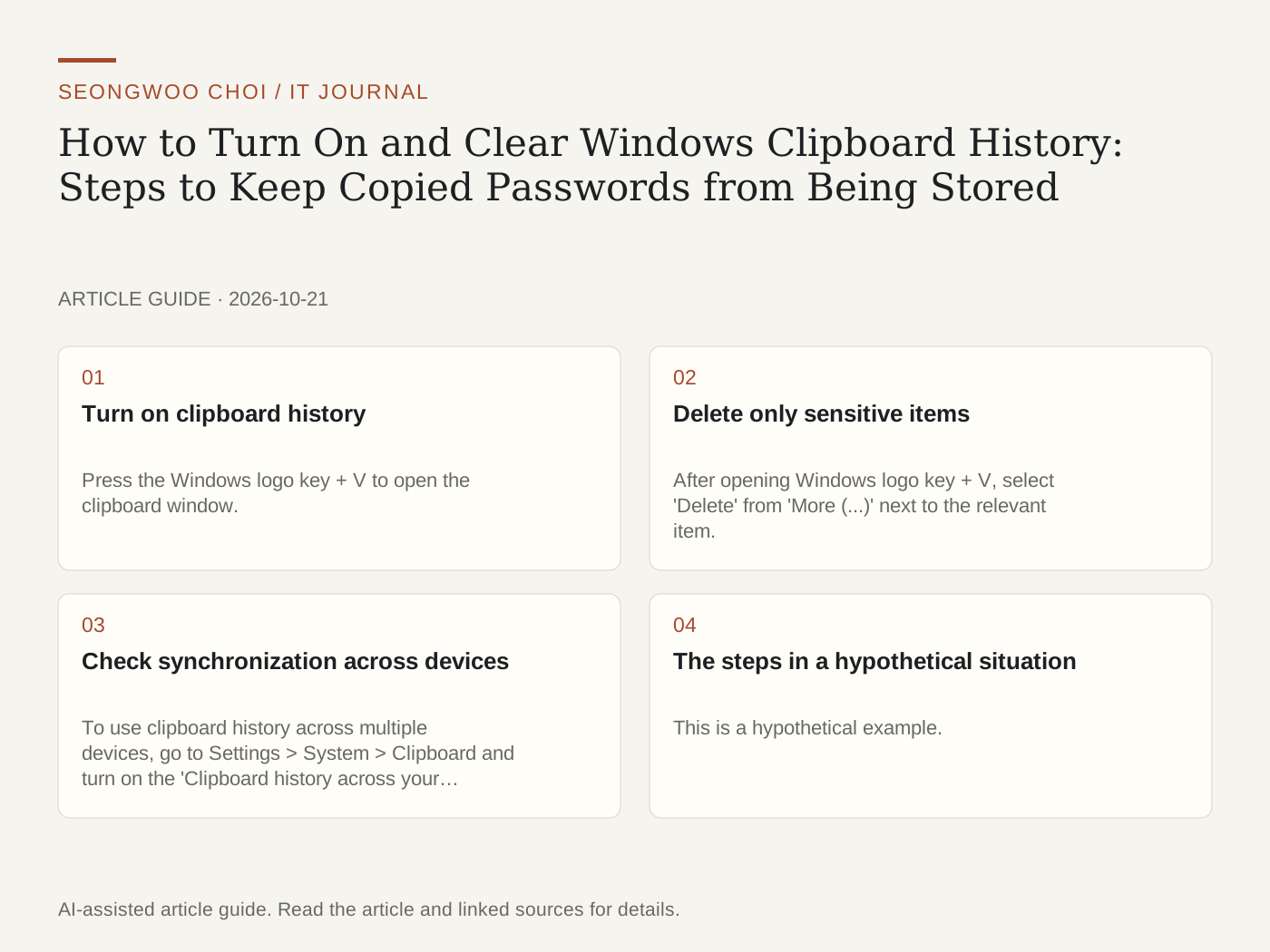
Copying and pasting is one of the most frequently used functions, but in Windows, copied content may also remain separately in clipboard history. If passwords or account numbers remain in the history after being copied, they may later be exposed if someone else sees the screen or borrows the device. This article outlines the steps for enabling history, deleting items, and checking synchronization. Turning off the history feature prevents copied content from accumulating, but pasting may become inconvenient when needed. If you enter passwords frequently, it is better to also consider using a password manager's autofill feature.
1. Turn on clipboard history
Press the Windows logo key + V to open the clipboard window. If this is your first time, select 'Turn on.' History stores up to 25 items, and older unpinned items are automatically pushed out when new items are added. The size limit is 4 MB per item, and text, HTML, and bitmap formats are supported. For details, see Microsoft support document: Using the clipboard .
2. Delete only sensitive items
After opening Windows logo key + V, select 'Delete' from 'More (...)' next to the relevant item. To delete everything, select 'Clear all' at the top of the window. However, pinned items remain even after clearing everything, so if you have ever pinned a password, check it separately. After restarting, unpinned history disappears, but pinned items remain.
3. Check synchronization across devices
To use clipboard history across multiple devices, go to Settings > System > Clipboard and turn on the 'Clipboard history across your devices' toggle. This feature is linked to a Microsoft account or a work account. If you select 'Automatically sync text I copy,' copied text is uploaded to the cloud and appears on other devices. Even if you select 'Manually sync text that I copy,' items that you choose to sync by pressing the sync button are uploaded to the cloud. Therefore, if you frequently copy sensitive information, it is safer to turn off the synchronization toggle.
4. The steps in a hypothetical situation
This is a hypothetical example. Suppose you copy an account password from a company management page and paste it into Notepad. 1) Immediately delete the content pasted into Notepad and paste it only into the actual input field. 2) Open history with Windows logo key + V and delete the item. 3) Check that the same item is not pinned. 4) If the synchronization toggle is on, turn it off or, at minimum, confirm that sensitive items are set to manual synchronization only.
5. Verification checklist
① Check that clipboard history is enabled only as much as necessary. ② Check that no passwords or account numbers remain in the history. ③ Check that pinned items contain no sensitive information. ④ Check the synchronization toggle status. ⑤ On a shared PC, consider turning off the history feature itself.
For related information, ways to reduce the amount of text pasted into AI are covered separately in the article on organizing meeting minutes with ChatGPT .
Sources and original article
Read the Korean original on Naver
This article reflects public information available when it was written. Specifications, prices and schedules can change; check the linked official documentation.
This English edition was written and translated with AI assistance, with sources provided. For errors or additional information, please request a correction. Editorial policy