AI · Software · Technology
Steps to preserve original quality when transferring smartphone photos to a PC: Check iCloud originals and verify the import
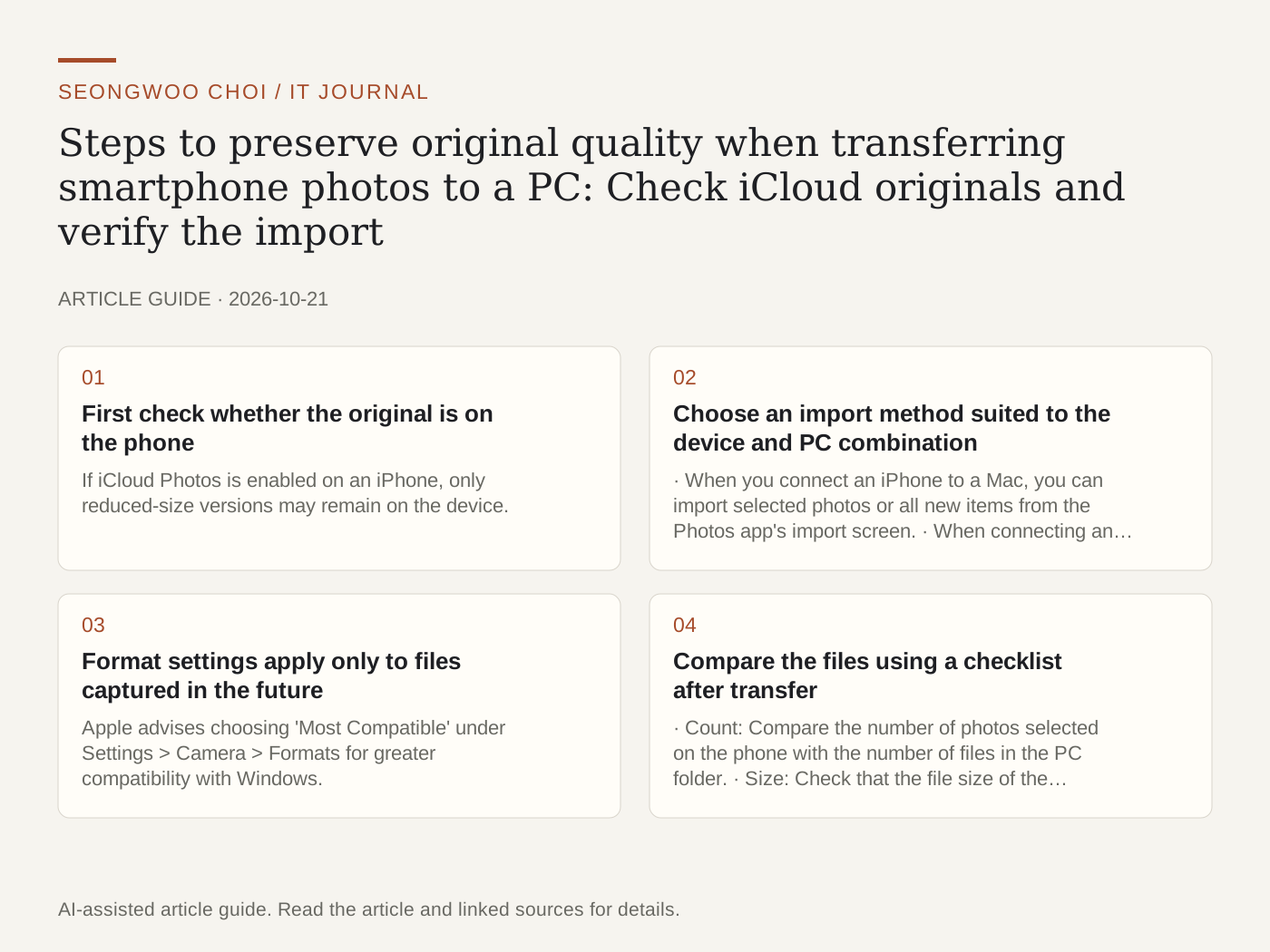
Questions often arise about photos seeming lower quality after being transferred from a smartphone to a PC. Rather than quality being reduced during transfer, the file sent to the PC is often not the original, its format changed, or the original was not on the phone in the first place. Checking in the order below lets you transfer the original and verify the result. The examples are hypothetical.
1. First check whether the original is on the phone
If iCloud Photos is enabled on an iPhone, only reduced-size versions may remain on the device. Apple advises that when using iCloud Photos, you should first download the full-resolution originals to your iPhone or iPad before importing them to a PC (Apple Support ). Microsoft also explains that photos stored only in iCloud and not on the device may not be importable through the Windows Photos app, so you should use iCloud for Windows (Microsoft Support ).
2. Choose an import method suited to the device and PC combination
· When you connect an iPhone to a Mac, you can import selected photos or all new items from the Photos app's import screen. · When connecting an iPhone to a Windows PC, install the Apple Devices app from the Microsoft Store, unlock the device, tap 'Trust This Computer,' and import through the Windows Photos app. · For Android, select the connected device from the Import menu in the Windows Photos app. If it does not connect, try changing the USB cable. Some cables do not support file transfer.
To quickly view only recent photos, you can use Microsoft's Phone Link app. However, according to Microsoft's guidance, this feature shows only recent photos without USB, does not import videos, and requires Android 7.0 or later.
3. Format settings apply only to files captured in the future
Apple advises choosing 'Most Compatible' under Settings > Camera > Formats for greater compatibility with Windows. This saves photos and videos captured afterward in JPEG and H.264 formats. HEIC originals that have already been captured are not changed by this setting. If preserving high quality is the goal, it is safer to keep the original format and use a conversion tool only when conversion is necessary. Saving again as JPEG may apply lossy compression one more time.
4. Compare the files using a checklist after transfer
· Count: Compare the number of photos selected on the phone with the number of files in the PC folder. · Size: Check that the file size of the same photo is not unusually small. · Resolution: Check the horizontal and vertical pixels in the file properties. · Capture date: Check whether the date information remains in the photo properties. As a hypothetical example, if you select and transfer 120 items but only 118 appear on the PC, first check whether you downloaded photos that existed only in iCloud and whether you selected videos as well.
Summary: Check originals, use official methods, confirm formats, and compare
To preserve original quality, the most reliable order is to ① check whether the original is on the device, ② transfer it through an official import method, ③ choose the format for future photos according to its intended use, and ④ compare the count, size, and resolution. If you are also considering backup after transferring the photos, see The difference between cloud synchronization and backup .
Sources and original article
- support.apple.com/en-us/120267
- support.microsoft.com/en-us/windows/apps/photos/import-photos-and-videos-from-phone-to-pc
Read the Korean original on Naver
This article reflects public information available when it was written. Specifications, prices and schedules can change; check the linked official documentation.
This English edition was written and translated with AI assistance, with sources provided. For errors or additional information, please request a correction. Editorial policy