AI · Software · Technology
The Difference Between Cloud Sync and Backup: A 3-2-1 Example to Prevent Deletion Accidents
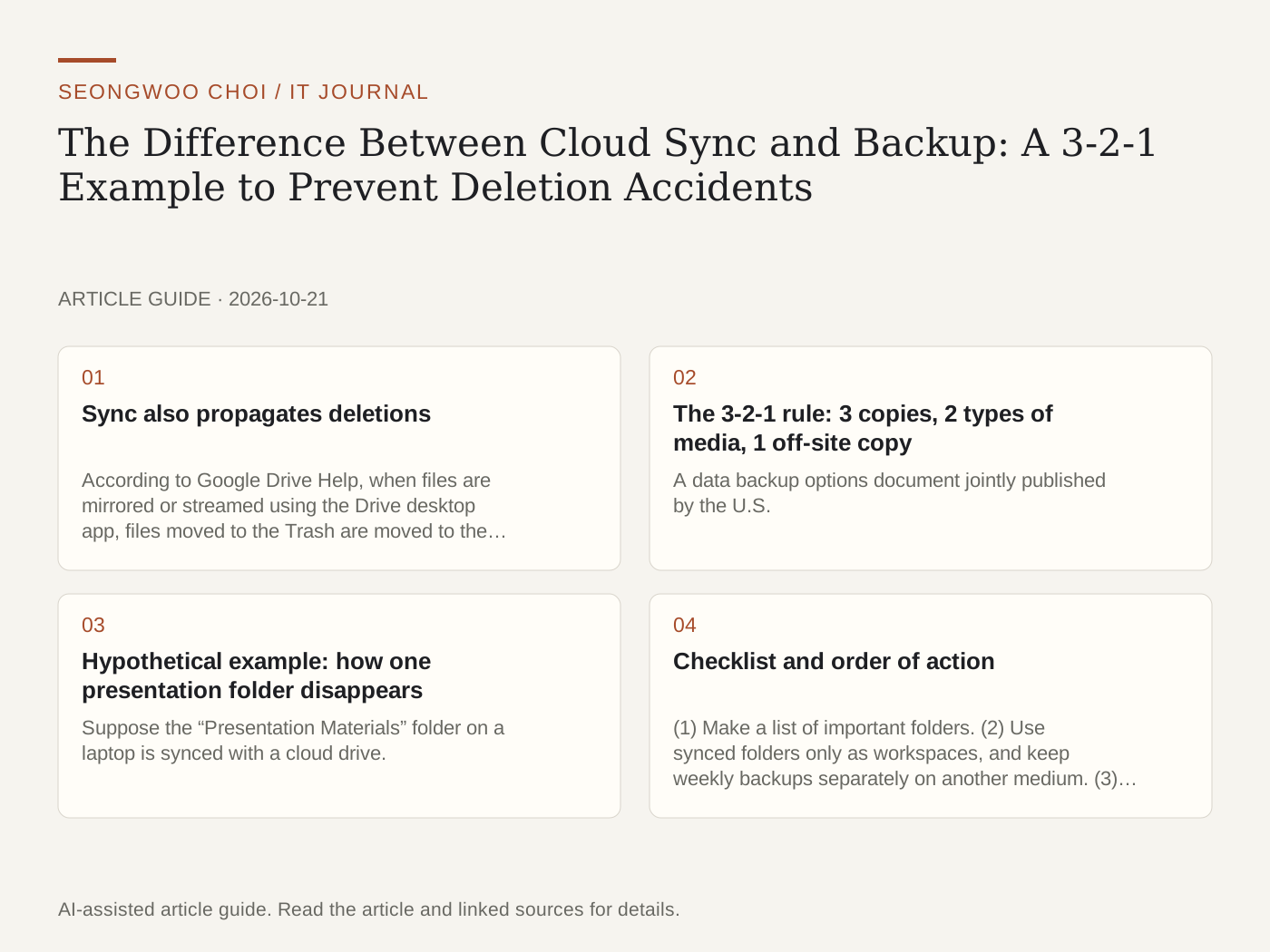
Putting photos and documents in a cloud drive can make it feel as though backup is complete. However, sync and backup serve different purposes. Sync keeps files on multiple devices in the same state, while backup preserves separate copies of past states. Because deleting a file in one place can also delete it elsewhere, understanding this difference can help prevent deletion accidents. The information below was compiled by reviewing official help pages and public-sector guidance, and the examples are hypothetical.
1. Sync also propagates deletions
According to Google Drive Help, when files are mirrored or streamed using the Drive desktop app, files moved to the Trash are moved to the Trash everywhere. Files in the Trash are permanently deleted after 30 days, and clicking “Empty Trash” removes them immediately (Google Drive Help: Delete files , confirmed Oct 21st 2026). In other words, a synced folder is convenient, but it is not a device that reverses accidental deletions.
2. The 3-2-1 rule: 3 copies, 2 types of media, 1 off-site copy
A data backup options document jointly published by the U.S. CISA recommends the 3-2-1 rule. Keep three copies of important files—one original and two backups—store them across two different types of storage media, and keep one of them outside your home or office (CISA Data Backup Options , confirmed through an excerpt from the search results for the document on Oct 21st 2026). In practice, it is safer not to count a synced folder as one backup copy. If the original is deleted, the copy in the synced folder may be deleted as well.
3. Hypothetical example: how one presentation folder disappears
Suppose the “Presentation Materials” folder on a laptop is synced with a cloud drive. If you accidentally delete the folder and move it to the Trash, the cloud copy will also move to the Trash, depending on the sync settings. You can recover it within 30 days, but after emptying the Trash, there is no way to restore it using sync alone. If you copy the same files to an external disk once a week and keep another account’s backup copy, you can restore them from the second copy. This example is a hypothetical setup for explanation.
4. Checklist and order of action
(1) Make a list of important folders. (2) Use synced folders only as workspaces, and keep weekly backups separately on another medium. (3) Designate one backup location outside the device or in another account. (4) Once a month, select files and actually try restoring them. For pre-upload cleanup, see Personal Information Checklist Before AI Uploads ; for separating accounts, How to Separate Work and Personal Logins Using Browser Profiles may also be helpful.
5. Limitations to check
Trash retention periods, version history, and storage limits may vary by service and plan. This article does not guarantee the recovery period for any specific service; please check the latest values directly in the settings screen.
Sources and original article
- support.google.com/drive/answer/2375102
- www.cisa.gov/sites/default/files/publications/data_backup_options.pdf
Read the Korean original on Naver
This article reflects public information available when it was written. Specifications, prices and schedules can change; check the linked official documentation.
This English edition was written and translated with AI assistance, with sources provided. For errors or additional information, please request a correction. Editorial policy