In this article 6 sections
- 1. Find quarantined items in protection history
- 2. Check the file name and path first
- 3. Restore only when you are sure it is safe
- 4. Check the allowed threats list as well
- 5. Choose a scan method
- 6. Summary: the checking order
When Windows Security determines that a file is dangerous and blocks or quarantines it, the first thing to do is not click “Restore,” but check what was quarantined. After determining whether the file is a real threat or a false detection, decide whether to restore it, delete it, or leave it quarantined. This article organizes the checking process based on official Microsoft support documentation. It is not the result of testing scans and restoration on an actual PC.
1. Find quarantined items in protection history
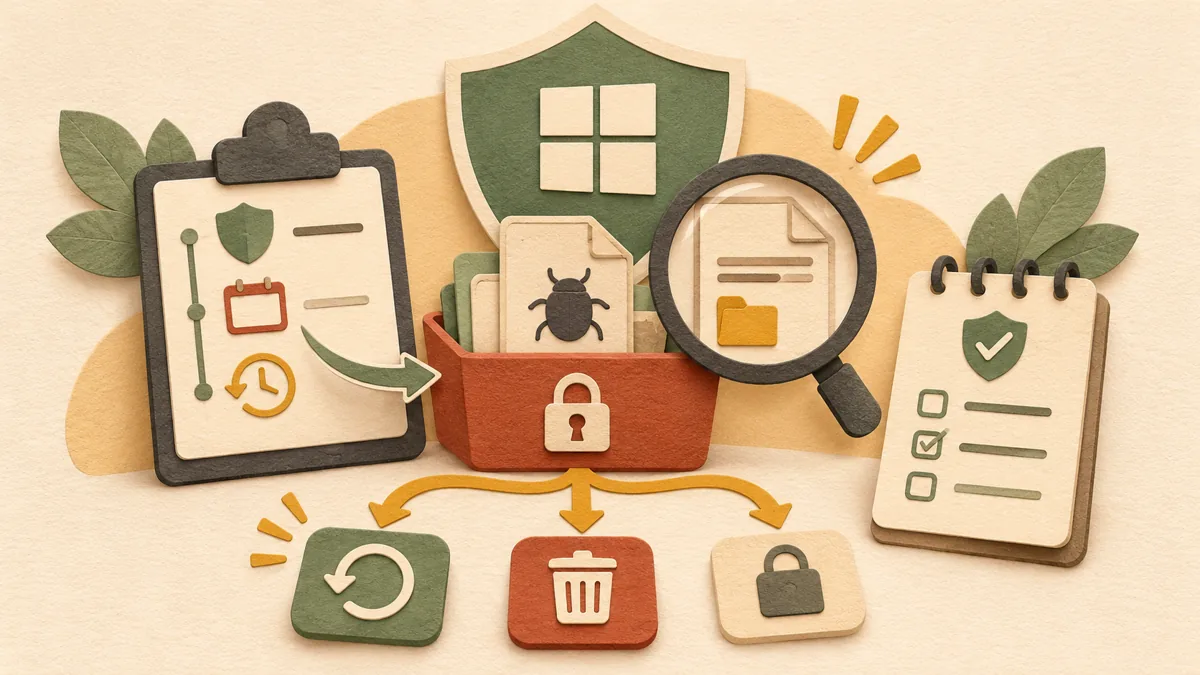
Open the Windows Security app and select “Virus & threat protection.” Under Current threats, click “Protection history” to see the list of items that Windows Security blocked or quarantined. If the list is long, select only “Quarantined Items” in the filter. If there are no items in the list, that means there are no quarantined files to restore, so you need to look for another cause.
2. Check the file name and path first
The list shows the threat name and detection date. Select an item and check the file name and original path in the details. Files with the same name may exist in multiple folders, so first check whether the path matches the location of a file you downloaded or installed. For example, the judgment differs depending on whether it is an executable file inside an installer folder or a file in an unknown temporary folder.
3. Restore only when you are sure it is safe
Microsoft Defender documentation explains that you can restore a quarantined file “when you are sure it is not a threat.” Before restoring it, check the file’s source, the program’s official distributor, and why you intended to run the file. If the source is uncertain or you are not confident, it is safer not to restore it and instead leave it quarantined or delete it. If you choose to restore it, the Windows Security Restore operation returns it to its original location.
4. Check the allowed threats list as well
Windows Security also has an “Allowed threats” list. Items on this list are ones the user has allowed to run, so Windows Security will no longer take action on them. If you accidentally allowed an item, select it in the list and click the “Don't allow” button. Windows Security will then take action again the next time it detects the same threat.
5. Choose a scan method
If you still feel uneasy about the PC after checking deleted files or quarantined items, run an additional scan. Quick scan checks processes, memory, and some locations, making it a good first choice. Full scan checks all files and programs, so it takes a long time. Custom scan checks only the files and folders you select. If you suspect malware, you can consider Microsoft Defender Offline scan. This scan runs after restarting the PC and before Windows fully starts, and you can check the results again in Windows Security’s Protection history. Save any files that were open before restarting.
6. Summary: the checking order
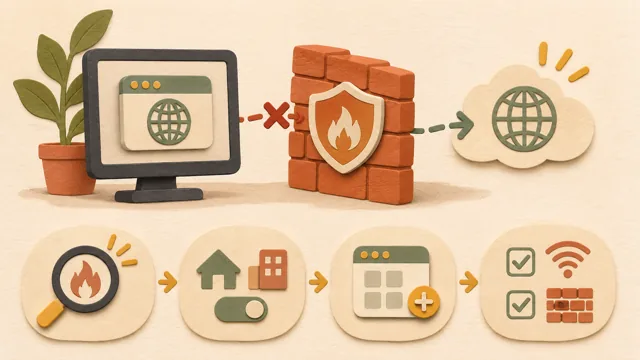
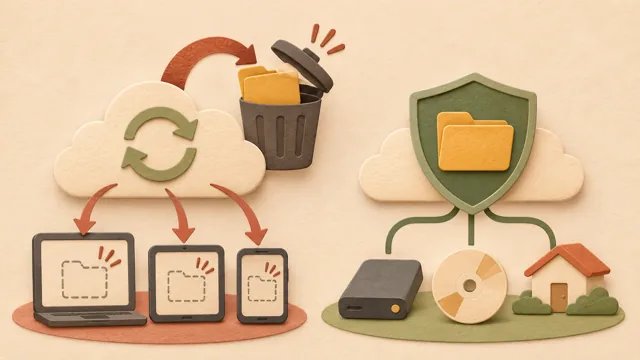
Find the quarantined item in Protection history, check the file name and path, and restore it only when its source is certain. If you are not confident, keep it quarantined and inspect the PC first with a quick scan or full scan. The method for recovering deleted files is covered separately in a related article. If an app is blocked by the firewall, the steps for checking the allowed settings are different. Related articles: How to check allowed settings when an app is blocked by the Windows firewall ↗, How to recover deleted files in Windows: distinguishing the Recycle Bin, cloud storage, and Windows File Recovery ↗
Sources: Virus & threat protection in the Windows Security app - Microsoft Support ↗, Restore quarantined files in Microsoft Defender Antivirus - Microsoft Learn ↗
Sources and original article
Read the Korean original on Naver ↗
This article reflects public information available when it was written. Specifications, prices and schedules can change; check the linked official documentation.
This English edition was written and translated with AI assistance, with sources provided. For errors or additional information, please request a correction. Editorial policy

 Privacy & backup