AI · Software · Technology
How to Mask Personal Information in Windows Screenshots and Check for Original Traces
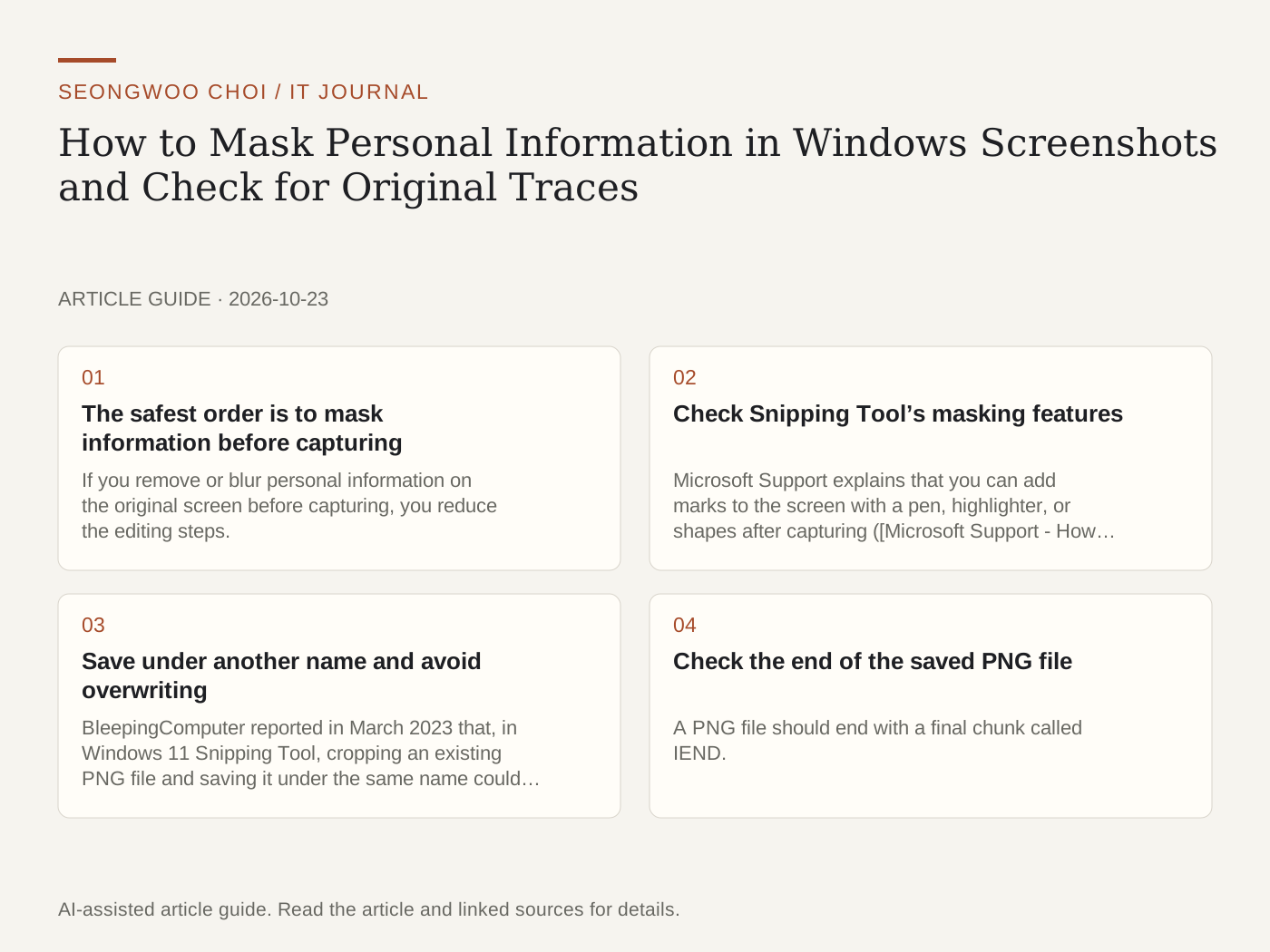
If an email address, phone number, or account name appears in a screenshot, mask it before sharing. This article explains how to mask and save it with Windows 11 Snipping Tool and how to check afterward that the original data does not remain in the file. The key points are to mask information first on the original screen and save the edited result under a new name instead of overwriting the existing file. The file-checking method was tested with a self-created PNG file and does not reproduce the actual Snipping Tool result.
1. The safest order is to mask information before capturing
If you remove or blur personal information on the original screen before capturing, you reduce the editing steps. The less editing you do, the less likely it is that original data will remain in the file. On a web page, temporarily change the information you want to mask, capture it, and then restore the original value. In a document app, first make a copy of the original file and work on the copy.
2. Check Snipping Tool’s masking features
Microsoft Support explains that you can add marks to the screen with a pen, highlighter, or shapes after capturing (Microsoft Support - How to use Snipping Tool to capture screenshots ). The Microsoft Learning Center also introduces a feature in Text actions that finds email addresses and phone numbers and masks them quickly after capture (Microsoft - Snipping Tool guide ). However, this feature may not appear depending on the version and region. If the menu is unavailable, mask the information directly with a shape.
3. Save under another name and avoid overwriting
BleepingComputer reported in March 2023 that, in Windows 11 Snipping Tool, cropping an existing PNG file and saving it under the same name could leave some of the cropped original data at the end of the file (BleepingComputer - Windows 11 Snipping Tool privacy bug ). The report said that viewers showed only the cropped image, but some of the original could be restored from the remaining data. At the time of writing, this article did not directly reproduce whether the issue has been fixed in the current version. Therefore, it is safer to always save masked images under a new name and not share the original capture.
4. Check the end of the saved PNG file
A PNG file should end with a final chunk called IEND. Each chunk consists of 4 bytes for the data length, 4 bytes for the type, the data, and 4 bytes for the checksum (CRC), in that order. A Python 3 script can read the chunks in sequence and count the number of bytes remaining after IEND to find trailing data caused by overwriting. In self-created test files, a normally saved file showed 0 bytes, while a file with appended trailing data showed 152 bytes. These figures are results from test files and not from inspecting an actual capture file.
5. Checklist before sharing
① Mask information on the original screen first whenever possible. ② After editing, save under a new name. ③ Do not upload the original capture file to a shared folder or messenger. ④ If it is a PNG, check that 0 bytes remain after IEND. ⑤ According to Microsoft Support, captures are automatically saved by default in the Screenshots folder, so check whether the original remains there. ⑥ After uploading, check in a new window or on another device that the masked area is actually invisible.
6. Related reading
A separate guide on removing personal information before uploading documents to AI tools is available at Checklist for Removing Personal Information Before Uploading a Document to AI: Verify with a Sample Virtual Contract . Screenshots can contain more information than documents, so it is useful to coordinate the review steps before sharing.
Sources: Microsoft Support, 'Use Snipping Tool to capture screenshots'; Microsoft, 'Your guide to Snipping Tool in Windows'; and BleepingComputer’s March 2023 report. The checklist and diagram in this article are editorial criteria organized from the materials above and are not procedures presented directly by Microsoft.
Sources and original article
- support.microsoft.com/en-us/windows/apps/use-snipping-tool-to-capture-screenshots
- www.microsoft.com/en-us/windows/learning-center/your-guide-snipping-tool
- www.bleepingcomputer.com/news/microsoft/windows-11-snipping-tool-privacy-bug-exposes-cropped-image-content/
Read the Korean original on Naver
This article reflects public information available when it was written. Specifications, prices and schedules can change; check the linked official documentation.
This English edition was written and translated with AI assistance, with sources provided. For errors or additional information, please request a correction. Editorial policy