AI · Software · Technology
Checklist for removing personal information before uploading documents to AI: checking with a hypothetical contract example
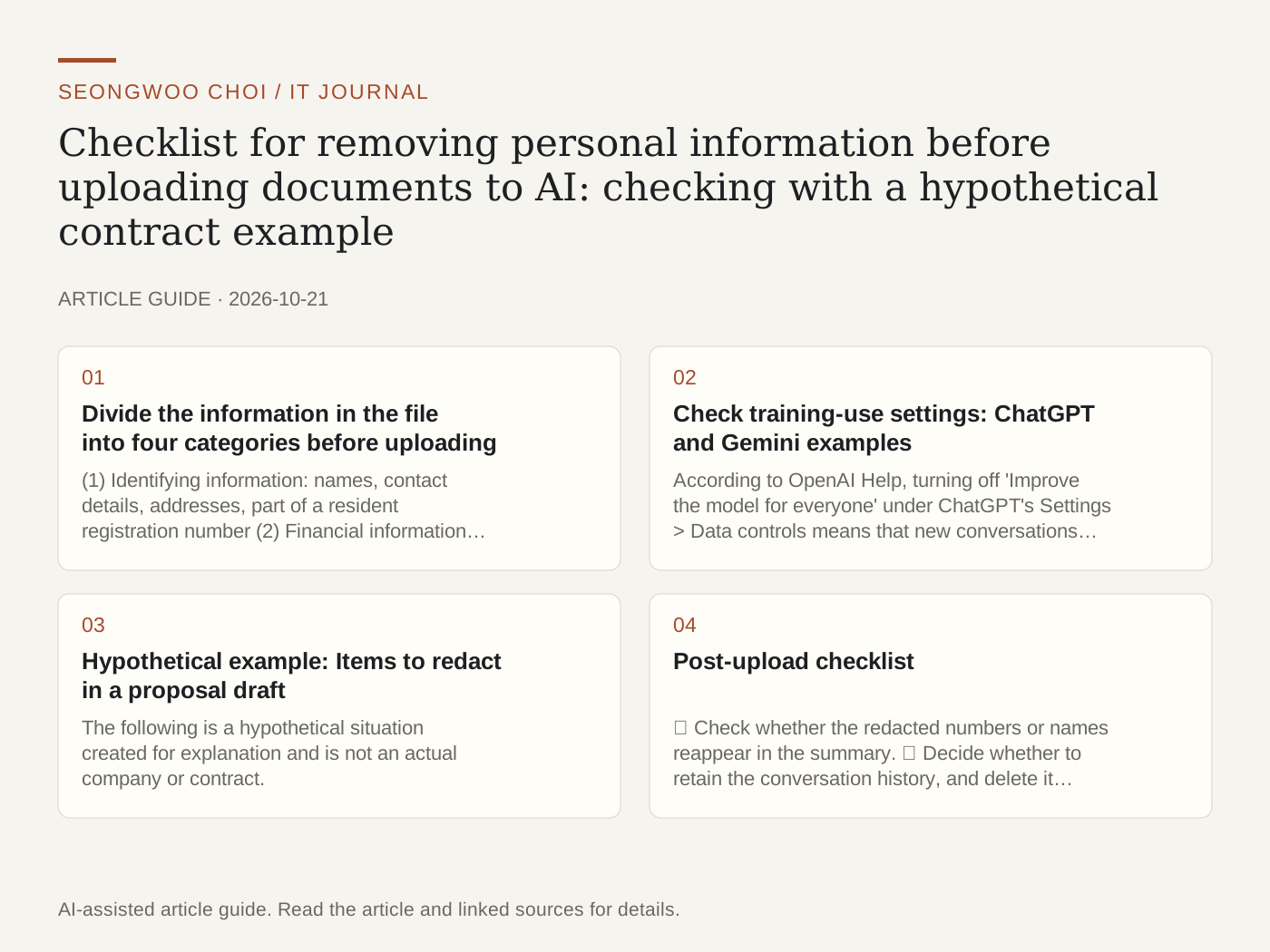
Before uploading a PDF or Excel file to AI for summarization, first check what it contains. Whether the service uses conversations for training must be checked separately in the settings, and information such as names and account numbers must be manually redacted before upload. This article organizes settings read in official help pages together with a hypothetical contract example.
1. Divide the information in the file into four categories before uploading
(1) Identifying information: names, contact details, addresses, part of a resident registration number (2) Financial information: account numbers, card numbers (3) Company information: internal unit prices, undisclosed plans, customer lists (4) Authentication information: passwords, authentication codes, access links. If even one applies, redact or delete it before putting it into AI. Perform redaction on a copy, not the original.
2. Check training-use settings: ChatGPT and Gemini examples
According to OpenAI Help, turning off 'Improve the model for everyone' under ChatGPT's Settings > Data controls means that new conversations thereafter will not be used to train OpenAI models. However, turning off this setting does not delete existing conversation history, and temporary chats may be retained for up to 30 days for safety purposes (OpenAI Help , checked Oct 21st 2026).
Google's Gemini Apps Privacy Help explains that some conversations may be reviewed by human reviewers and used to improve the service. It says that turning off the Keep Activity setting excludes subsequent conversations from review, and advises users not to include confidential information in conversations that may be reviewed (Gemini Apps Privacy Help , checked Oct 21st 2026). The search-result summary says that reviewed conversations may be stored for up to 3 years after being separated from the account, so content uploaded before changing the setting may remain during that period.
3. Hypothetical example: Items to redact in a proposal draft
The following is a hypothetical situation created for explanation and is not an actual company or contract. Assume that Employee A wants to have AI summarize 'Proposal Draft.pdf.' This file contains the customer's representative's mobile phone number, a quotation price list, and a launch schedule that has not yet been disclosed.
Redaction order: ① Replace the representative's name and number with 'Customer representative.' ② Leave only the item names in the price list and delete the amounts. ③ Replace the launch schedule with a broader expression such as 'the third quarter.' ④ Save a copy as a PDF, then use the search function to check whether phone-number formats and currency symbols remain.
Specify the scope in the prompt. Example: 'This document is a hypothetical proposal, and the amounts and contact details have been redacted. Organize only the requirements, schedule conditions, and termination clauses by item, and mark anything not present in the original as “not in the original.”' The key is to include the scope in the prompt so that content not present in the original is not filled in.
4. Post-upload checklist
① Check whether the redacted numbers or names reappear in the summary. ② Decide whether to retain the conversation history, and delete it if unnecessary. ③ If you created a sharing link, check that it is not accessible externally. ④ For company documents, first check the company's internal AI-use policies and administrator settings. Work accounts may have different training policies from personal accounts.
Related articles: How to verify the sources of AI answers , Differences between passkeys, passwords, and two-factor authentication , How to turn Windows Clipboard history on and clear it .
Sources and original article
- help.openai.com/en/articles/7730893-data-controls-in-chatgpt
- support.google.com/gemini/answer/13594961
Read the Korean original on Naver
This article reflects public information available when it was written. Specifications, prices and schedules can change; check the linked official documentation.
This English edition was written and translated with AI assistance, with sources provided. For errors or additional information, please request a correction. Editorial policy