AI · Software · Technology
How to separate work and personal logins with browser profiles: A hypothetical example and checks before deletion
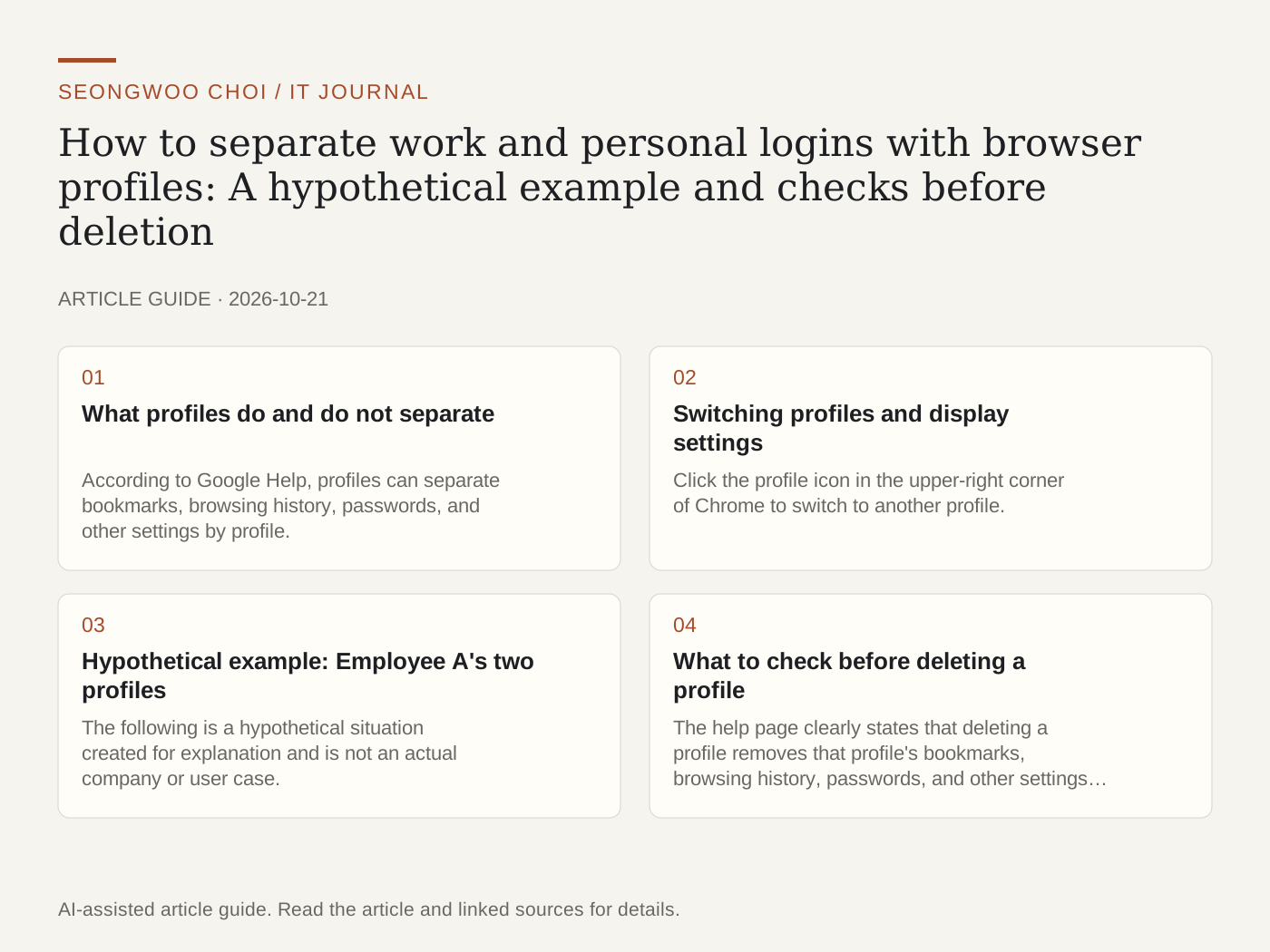
Using work and personal email in the same browser profile can easily mix bookmarks, browsing history, and saved passwords. Chrome's profile feature provides a way to store this information separately by profile. This article outlines how to divide work and personal profiles based on official Google Chrome help.
1. What profiles do and do not separate
According to Google Help, profiles can separate bookmarks, browsing history, passwords, and other settings by profile. However, this separation is limited to information within the browser. If someone else uses the same computer or can access the device account, profiles alone make it difficult to protect information. The help page also advises sharing devices only with trusted people.
2. Switching profiles and display settings
Click the profile icon in the upper-right corner of Chrome to switch to another profile. Under 'Other Chrome profiles' in the same menu, you can manage profiles and change their names and colors. Assigning different colors to work and personal profiles makes it easy to identify which profile you are using when you open a window.
There is also a setting to show all profiles at startup. If you frequently switch between multiple accounts, choosing a profile on the startup screen can help reduce mistakes. Menu names may vary by Chrome version, so check the actual screen.
3. Hypothetical example: Employee A's two profiles
The following is a hypothetical situation created for explanation and is not an actual company or user case. Employee A keeps company email, internal document tools, and a shared calendar in the 'Work' profile, and personal email and hobby sites in the 'Personal' profile. Company document links are opened only in the Work profile, while personal shopping sites are opened only in the Personal profile.
The key point is to make a habit of checking the window's profile name and color once before starting work. This single check makes the biggest difference in preventing windows for company files and personal accounts from getting mixed up.
4. What to check before deleting a profile
The help page clearly states that deleting a profile removes that profile's bookmarks, browsing history, passwords, and other settings from the computer. Before deleting it, check whether important passwords are saved in a password manager or Google Account and whether you have moved any necessary bookmarks. Because this action cannot be undone, it is safest to click the delete button only as the final step.
5. Prepare login recovery separately
Even if you separate profiles, you must prepare account recovery methods separately for each account. The ways to sign in if you lose your device should be checked through separate settings such as passkeys, two-step verification, and recovery codes. Profile separation is a tool for convenience and preventing mistakes; it does not replace security measures.
Related articles: The difference between passkeys, passwords, and two-step verification , How to turn Windows Clipboard history on and off , A checklist for removing personal information before uploading documents to AI .
Source: Google Chrome Help 'Manage Chrome with multiple profiles' (checked Oct 21st 2026).
Sources and original article
Read the Korean original on Naver
This article reflects public information available when it was written. Specifications, prices and schedules can change; check the linked official documentation.
This English edition was written and translated with AI assistance, with sources provided. For errors or additional information, please request a correction. Editorial policy