In this article 7 sections
- 1. Check the icon beside the file first
- 2. Read the cloud icon in the taskbar
- 3. Check online-only files before deleting them
- 4. Verification checklist
- 5. Points to note
- Related reading
- Sources
When a cloud icon appears beside a file in a OneDrive folder in the Windows taskbar or File Explorer, it indicates the file's current status. Reading the icon's color and symbol separately helps distinguish whether the file is missing, syncing has stopped, or it cannot be opened because there is no internet connection. This article is organized based on the icon explanations and Files On-Demand guidance in Microsoft support documents.
1. Check the icon beside the file first
A blue cloud indicates an online-only file. It does not take up space on the computer and is downloaded when you open it. It cannot be opened without an internet connection.
A green circle with a white check mark indicates a file designated as "Always keep on this device." It takes up space but can be opened offline.
Sync arrows mean that an upload or download is in progress. They may remain for a while if the file is large or there are many items in the queue.
2. Read the cloud icon in the taskbar
- A red circle with a white cross: Some files or folders cannot be synced. Open the OneDrive icon in the notification area and check the error message.
- A pause symbol: Syncing is currently paused. Open the icon and select "Resume syncing."
- A yellow warning triangle or brown exclamation mark: There is a message requiring attention on the account. Read the message in the Activity Center.
- A cloud with a gray line: You are not signed in, or OneDrive setup is not complete.
3. Check online-only files before deleting them
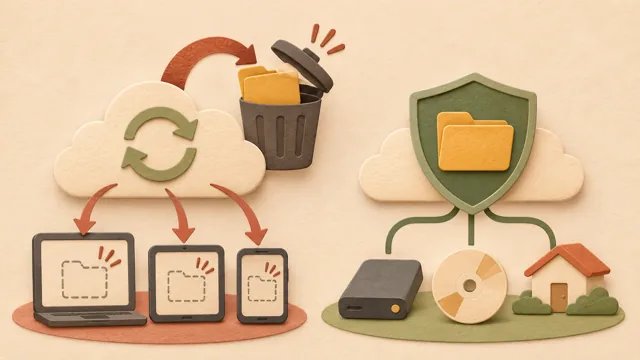
This is the most important point. The official guidance explains that deleting an online-only file from a device also deletes it from all devices and from OneDrive online. It states that the file can be restored from the OneDrive Recycle Bin on the web within up to 30 days for personal accounts and up to 93 days for work or school accounts.
If you only want to free up space, right-click the file instead of deleting it and choose "Free up space." According to the official guidance, this changes the file to online-only and does not delete it from OneDrive.
4. Verification checklist
1) Determine the status from the color and symbol of the icon beside the file: cloud, green check, red cross, pause, or warning.
2) Check the internet connection. Online-only files will not open without a connection.
3) Check the OneDrive icon in the notification area to see whether syncing has stopped or an error message is present.
4) If you need space, choose "Free up space" instead of deleting the file.
5) If a file has disappeared, first check the OneDrive Recycle Bin on the web. Check before the retention period expires.
5. Points to note
The icon shapes may look slightly different in Windows, macOS, File Explorer, and Finder. The option names on the Files On-Demand settings screen may also differ depending on the OneDrive version. Work or school accounts may have different settings depending on administrator policies, so check with the person responsible for administration. This article provides general guidance, and whether a specific file can be restored must be checked directly in the web Recycle Bin.
Related reading
If you accidentally deleted a file, read How to recover files deleted in Windows: Distinguishing the Recycle Bin, cloud storage, and Windows File Recovery ↗ first. If you are confused about the difference between backup and syncing, The difference between cloud syncing and backup: A 3-2-1 example to prevent deletion incidents ↗ is also worth consulting.
Sources
- What do the OneDrive icons mean?: https://support.microsoft.com/ko-kr/onedrive/what-do-the-onedrive-icons-mean
- Save disk space with OneDrive Files On-Demand for Windows: https://support.microsoft.com/ko-kr/onedrive/save-disk-space-with-onedrive-files-on-demand-for-windows
Sources and original article
Read the Korean original on Naver ↗
This article reflects public information available when it was written. Specifications, prices and schedules can change; check the linked official documentation.
This English edition was written and translated with AI assistance, with sources provided. For errors or additional information, please request a correction. Editorial policy

 Privacy & backup