AI · Software · Technology
How to separate temporary and personal files when Windows storage is low
When Windows warns that storage is low, it is easy to delete files indiscriminately. However, the items Storage Sense deletes automatically differ from those users must judge themselves. Based on Microsoft’s official support documents, this article explains how to distinguish temporary files from personal files. The explanation is based on Windows 11, and menu names may vary slightly by version and language settings.
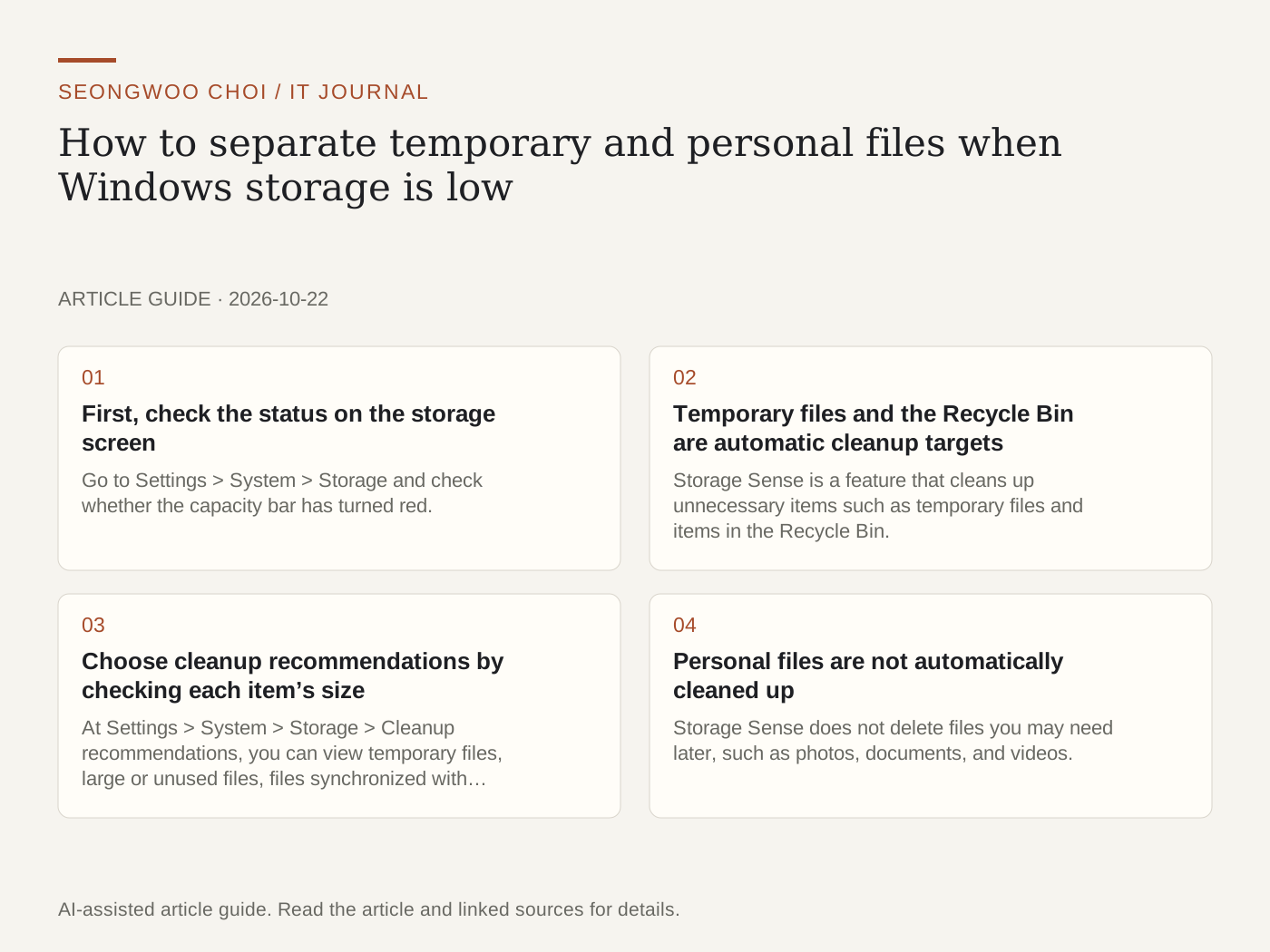
1. First, check the status on the storage screen
Go to Settings > System > Storage and check whether the capacity bar has turned red. According to Microsoft’s documentation, a red bar means storage space is low. You can also see the remaining capacity for each drive in File Explorer’s “This PC.” First check which items are using the most space so you do not choose the wrong items to clean up.
2. Temporary files and the Recycle Bin are automatic cleanup targets
Storage Sense is a feature that cleans up unnecessary items such as temporary files and items in the Recycle Bin. Microsoft explains that Storage Sense is turned off by default. If you turn it on, it runs when storage space is low under the default settings. Recycle Bin items are deleted after the configured period, which you can change on the same settings screen.
There are two limitations. First, Storage Sense works only on the system drive (C:) where Windows is installed. Second, it runs only when you are signed in and have been online for more than 10 minutes. Unless configured separately, the Downloads folder and cloud content are not managed.
3. Choose cleanup recommendations by checking each item’s size
At Settings > System > Storage > Cleanup recommendations, you can view temporary files, large or unused files, files synchronized with the cloud, and unused apps by category. Windows also shows the amount of space freed when items are deleted. Check the amount and item names before clicking the cleanup button.
There is one item that requires caution. If it has been less than 10 days since you upgraded Windows, Previous version of Windows (Windows.old) may appear as removable system files. This folder is used to roll back to the previous version, so you cannot roll back after deleting it.
4. Personal files are not automatically cleaned up
Storage Sense does not delete files you may need later, such as photos, documents, and videos. Microsoft advises that videos, music, photos, and the Downloads folder often take up a lot of space. Open a folder in File Explorer, change it to “View > Details,” and sort by size to find the largest files first.
Before cleaning up, check three things. ① Is the same file stored somewhere else, such as on an external drive or in the cloud? ② If it is in a cloud-synchronized folder, will deleting it locally also remove it from the cloud? ③ Is it an irreversible file, such as an installer or a document in progress? If you are unsure about even one of these, do not delete it; move it to external storage instead. Deleted files must be removed from the Recycle Bin for the space to actually be recovered.
5. Clean up other drives separately
Other drives, such as D:, are not automatically cleaned up by Storage Sense. Check their usage and clean them up manually at Settings > System > Storage > Advanced storage settings > Storage used on other drives.
6. Cleanup order checklist
Microsoft advises trying multiple methods one at a time from top to bottom and checking the remaining space after each step. Following this order can reduce unnecessary deletions.
① Check the storage bar and the remaining capacity on each drive ② Check the Storage Sense settings ③ Temporary files and the Recycle Bin in Cleanup recommendations ④ If the upgrade was within the past 10 days, check Windows.old ⑤ Find personal files by size, back them up, and then move them ⑥ Check other drives
For example, if the Photos folder accounts for most of the storage usage, deleting temporary files may not be enough. In that case, back up the photos and move them to external storage. This example is hypothetical for explanatory purposes, and the actual amount of space freed varies by PC.
Source: Microsoft Support Manage drive space with Storage Sense , Free up drive space in Windows . Checked October 23, 2026.
Sources and original article
- support.microsoft.com/en-us/windows/experience/storage-filemanagement/manage-drive-space-with-storage-sense
- support.microsoft.com/en-us/windows/experience/storage-filemanagement/free-up-drive-space-in-windows
Read the Korean original on Naver
This article reflects public information available when it was written. Specifications, prices and schedules can change; check the linked official documentation.
This English edition was written and translated with AI assistance, with sources provided. For errors or additional information, please request a correction. Editorial policy