In this article 6 sections
- 1. Check the remaining space first
- 2. Step 1: Check temporary files first
- 3. Step 2: Review large or unused files
- 4. Step 3: Decide about personal files based on their contents
- 5. What to check if it still does not work
- 6. Summary of the cleanup order
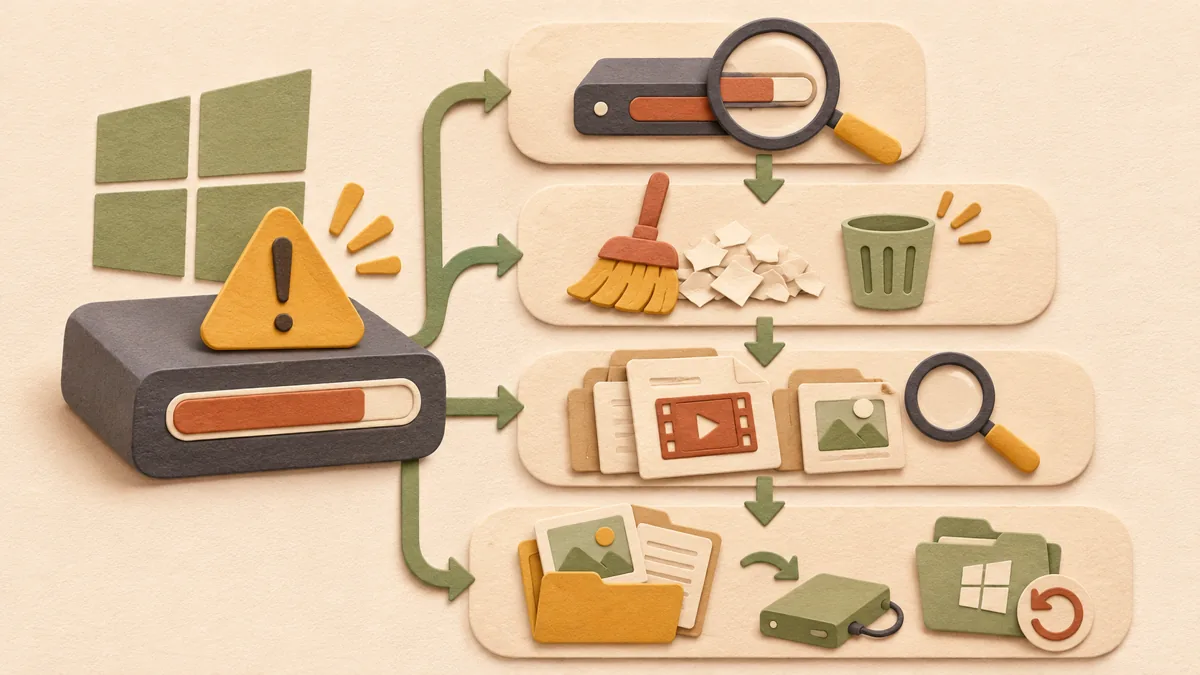
When Windows displays a “Low storage space” warning, it can be difficult to know what to delete first. Many people stop without doing anything because they are afraid of accidentally deleting photos or documents. Microsoft Support documents recommend trying several methods in order and checking again after each step to make sure there is enough free space. This article organizes that order into three stages: temporary files, large or unused files, and personal files.
1. Check the remaining space first
Before choosing what to delete, check the current free space on the drive. In File Explorer, select “This PC” to see the remaining space for each drive under “Devices and drives.” First check whether the drive showing the warning is the C drive. Even on the same PC, if a different drive is full, the items to clean up will be different.
2. Step 1: Check temporary files first
Microsoft documents instruct you to go to “Settings > System > Storage” and open “Cleanup recommendations.” This list includes categories such as temporary files, large or unused files, files synchronized to the cloud, and unused apps. For items Windows suggests, the description and estimated amount of space to be saved are shown together.
How to check: Review the checkboxes in the “Temporary files” category and click “Clean up.” This step does not involve selecting personal photos or documents. Check the available space again after cleanup. If it is not sufficient, move on to the next step.
In the same way, you can turn on Storage Sense to automatically clean up temporary files and Recycle Bin items. The document explains that Storage Sense frees drive space by cleaning up unnecessary items such as temporary files and Recycle Bin items. Because the automatic cleanup criteria can be changed in Settings, check that there are no files you want to keep in the Recycle Bin before turning it on.
3. Step 2: Review large or unused files
If temporary files are not enough, open the “Large or unused files” category on the same “Cleanup recommendations” screen. Check the file names and sizes, and choose unnecessary installation files or old compressed files. Confirming the file location once before deleting it can help prevent mistakes. For files on the desktop or in the Downloads folder, check especially whether they are originals or copies.
There is an important point to note. According to Microsoft documents, if you upgraded the Windows version within the last 10 days, the previous Windows installation may appear as a system file that can be deleted. These files include the Windows.old folder, and deleting them removes the ability to return to the previous version; this action cannot be undone. If there is even a slight possibility that you plan to roll back, leave this item in place.
4. Step 3: Decide about personal files based on their contents
Personal files such as photos, videos, and documents may also take up a lot of space. Microsoft documents instruct you to use File Explorer to check which files are using the most space. Then, the safe approach is to move files you need to an external storage device and delete only files you do not need.
Criteria for deciding: First check whether the same file already exists in the cloud or on an external storage device. If a copy is confirmed, deleting the local file will not lose the original. If there is no copy, move the file, open it to verify it, and then delete it.
5. What to check if it still does not work
The “Low storage space” error may continue to appear even after running Cleanup recommendations. Microsoft documents explain that in this case, the temporary folder may be filling quickly with Microsoft Store app files (.appx). They instruct you to run the Windows Store troubleshooter, clear the Store cache, and then run the Windows Update troubleshooter. Avoid directly deleting registry entries or system folders when you are not certain of the cause.
6. Summary of the cleanup order
- In This PC, check the drive showing the warning and its remaining space.
- Go to Settings > System > Storage > Cleanup recommendations and clean up temporary files first.
- Review large or unused files by name and size, and decide about the Windows.old item after considering your rollback plans.
- Check whether personal files have copies, then move them to an external storage device or delete them.
This article was organized based on Microsoft Support documents. It was not the result of testing on an actual PC, and menu names may differ depending on the Windows version and display language. Related articles: The order for checking the error code first when Windows updates fail ↗, The order for finding the processes causing a slow PC with Task Manager ↗
Source: Microsoft Support - Free up drive space in Windows ↗
Sources and original article
Read the Korean original on Naver ↗
This article reflects public information available when it was written. Specifications, prices and schedules can change; check the linked official documentation.
This English edition was written and translated with AI assistance, with sources provided. For errors or additional information, please request a correction. Editorial policy

 Windows