In this article 6 sections
- 1. Find the error code for the failed update
- 2. Check power, internet, and storage space first
- 3. Check the troubleshooter and service status
- 4. Apply one action at a time for the error code
- 5. Check again and restart
- Summary: troubleshooting order
When Windows Update fails during installation, checking the error code first is faster than trying again. This article organizes the troubleshooting order according to Microsoft support documentation and the causes associated with each error code. It was not tested directly on a specific PC, and menu names may vary by Windows version.
1. Find the error code for the failed update
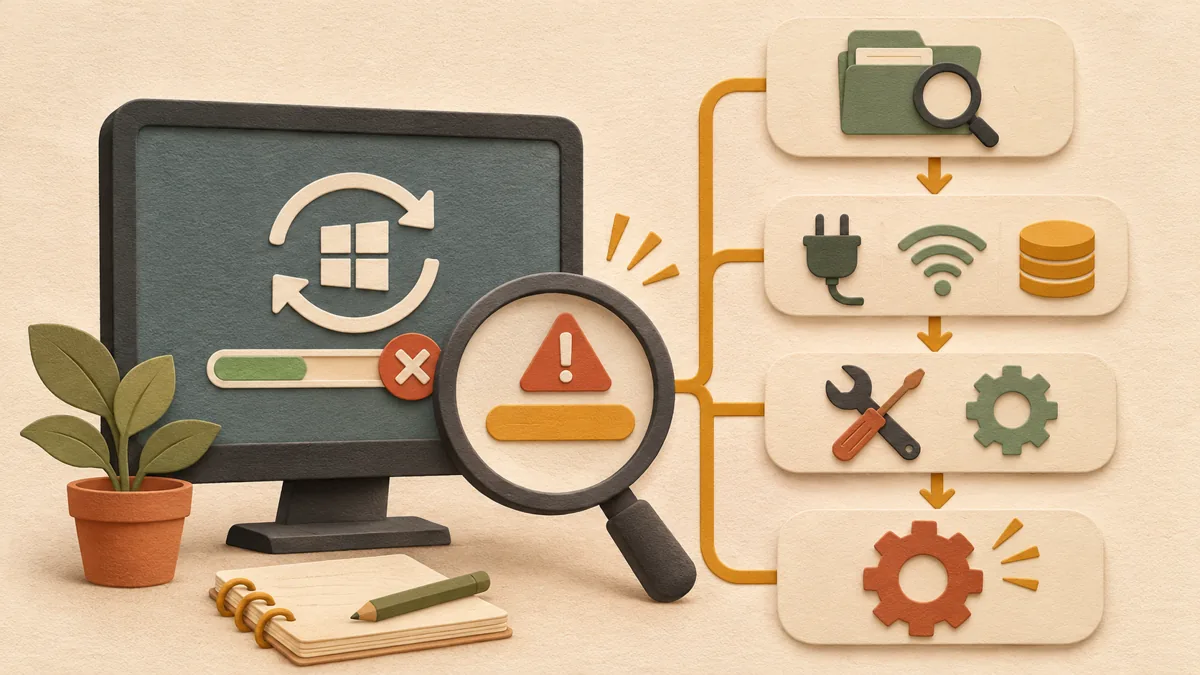
Open the Windows Update update history in Settings and find the item that was not installed. Make a note of the error code shown for that item. Microsoft support also explains that it is difficult to identify the cause from only a general failure message such as “We couldn't complete the updates. Undoing changes.”
2. Check power, internet, and storage space first
Check that the device is connected to power and the internet. Microsoft’s documentation advises disconnecting external storage devices, unnecessary USB devices, and docking devices before trying again. Check storage space as well. The documentation recommends at least 16 GB of free space for 32-bit OS upgrades and at least 20 GB for 64-bit OS upgrades. Error 0x800f0922 is attributed to insufficient space and a VPN, so free up space and turn off the VPN before trying again.
3. Check the troubleshooter and service status
Run Windows Update from Settings > System > Troubleshoot > Other troubleshooters. For error 0x80240034, the guidance also says to check whether the Windows Update service is running. You can check the status of the Windows Update service in services.msc.
4. Apply one action at a time for the error code
0x8007000d is a code that suggests corrupted update files or cache. The documentation advises stopping the service, deleting the files in C:\Windows\SoftwareDistribution, and restarting the service. Back up your personal files before deleting this folder. For 0x80070057 and 0x80080005, the guidance says to run sfc /scannow in an administrator Command Prompt. For 0xC1900101, suspect an incompatible driver; check the network or graphics adapter drivers in Device Manager and install the latest drivers from the manufacturer’s website. Removing a network driver may disconnect you from the internet, so prepare the installation files before removing it.
5. Check again and restart
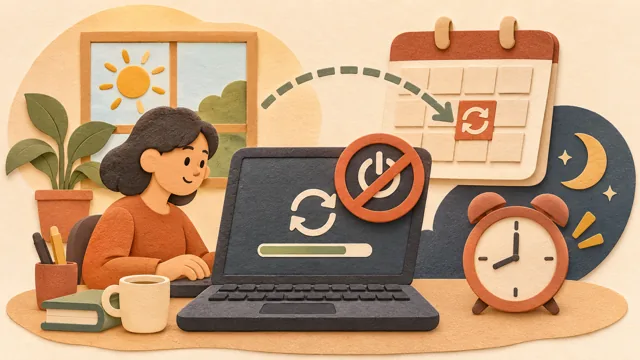
After taking the action, select Check for updates again in Settings > Windows Update and install any remaining items. Many updates require a restart to take effect, so save any unsaved work first, then select Update and restart from Start > Power.
Summary: troubleshooting order
The order is: check the error code, check power, internet, and storage space, run the troubleshooter, take one action appropriate for the code, and check again. If the same code keeps appearing, compare it with Microsoft support documentation. For ways to clean up disk space, see How to separate temporary files and personal files when Windows storage space is low ↗; for the process causing a PC to slow down after an update, see How to find the process causing a slow PC with Task Manager ↗.
Source: Troubleshoot problems updating Windows (Microsoft Support) ↗, main text checked on October 29, 2026, KST. The method for checking error codes was confirmed through the search summary for Get help with Windows upgrade and installation errors (Microsoft Support) ↗. Screen menu names may vary by Windows version.
Sources and original article
Read the Korean original on Naver ↗
This article reflects public information available when it was written. Specifications, prices and schedules can change; check the linked official documentation.
This English edition was written and translated with AI assistance, with sources provided. For errors or additional information, please request a correction. Editorial policy