At a glanceAfter installing a Windows update, you may need to restart your PC to finish. This article explains how to defer restarts with Active hours and how to choose a specific time with Schedule the restart, based on Microsoft Support.
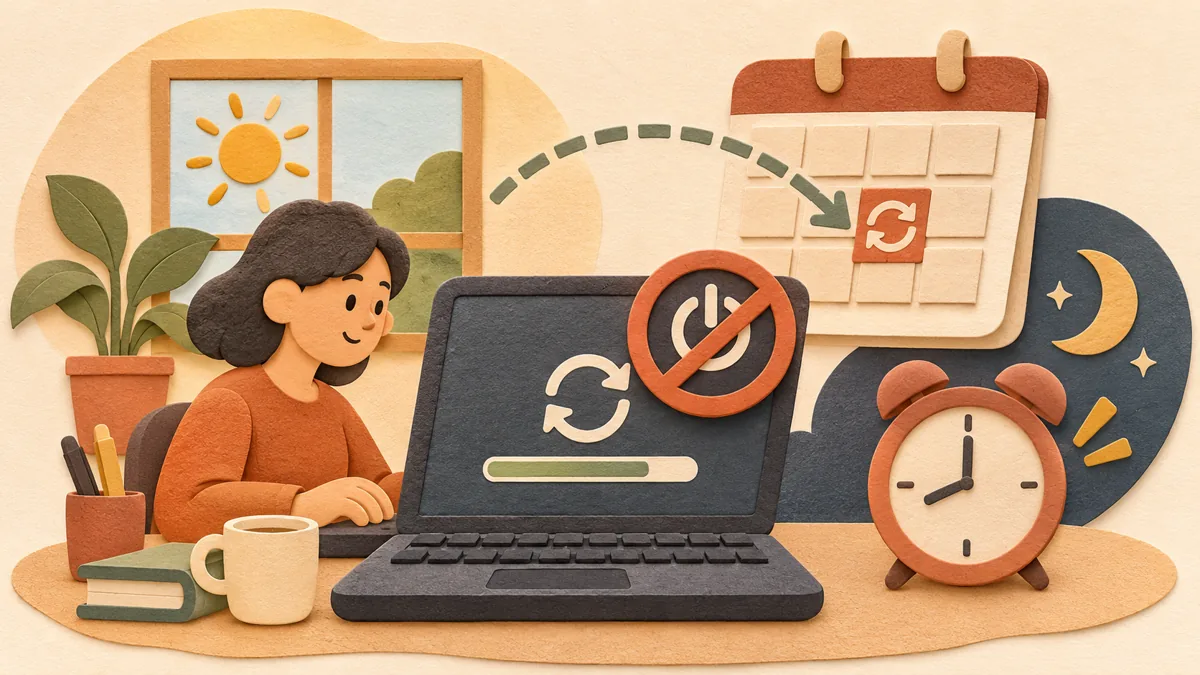
AI-generated editorial illustration; not a product screenshot.
After installing a Windows update, you may need to restart your PC to finish. If a restart occurs while you are working, unsaved content could be lost. Based on Microsoft Support pages, this article explains how to use “Active hours” to defer restarts outside your usage hours and distinguishes this from “Schedule the restart,” which lets you choose a specific time.
1. Active hours and restart scheduling are different features
The Microsoft Support page explains that when you need to restart your PC to finish an update, setting active hours can reduce the chance of a restart occurring while you are using it. Active hours set a rule that means “do not restart during this time.” By contrast, restart scheduling lets you choose the date and time yourself. Which one to use depends on whether your work hours are consistent or you want to avoid restarts only on specific days.
2. How to set active hours
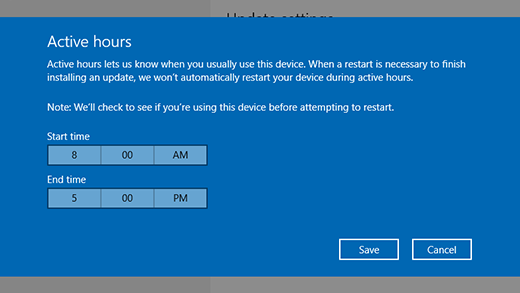
In Windows 11, open Start > Settings > Windows Update > Advanced options. Select Active hours, then choose automatic or manual from the “Adjust active hours” list. If you choose automatic, Windows determines the time range based on the device’s usage history. If you choose manual, enter the start and end times yourself and save them. Menu names may vary slightly depending on the Windows version.
3. Choose a specific time with restart scheduling
The Microsoft Support FAQ explains that Windows tries to restart when you are not using the device and, if that is not possible, asks you to schedule a restart at a more convenient time. To choose one yourself, select “Schedule the restart” under Start > Settings > Windows Update, then choose a convenient time. If you have documents open before scheduling, it is safest to save them first.
4. Example: a PC used from 9 a.m. to 6 p.m.
This is a hypothetical example. Suppose you use your PC from 9 a.m. to 6 p.m. on weekdays and set active hours to 09:00–18:00. You can then expect the restart to be deferred until outside those hours. However, this is only a schedule example; the actual restart time depends on the type of update and the device’s condition. If a device must avoid restarting during work, it is better to save important work and also set a restart schedule.
5. What to check after setup
First, keep a laptop connected to its charger. The Microsoft FAQ advises that sufficient power is required to finish installing updates outside active hours. Second, check Settings > Windows Update > Update history to see which updates were installed and when. Third, if you want to defer installation temporarily, you can use “Pause updates,” but according to the FAQ, you must install the latest updates before you can use the pause count again, so it is not a permanent blocking method.
6. How to choose based on the situation
If your work hours are fairly consistent, use manual active hours. If your usage hours change frequently, enable automatic adjustment. If you need to defer a restart immediately, use pause; if you want to set a restart time, use restart scheduling. If an update does not install and an error appears, first check What to check first: error codes when Windows Update fails ↗. For laptop sleep behavior, see How to choose between laptop sleep and hibernation ↗ as well.
Microsoft Windows 10 example: active hours run from 8 AM to 5 PM. Windows 11 uses a different Settings layout; follow the steps above for your version. Source: Microsoft Support. Used with permission from Microsoft. Reuse terms.
This article reflects public information available when it was written. Specifications, prices and schedules can change; check the linked official documentation.
This English edition was written and translated with AI assistance, with sources provided. For errors or additional information, please request a correction. Editorial policy
Found this useful? Share it, or follow for new guides.
If a document cannot be removed from the print queue, all documents sent afterward will also stop. Check the queue before turning off the printer. The steps below follow Microsoft Support's procedures, starting with the least disruptive method.
If your internet plan charges by data usage, enabling Windows Metered connection can reduce data used by apps and system services. Check the changes first, as some features may work differently.
If graphics, sound, Bluetooth, or a printer starts acting up after a Windows update or new driver installation, review driver rollback first. This article explains the Device Manager rollback steps and what to check when the button is unavailable.