In this article 6 sections
- 1. Open the print queue and cancel the stuck document
- 2. Restart the Print Spooler service
- 3. Empty the spool folder only as a last resort
- 4. Restart the printer and PC together
- Checklist
- References
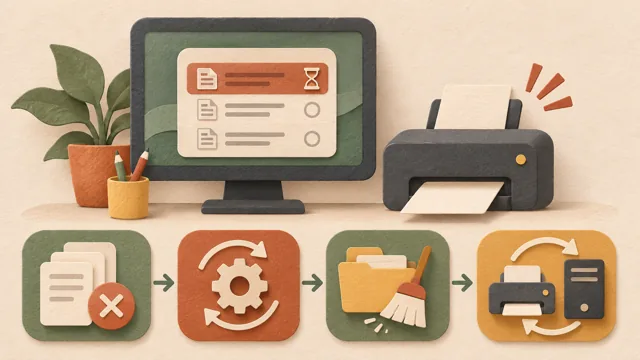
If a document cannot be removed from the print queue, all documents sent afterward will also stop. Check the queue before turning off the printer. The steps below follow Microsoft Support's procedures, starting with the least disruptive method.
1. Open the print queue and cancel the stuck document
Go to Settings > Bluetooth & devices > Printers & scanners, select the printer, and click Open print queue. If a stuck document appears in the list, right-click it and cancel it. If there are no pending documents, the list will be empty.
2. Restart the Print Spooler service
If the document remains after you cancel it, press Windows key + R and enter services.msc. Find Print Spooler in the list, right-click it, and select Restart. Because the spooler processes print jobs, temporary recognition problems are often resolved here.
3. Empty the spool folder only as a last resort
Use this method only when steps 1 and 2 do not solve the problem. Stop Print Spooler, delete the files inside C:\Windows\System32\spool\PRINTERS, and then restart the spooler. Before deleting the files, make sure no other print job is in progress. This folder is a temporary space managed by Windows, so do not move or create other files there.
4. Restart the printer and PC together
Turn off the printer, wait at least 60 seconds, and turn it back on. Then restart the PC by selecting Start > Power > Restart, and try printing one short document. If the problem began after a recent driver update, also see Windows driver rollback steps ↗.
Checklist
① Open the printer queue ② Cancel the stuck document ③ Restart Print Spooler ④ Empty the spool folder only as a last resort ⑤ Turn off the printer for 60 seconds, then restart the PC ⑥ Try printing again with a short document. If the connection itself has been lost, it is better to check the cable and device connections separately first, as described in What to check when an external monitor is not detected ↗.
References
We checked Microsoft Support: Fix print job stuck in queue errors in Windows ↗ and Microsoft Support: View a printer's print queue in Windows ↗ as of November 8, 2026, Korea Standard Time. Menu names may vary depending on the Windows version and Settings screen, and this article is not based on personal testing results.
Sources and original article
Read the Korean original on Naver ↗
This article reflects public information available when it was written. Specifications, prices and schedules can change; check the linked official documentation.
This English edition was written and translated with AI assistance, with sources provided. For errors or additional information, please request a correction. Editorial policy

 Windows