In this article 5 sections
- 1. First check whether rollback is appropriate
- 2. How to roll back in Device Manager
- 3. What to check when the Roll Back Driver button cannot be clicked
- 4. Checklist for before and after rollback
- 5. When the problem continues after rollback
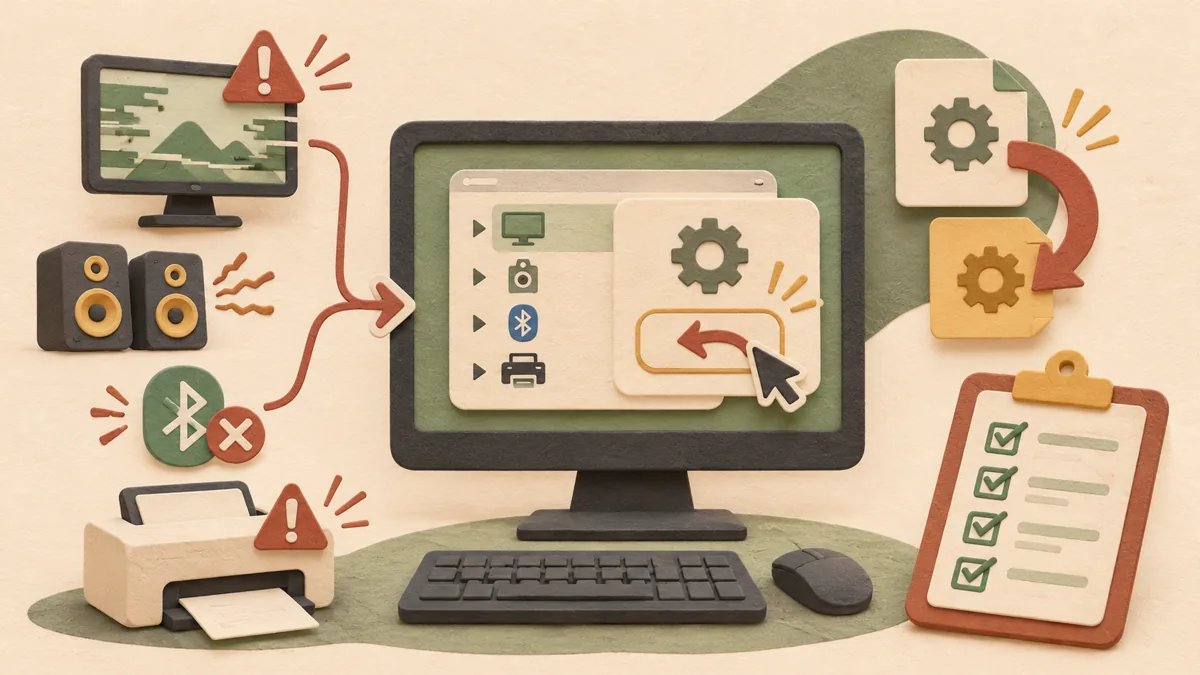
If graphics, sound, Bluetooth, or a printer suddenly starts acting up after a Windows update or new driver installation, you can first consider driver rollback (Roll Back Driver). Rollback is a feature that reverts a device driver to an earlier version. Based on Microsoft support documentation, this article organizes the steps for rolling back in Device Manager and what to check when the button is not visible.
1. First check whether rollback is appropriate
Think back to when the problem started. Microsoft’s documentation says that if the problem began after a Windows update, reinstalling the previous driver often helps. Conversely, if the cause is a cable, app settings, or a hardware failure, driver rollback may not solve it.
2. How to roll back in Device Manager
- Right-click the Start menu and open Device Manager.
- Expand the category for the affected device. For a graphics problem, open Display adapters; for a printer problem, open Printers.
- If multiple devices appear in the same category, select the device experiencing the problem. Right-click it and select Properties.
- Open the Driver tab and select Roll Back Driver.
- Select a reason for the rollback and click Yes. If you are asked to restart, restart the computer.
3. What to check when the Roll Back Driver button cannot be clicked
Microsoft’s documentation states that you must be signed in with administrator privileges to roll back a driver. If you are using a standard user account, sign in again with an administrator account and repeat the same steps. If the button still does not appear after checking permissions, this document alone cannot identify the cause, so the next step is to check whether the manufacturer provides an earlier driver on its support page.
4. Checklist for before and after rollback
- Before rolling back, note the driver version and date shown on the Driver tab. You will need them for comparison later on the manufacturer’s website.
- Save important work files before rolling back, and check whether you have a restore point or backup.
- After rolling back, try the function that caused the problem once. Examples include playing sound, changing the screen resolution, and printing a printer test page.
- Monitor the situation for several days to see whether the same driver is automatically installed again and the problem returns.
5. When the problem continues after rollback
Microsoft’s documentation also explains how to reinstall a driver. In Device Manager, remove the device by selecting Uninstall device, then restart the computer; Windows will attempt to reinstall the driver. If it still is not the right driver, you can download and manually install a driver matching the device model and Windows version from the manufacturer’s website.
Related articles: What to check first when a Windows update fails: Start with the error code ↗, How to find the process causing a slow PC with Task Manager: Reading 3 tabs ↗
Source: Microsoft Support - Update drivers through Device Manager in Windows ↗
Sources and original article
Read the Korean original on Naver ↗
This article reflects public information available when it was written. Specifications, prices and schedules can change; check the linked official documentation.
This English edition was written and translated with AI assistance, with sources provided. For errors or additional information, please request a correction. Editorial policy

 Windows