How to create a Windows recovery drive: Preparing a blank USB and backing up personal files
Create a Recovery Drive in advance for serious Windows problems, using a blank USB for system files and updates while backing up personal files separately.
 Seongwoo Choi · 3 min read
At a glanceWhen Windows shows a “USB device not recognized” alert, check the Device Manager error code and follow the official procedure for that code, starting with low-cost checks such as trying another port.
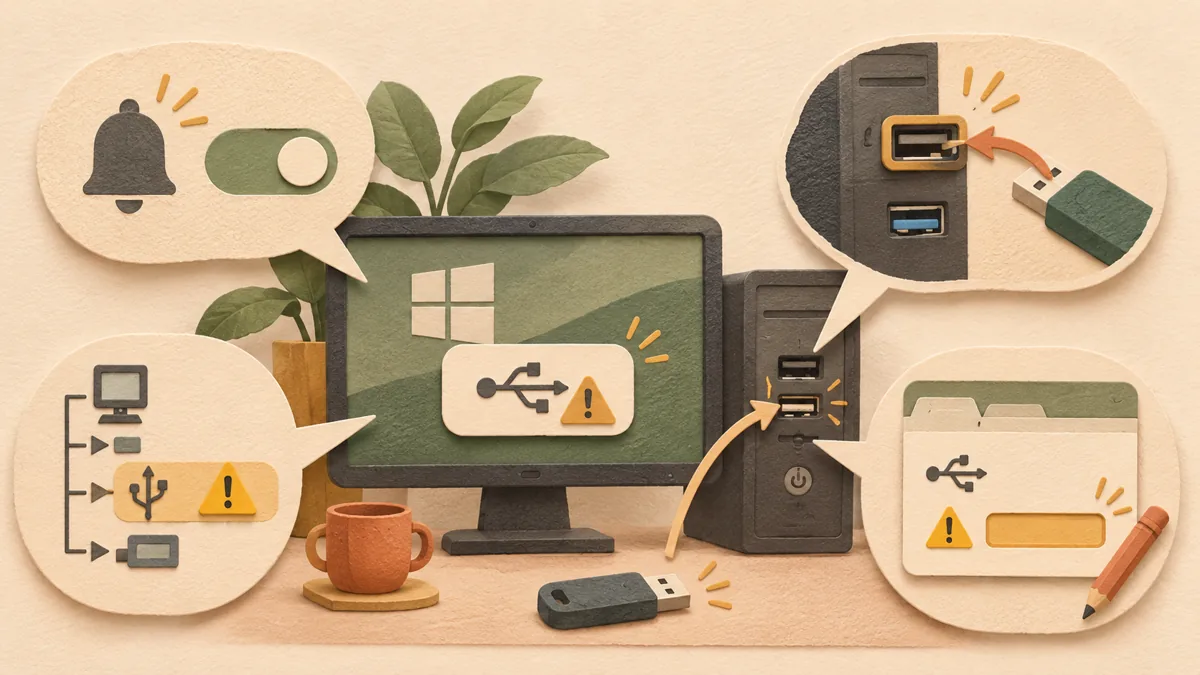
When you connect a USB device and Windows displays a “USB device not recognized” alert, it is easy to first assume that the cable or device is defective. However, Microsoft’s official documentation instructs users to check the error code in Device Manager and follow the procedure for that code. This article organizes the checks in order, starting with those that cost the least, based on the official documentation. These steps have not been tested on an actual PC, and the wording shown on screen may vary by Windows version.
Enter usb in the search box and open USB settings. Here, you can turn connection notifications on or off. Turning off notifications only hides the notifications; it does not fix device problems. Therefore, it is best to complete the checks below before turning off notifications.
In its USB troubleshooting section, Microsoft’s documentation separately presents using another USB port and the possibility that the device may require more power. If you connected through a hub or docking station, plug the device directly into a port on the PC itself for comparison. If the result is the same after trying the connection once, the likelihood of a port problem decreases.
Enter device manager in Windows Search and open Device Manager. According to Microsoft Learn, when there is a problem with a device that is not required for booting, a yellow exclamation mark appears next to the device name, along with an error message. Some devices may be hidden from the list by default, so if the device does not appear, you should also check how to display hidden devices.
Right-click the device with the yellow exclamation mark and open Properties. Make a note of the error code shown under Device status. Microsoft Support documentation explains that you should follow the Device Manager error code guidance corresponding to that error code. However, code 28, which indicates that the drivers have not been installed, is excluded from the scope of this guidance.
Because the cause differs for each error code, it is best not to apply several remedies at once. Read the description for the relevant code in the official error code guidance, carry out the listed actions one at a time, and then reconnect the USB device to check the result. If the device started behaving abnormally immediately after an update, you can also refer to Windows driver rollback steps: Reverting when a device behaves abnormally after an update .
Keeping a note of the port used, device type, error code, and date of the most recent update will make it easier to explain the problem when contacting the manufacturer or Microsoft Support. If other Windows problems appear as well, also refer to Checking Windows system files: When to use sfc /scannow and DISM .
The order is to check the notification setting, connect to another port, look for a yellow exclamation mark in Device Manager, record the error code in Properties, and run the official procedure for that code. Checking the error code before replacing the cable can reduce unnecessary replacements.
Sources: Fix USB-C problems in Windows - Microsoft Support , Using Device Manager - Microsoft Learn . The two documents were checked on November 1, 2026 KST.
Read the Korean original on Naver
This article reflects public information available when it was written. Specifications, prices and schedules can change; check the linked official documentation.
This English edition was written and translated with AI assistance, with sources provided. For errors or additional information, please request a correction. Editorial policy
Found this useful? Share it, or follow for new guides.
Create a Recovery Drive in advance for serious Windows problems, using a blank USB for system files and updates while backing up personal files separately.
 Windows
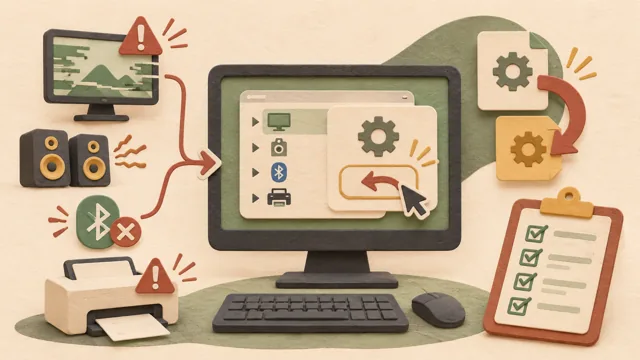
If graphics, sound, Bluetooth, or a printer starts acting up after a Windows update or new driver installation, review driver rollback first. This article explains the Device Manager rollback steps and what to check when the button is unavailable.
 Windows
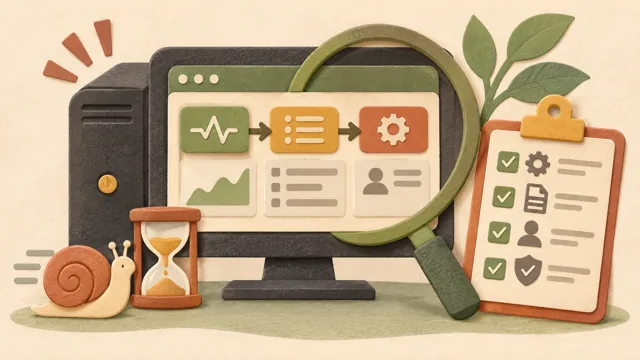
When a PC suddenly slows down, open Task Manager first. This article explains how to narrow down likely causes by reading the Performance, Processes, and Details tabs in order, following Microsoft’s official documentation rather than testing on a specific PC.