In this article 5 sections
- 1. Check first whether your connection has a data plan
- 2. Find the setting for each connection type
- 3. Check which features change when it is enabled
- 4. When the setting is locked and grayed out
- 5. Checklist after enabling it
If your internet plan charges by data usage, you can enable the Metered connection setting in Windows to reduce data used by apps and system services. However, some features may work differently when it is enabled, so it is best to check what changes first. This article summarizes only the setting locations and effects based on official Microsoft support documentation.
1. Check first whether your connection has a data plan
If you use unlimited Wi-Fi at home, you often do not need to switch it to metered. It is worth reviewing the setting if you connect your PC to a mobile connection with a data limit, such as phone tethering or a mobile data connection. Microsoft explains that Wi-Fi connections are non-metered by default, while cellular data connections are metered by default.
2. Find the setting for each connection type
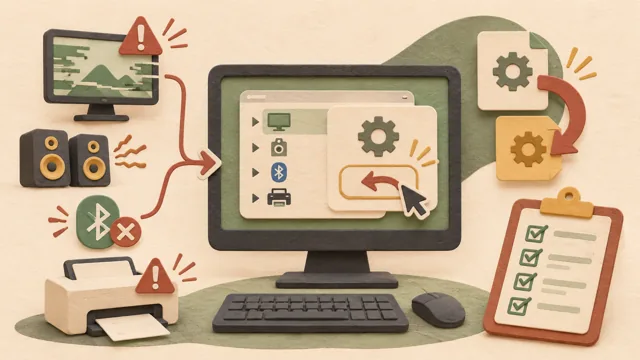
(1) Wi-Fi: Go to Settings > Network & internet > Wi-Fi, select the Wi-Fi network you are currently connected to, and turn on Metered connection. (2) Ethernet: Go to Settings > Network & internet > Ethernet, select the connected network, and turn on the same option. (3) Cellular: Go to Settings > Network & internet > Cellular and turn on Metered connection. Menu names may vary slightly depending on the Windows version and language settings, so check the names shown on your screen.
3. Check which features change when it is enabled
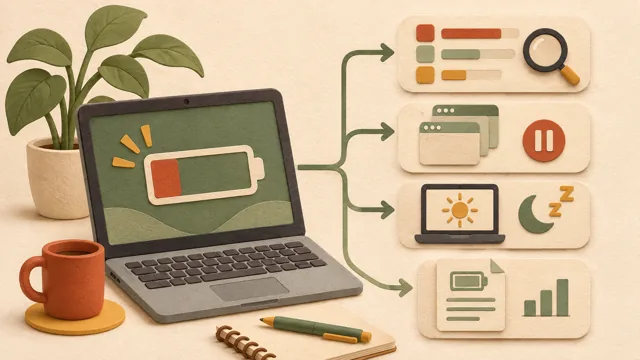
According to Microsoft documentation, with a metered connection, Windows Update may download only priority updates, app downloads from the Microsoft Store may be paused, and offline files may not sync automatically. Some Windows updates may not be installed automatically, so after enabling the setting, occasionally check the Windows Update screen for pending updates. For how to adjust restart times, see How to postpone Windows Update restarts until outside active hours ↗.
4. When the setting is locked and grayed out
If the metered setting appears grayed out and cannot be changed, a management policy from your company or school may have locked it. In that case, check with your IT administrator. Microsoft advises that if a data limit is set on a personal PC, you can select the connection and remove the limit under Settings > Network & internet > Advanced network settings > Data usage.
5. Checklist after enabling it
1) Does the connection you changed to metered match the network you actually use? 2) Is an unlimited plan being left as metered unnecessarily? 3) If you set a data limit, do you know when the limit takes effect? 4) Have you checked the Windows Update screen for pending security updates? Even with an unlimited plan, a connection with a limit may incur charges after the limit is exceeded, so check the billing criteria in your carrier’s terms and bill. Related articles: What to check when Wi-Fi is connected but there is no internet ↗, What to check first when Windows Update fails: the error code ↗
Source: Microsoft Support, 'Metered connections in Windows' (support.microsoft.com/en-us/windows/experience/connectivity-networking/metered-connections-in-windows), checked on 2026-11-09 KST.
Sources and original article
Read the Korean original on Naver ↗
This article reflects public information available when it was written. Specifications, prices and schedules can change; check the linked official documentation.
This English edition was written and translated with AI assistance, with sources provided. For errors or additional information, please request a correction. Editorial policy

 Windows