 Windows
What to Check When Wi-Fi Is Connected but the Internet Does Not Work
If the Wi-Fi icon says connected but web pages do not open, check where the path to the internet is broken, in order from the PC to the router and connection.
 Seongwoo Choi · 4 min read
At a glanceIf Wi-Fi shows as connected but webpages do not open, narrow the cause by checking the PC, router, and ISP in that order instead of changing several settings at once.
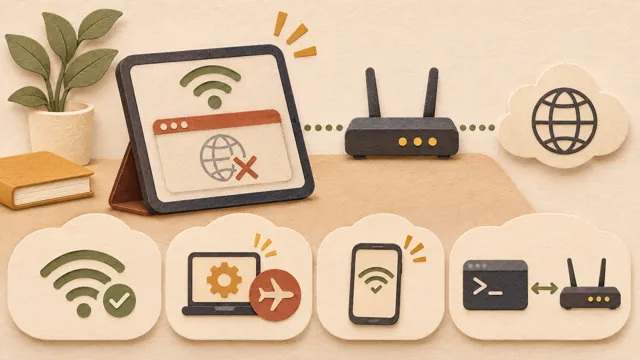
It can be unsettling when the Wi-Fi icon says Connected but webpages do not open. In this case, the connection between the PC and router is still active, but something may be blocking the path to the internet. Rather than changing several settings at once, it is usually faster to narrow down the cause by checking the PC, router, and ISP in that order. This article is organized around the Wi-Fi troubleshooting steps in Microsoft's official support documentation. It is not based on results reproduced on an actual PC.
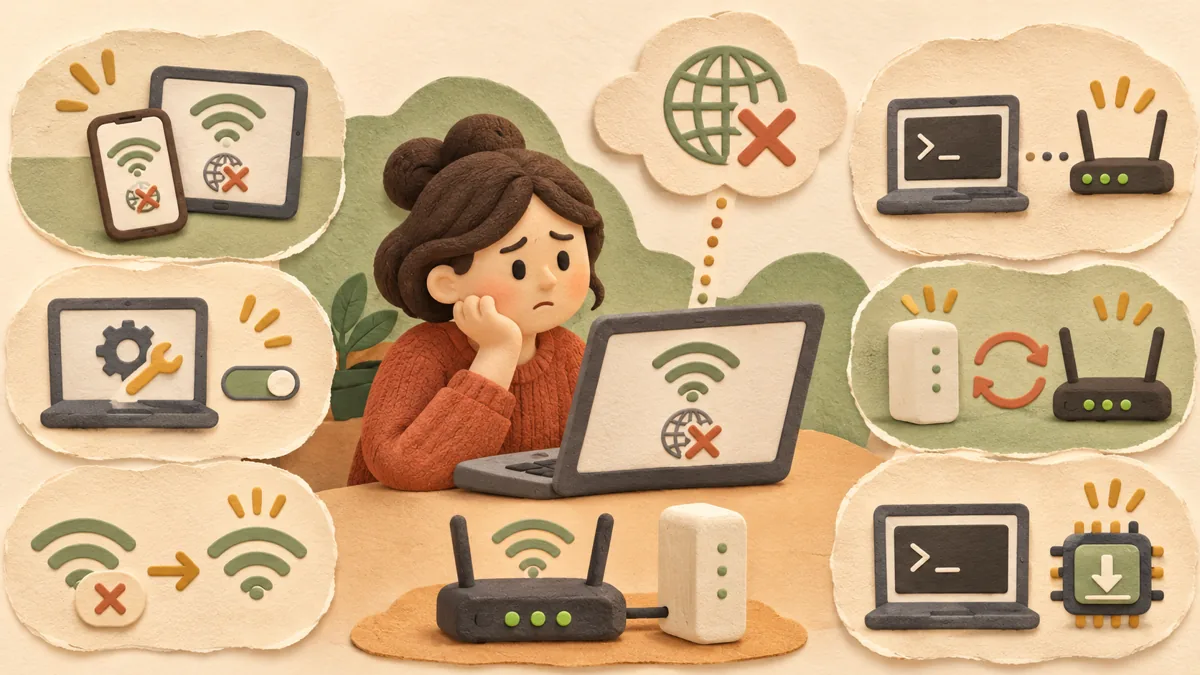
Connect a smartphone or another laptop to the same Wi-Fi. If the other device also cannot access the internet, the problem is likely with the router or ISP. If the other device works but this PC does not, suspect the PC's settings or network driver. Microsoft also advises that connecting another device to the same network can help narrow down where the problem is.
In Windows 11, first run the Network and Internet troubleshooter in the Get Help app. Microsoft explains that this tool can automatically diagnose and fix various problems. Also check that Airplane mode is turned off under Settings > Network & internet > Airplane mode.
Go to Settings > Network & internet > Wi-Fi > Manage known networks, select the network, and click Forget. You will need to enter the password when reconnecting, so check the password in advance. After the connection is restored, check whether webpages open.
In an administrator Command Prompt, run ipconfig and note the Default gateway address under the current Wi-Fi entry. Send a ping command to that address. If you receive a response, the PC and router are connected, so check the modem or ISP segment. If there is no response, you can try connecting the PC directly to the modem with an Ethernet cable. However, some routers may block ping responses, so do not conclude that the router is faulty based only on the lack of a response.
Unplug the router's power cord, turn off the modem as well, and wait about 30 seconds. Turn on the modem first and wait until its status lights stabilize, then turn on the router. After that, reconnect from the PC. Be aware that restarting will temporarily disconnect all devices using the same Wi-Fi.
In an administrator Command Prompt, you can run netsh winsock reset, netsh int ip reset, ipconfig /release, ipconfig /renew, and ipconfig /flushdns in the order specified in Microsoft's support documentation. After running them, check the settings of any security or VPN programs if they are needed again. If the problem persists, remove the network adapter in Device Manager and restart the PC. Before removing it, download the driver in advance from the PC manufacturer's website.
Use Settings > Network & internet > Advanced network settings > Network reset only as the final step. Microsoft explains that this feature removes and then reinstalls network adapters and returns network settings to their defaults. Saved Wi-Fi settings may be deleted, so confirm the password before running it.
① If other devices also cannot connect, first check for a router or ISP outage. ② If only this PC is affected, forget the known network and reconnect. ③ If the gateway ping receives a response, check the modem and ISP; if there is no response, check a direct cable connection and the driver. ④ If the problem remains, proceed in the order of commands, driver, and network reset. An ISP outage cannot be fixed from the PC, so check outage notices through the ISP's customer service center or from another device.
If the internet works but only a specific app is blocked, the problem may be a firewall setting rather than Wi-Fi. In that case, it may also help to see Steps to check allowed settings when an app is blocked by Windows Firewall .
Microsoft Support: Fix Wi-Fi connection issues in Windows
Read the Korean original on Naver
This article reflects public information available when it was written. Specifications, prices and schedules can change; check the linked official documentation.
This English edition was written and translated with AI assistance, with sources provided. For errors or additional information, please request a correction. Editorial policy
Found this useful? Share it, or follow for new guides.
WindowsIf the Wi-Fi icon says connected but web pages do not open, check where the path to the internet is broken, in order from the PC to the router and connection.
If you forget a Wi-Fi password, the quickest method is to view it on a Windows PC already connected to that network by selecting Show next to the Wi-Fi network password in Network & internet settings.
 Windows
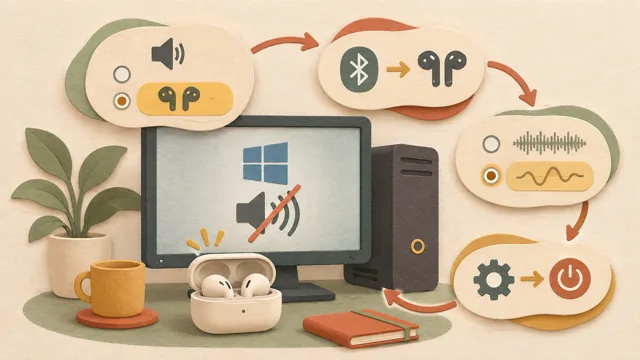
If Bluetooth earbuds are connected to a PC but produce no sound, check the output device, connection status, audio format, and drivers before concluding that the earbuds are defective.