 Windows
Wi-Fi connected but no internet? Check these three places
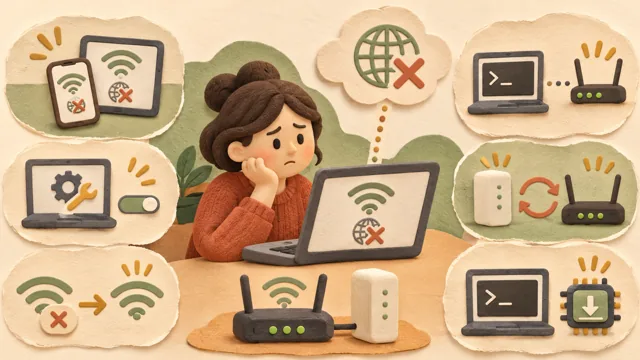
If Wi-Fi shows as connected but webpages do not open, narrow the cause by checking the PC, router, and ISP in that order instead of changing several settings at once.
 Seongwoo Choi · 2 min read
At a glanceIf you forget a Wi-Fi password, the quickest method is to view it on a Windows PC already connected to that network by selecting Show next to the Wi-Fi network password in Network & internet settings.
If you forget a Wi-Fi password, the quickest method is to view it again on a Windows PC already connected to that Wi-Fi network. In short, select Show next to the Wi-Fi network password in the Network & internet settings menu. The steps below are based on Microsoft’s official support documentation.
This method can be used only on a Windows PC that has connected to that Wi-Fi network at least once. A device that has never connected will not have a value to display, so first check the router’s administration screen or the label on the back of the device. If the PC is managed by a company or school account, some menus may be restricted.
Open the Settings app and select Network & internet. Menu names may vary slightly depending on the Windows version and language, so look for the name displayed on your screen.
In Network & internet, select Properties, then select Show next to the Wi-Fi network password. The password will appear on the screen, so first check whether anyone nearby can see it, write down the necessary value, and then close the screen.
For a network you are not currently connected to, open Manage known networks from the Wi-Fi menu. Select the network from the list, then select Show in the same Wi-Fi network password section. If it is not listed, it was not saved on that PC, so you will need to find another method.
① Find a Windows PC that has connected to that Wi-Fi network ② Open Settings > Network & internet ③ Show the Wi-Fi network password in Properties ④ For another network, select it in Manage known networks ⑤ Check your surroundings and close the screen
If you copy the password, it may remain in your clipboard history. For how to manage the history, see How to turn Windows clipboard history on and clear it: Steps to prevent copied passwords from remaining . If you are connected but cannot access the internet, Wi-Fi internet troubleshooting steps , which divides the possible causes among the PC, router, and telecommunications provider, may be more appropriate.
The Microsoft Support: Connect to a Wi-Fi network in Windows document was checked as of November 8, 2026, Korea Standard Time. Menu names may vary depending on the Windows version and language.
Read the Korean original on Naver
This article reflects public information available when it was written. Specifications, prices and schedules can change; check the linked official documentation.
This English edition was written and translated with AI assistance, with sources provided. For errors or additional information, please request a correction. Editorial policy
Found this useful? Share it, or follow for new guides.
WindowsIf Wi-Fi shows as connected but webpages do not open, narrow the cause by checking the PC, router, and ISP in that order instead of changing several settings at once.
 Windows
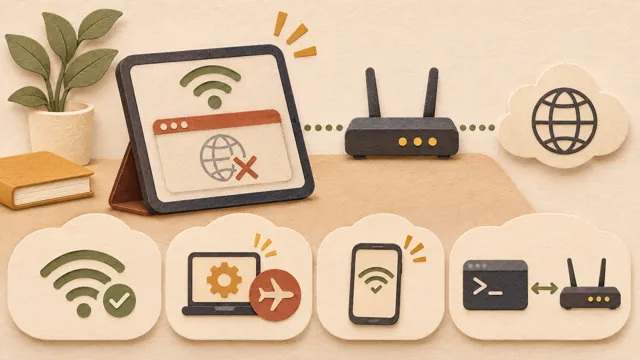
If the Wi-Fi icon says connected but web pages do not open, check where the path to the internet is broken, in order from the PC to the router and connection.
 Windows
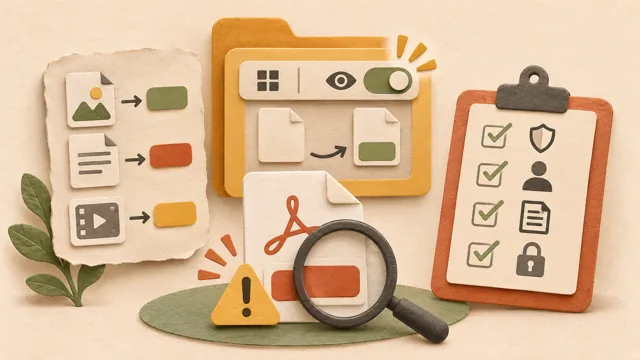
Learn how to show file extensions in Windows and check double-extension files such as name.pdf.exe before opening them, based on Microsoft’s official support documentation.