AI · Software · Technology
How to Show Windows File Extensions and Identify Double-Extension Files
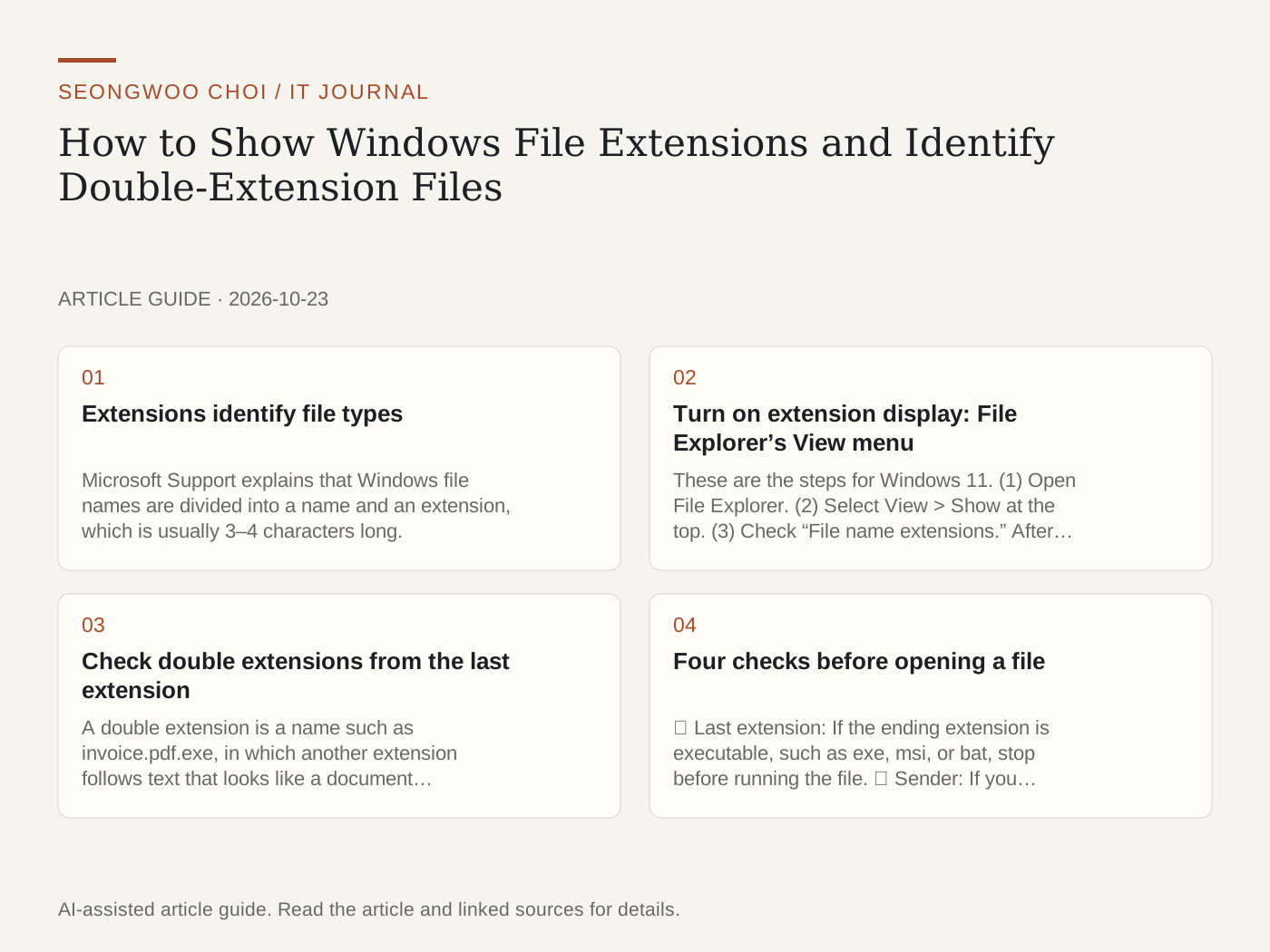
Even when a file name appears as report.pdf, its actual file type may be different. This difference is easy to miss when extensions are hidden in Windows. Based on official Microsoft Support documentation, this article explains how to show extensions and what to check before opening double-extension files (for example, name.pdf.exe). It does not include exercises for creating or actually running malicious files.
1. Extensions identify file types
Microsoft Support explains that Windows file names are divided into a name and an extension, which is usually 3–4 characters long. For example, the extension in expenses.xlsx is xlsx. An extension indicates which app can open a file and which icon will be displayed. Changing only the extension name changes only the file name; it does not convert the contents to another format.
2. Turn on extension display: File Explorer’s View menu
These are the steps for Windows 11. (1) Open File Explorer. (2) Select View > Show at the top. (3) Check “File name extensions.” After checking it, confirm that extensions such as .docx and .pdf appear in the folder.
If you use Windows 10 or Folder Options, go to View > Options > Folder and search options, open the View tab, and clear “Hide extensions for known file types.” Menu names may vary by version and language. The sources are listed below.
3. Check double extensions from the last extension
A double extension is a name such as invoice.pdf.exe, in which another extension follows text that looks like a document extension. When Windows determines which app to associate with a file, it usually uses the last extension at the end of the name. Therefore, do not assume a file is a document just because you see .pdf earlier in the name. After turning on extensions, read the extension at the end first.
Among the executable extensions listed in Microsoft’s table, pay particular attention to exe (executable file), msi (Microsoft Installer file), and bat (batch file). Their presence in the list does not always mean a file is dangerous; treat it as a signal to verify the source.
4. Four checks before opening a file
① Last extension: If the ending extension is executable, such as exe, msi, or bat, stop before running the file. ② Sender: If you received it by email or messenger, confirm through another channel that the sender actually sent this file. ③ Request: If you did not request an invoice, document, or photo, check again whether the description and file type match. ④ Properties: Right-click the file and check its file type and location in Properties. This information can be viewed without running the file.
If even one of these four points is uncertain, do not run the file. The safest approach is to ask the sender what the original format was.
5. Do not try to fix the issue by renaming the extension
Even if you rename invoice.pdf.exe to invoice.pdf, the executable file does not become a document. Only the name changes; the contents of the file remain the same. Therefore, a renamed file cannot be used as evidence of its format. If you are unsure of the format, verify the source and original format first instead of changing the name.
Summary
Turn on extension display, read the last extension, and check the sender and the request. If these three points do not match, the safest choice is not to open the file. Before organizing files, see How to separate temporary files and personal files when Windows storage space is low .
Sources: Microsoft Support “Common file name extensions in Windows” , Microsoft Support “File Explorer in Windows” (checked October 23, 2026).
Sources and original article
- support.microsoft.com/en-us/windows/experience/storage-filemanagement/common-file-name-extensions-in-windows
- support.microsoft.com/en-us/windows/experience/fileexplorer/file-explorer-in-windows
Read the Korean original on Naver
This article reflects public information available when it was written. Specifications, prices and schedules can change; check the linked official documentation.
This English edition was written and translated with AI assistance, with sources provided. For errors or additional information, please request a correction. Editorial policy