In this article 5 sections
- 1. Check the recent files area on File Explorer Home
- 2. Turn on the recent items switch in Settings
- 3. Check the privacy setting in File Explorer Options
- 4. What to check after making changes
- 5. What to check before clearing the history
If recent files do not appear on File Explorer’s Home screen, changing only File Explorer Options may not resolve the issue. In short, first check whether the recent items switch is turned off in Windows Settings, then review File Explorer Options; this order makes it easier to distinguish the cause. The steps below are based on Microsoft’s official help and Microsoft Q&A answers.
1. Check the recent files area on File Explorer Home
Open File Explorer and select Home. Microsoft’s official help explains that, starting with Windows 11 22H2, default folders such as Desktop, Documents, and Downloads are pinned to Quick access and appear on Home and in the left navigation pane. If the recent files area is completely missing, check steps 2 and 3 below in order.
2. Turn on the recent items switch in Settings
Open Settings and go to Personalization > Start. In English Windows, the setting appears as 'Show recommended files in Start, recent files in Explorer, and items in Jump Lists.' The wording may differ in Korean Windows, so look for a switch containing 'recent' and 'File Explorer.' Several Microsoft Q&A answers state that if this switch is turned off, recent files are not retained even when the option is checked in File Explorer Options.
3. Check the privacy setting in File Explorer Options
Open Options from the More (...) menu at the top of File Explorer. Under Privacy on the General tab, check whether 'Show recently used files' is selected. If you changed the setting, click Apply and OK. The names of the menus in the Options window may vary slightly depending on the Windows version.
4. What to check after making changes
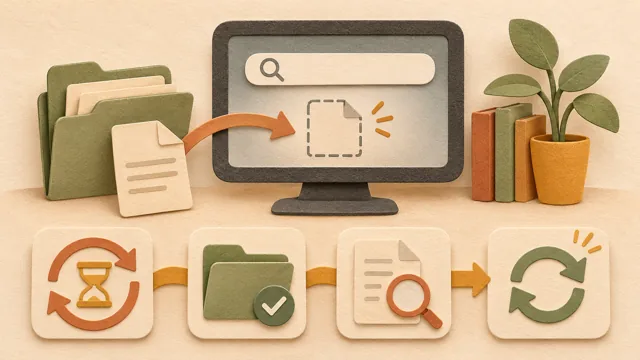
First, close File Explorer completely and open it again. If recent files appear on Home, the settings check is complete. If they do not appear, restart the PC and check Home once more. If there is still no change after the second check, record the Windows update status and any settings changed recently, then review the issue based on that information; this makes it easier to narrow down the cause.
5. What to check before clearing the history
The same Privacy section includes a button for clearing the history. Clearing the history only empties the recent files list; it does not delete the actual files. If you use a shared PC, clearing the list may also be useful. However, the menu location may differ depending on the Windows version, so check what setting you are changing before clearing it.
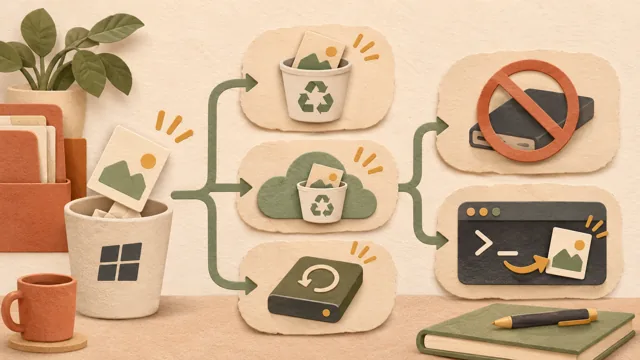
Related articles include A checklist for confirming page order before combining multiple PDFs ↗ and The steps for recovering deleted files in Windows ↗. If you cannot find a file, checking the Recycle Bin and search first is faster than reviewing list settings.
Sources: Microsoft Support: File Explorer in Windows ↗, Microsoft Q&A: Show Recent Files no longer works ↗
Sources and original article
Read the Korean original on Naver ↗
This article reflects public information available when it was written. Specifications, prices and schedules can change; check the linked official documentation.
This English edition was written and translated with AI assistance, with sources provided. For errors or additional information, please request a correction. Editorial policy

 Windows