AI · Software · Technology
Checklist for confirming page order before merging multiple PDFs
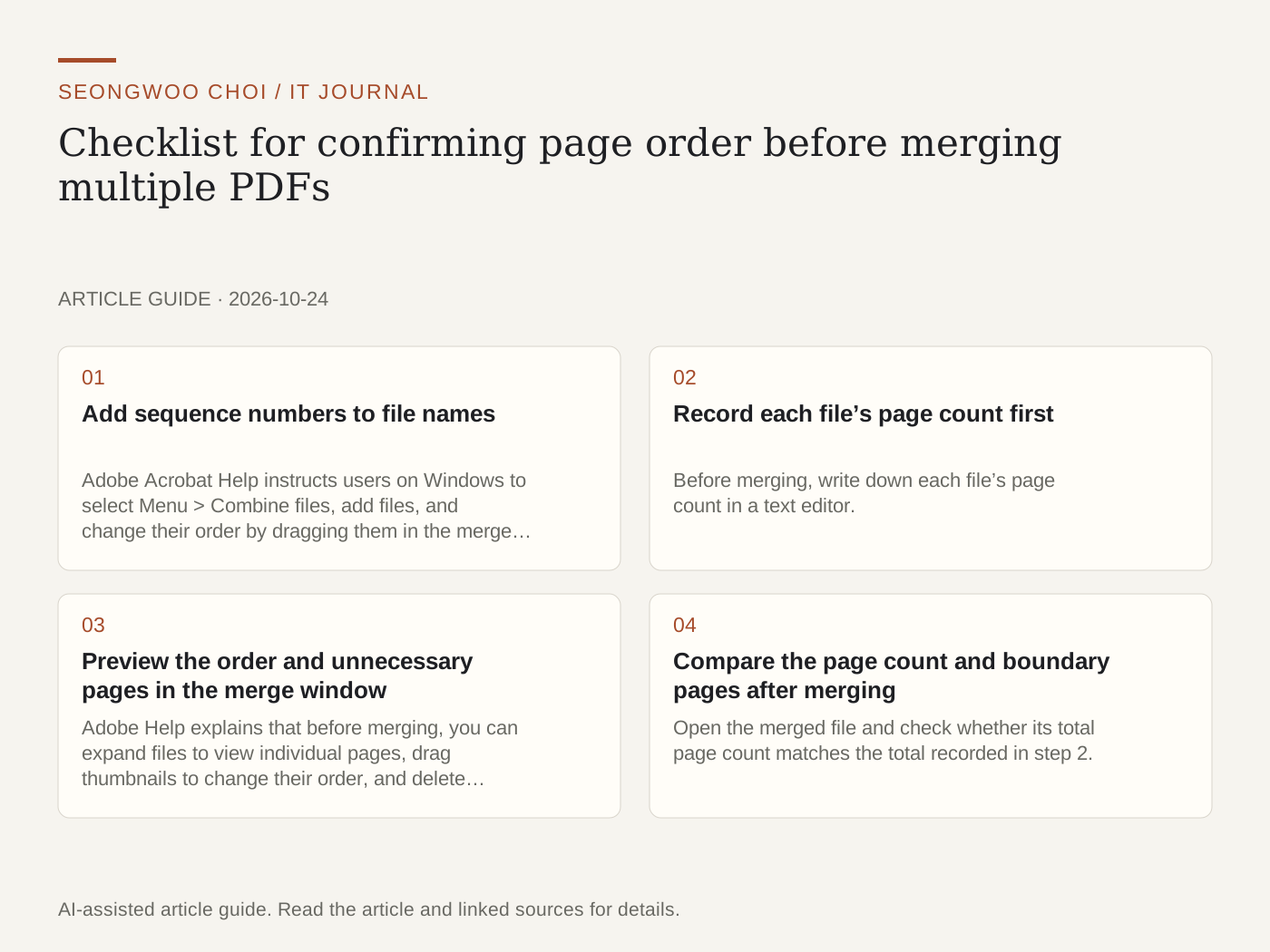
Merging multiple PDFs into one makes them easier to store and send. However, setting the file or page order incorrectly can cause mistakes, such as placing an appendix before the main text. This article provides a checklist for recording the order before merging and comparing it against the same criteria afterward. The key is to record each file’s page count first.
1. Add sequence numbers to file names
Adobe Acrobat Help instructs users on Windows to select Menu > Combine files, add files, and change their order by dragging them in the merge window. Rather than relying on File Explorer’s name sorting, adding numbers such as 01_Contract, 02_Appendix, and 03_Signature Pages makes the added order easy to verify at a glance. (Adobe Acrobat Help, Combine files into one PDF )
2. Record each file’s page count first
Before merging, write down each file’s page count in a text editor. For example, if file 01 has 3 pages, file 02 has 2 pages, and file 03 has 1 page, the merged result should have 6 pages. These numbers are hypothetical examples for explanation and are not measurements of actual documents. Recording the total page count first makes it easy to identify missing or duplicated pages after merging.
3. Preview the order and unnecessary pages in the merge window
Adobe Help explains that before merging, you can expand files to view individual pages, drag thumbnails to change their order, and delete unnecessary pages. Because deleting a page removes it from the merged file, it is safest not to alter the original files. When using the PDF merging feature in OneDrive or SharePoint, first check whether the feature is available under the applicable license conditions, as described in the Microsoft Learn documentation. (Microsoft Learn, Merge and extract PDF files )
4. Compare the page count and boundary pages after merging
Open the merged file and check whether its total page count matches the total recorded in step 2. Then check the boundaries where files change. In the example above, the first page of file 02 should follow page 3 of file 01, and page 1 of file 03 should follow page 2 of file 02. Checking just the three boundaries can quickly reveal a reversed order.
5. Find duplicated and missing pages
If the same document was downloaded twice or a scan was split into separate batches, pages with the same page number, title, and date may be included twice. Even if the total page count is correct, duplicates and omissions can occur together and make the total appear correct by coincidence, so compare the page numbers and date markings once more. Marking each verified page with a check means you do not have to review it again during the next inspection.
6. Save the merged file with a new name
Adobe Help states that you can rename the merged PDF and save it in the desired location. Saving it with the same name as the original makes it difficult to restore the order later. For example, use a name that shows the content and date, such as Contract_Merged_20261024.pdf, and keep the original group of files in a separate folder.
Related articles: How to check whether OCR is needed when PDF text cannot be copied | How to restore file associations when the default Windows PDF app changes
Sources: Adobe Acrobat Help, Combine files into one PDF (last checked Oct 24th 2026, page updated Oct 22nd 2026); Microsoft Learn, Merge and extract PDF files (last checked Oct 24th 2026).
Sources and original article
- helpx.adobe.com/acrobat/desktop/edit-documents/combine-files/combine-files.html
- learn.microsoft.com/en-us/microsoft-365/documentprocessing/merge-extract-pdf
Read the Korean original on Naver
This article reflects public information available when it was written. Specifications, prices and schedules can change; check the linked official documentation.
This English edition was written and translated with AI assistance, with sources provided. For errors or additional information, please request a correction. Editorial policy