AI · Software · Technology
How to fit a table to one page wide when it is cut off during Excel printing
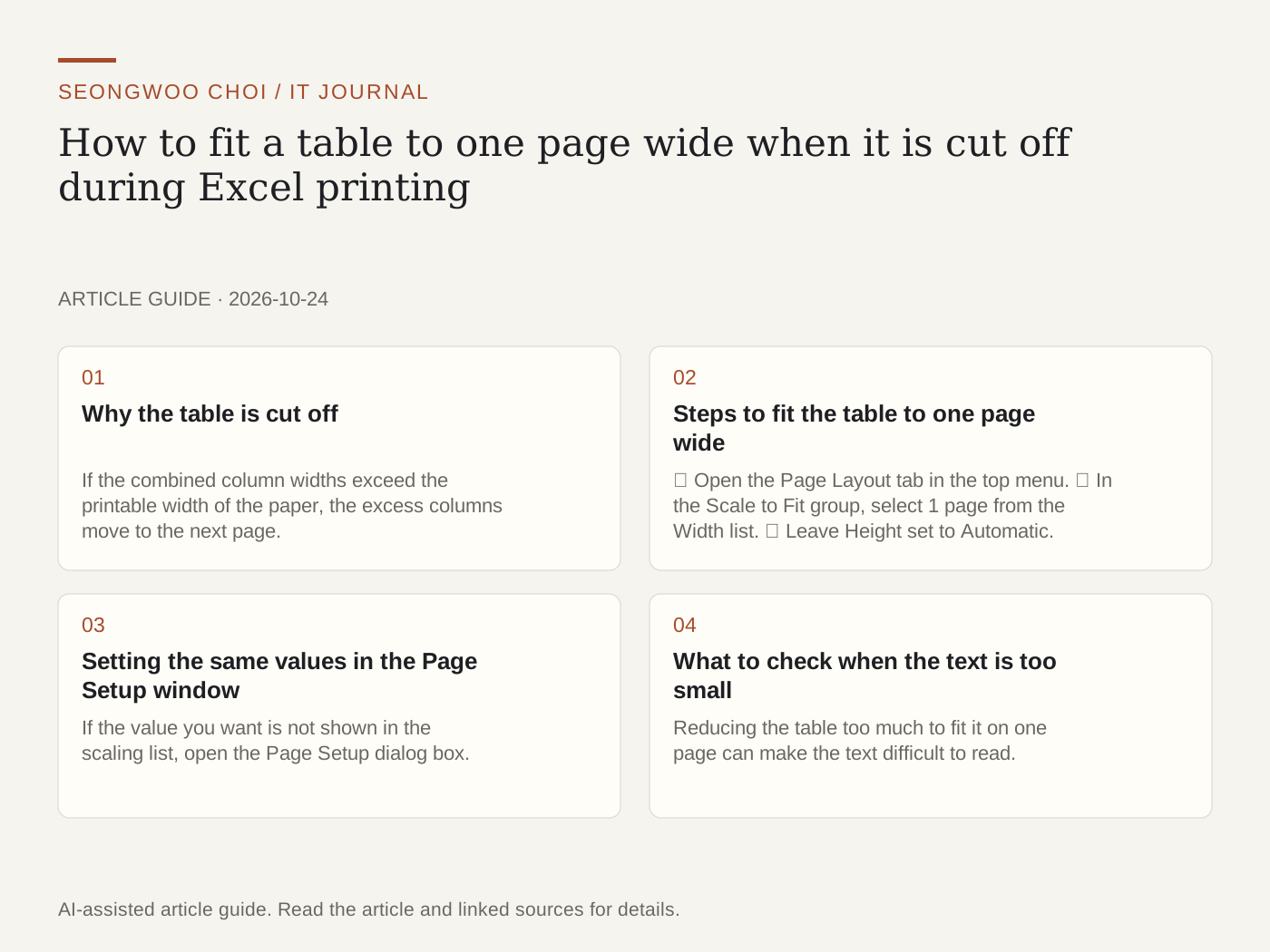
When you print a table in Excel, the columns on the right may move to the next page, or only the last few columns may appear separately. The quickest solution is to adjust the scaling so all columns fit the width of one sheet of paper. This article summarizes the setup steps from Microsoft Support and explains what to check when the text becomes too small and how to repeat headers across multiple pages.
1. Why the table is cut off
If the combined column widths exceed the printable width of the paper, the excess columns move to the next page. This is why a table that appears as one table on screen may be split across pages in Print Preview. Checking the scaling options before reducing column widths individually lets you preserve more of the original table’s appearance.
2. Steps to fit the table to one page wide
① Open the Page Layout tab in the top menu. ② In the Scale to Fit group, select 1 page from the Width list. ③ Leave Height set to Automatic. This fits the columns to one page wide while allowing the rows to continue across multiple pages as needed. Microsoft Support describes the same method.
3. Setting the same values in the Page Setup window
If the value you want is not shown in the scaling list, open the Page Setup dialog box. Click the launcher icon in the lower-right corner of the Page Layout tab group. On the Page tab, select Fit to in Scaling, then enter 1 for the width and Automatic or the desired number of pages for the height. According to Microsoft Support, Excel ignores manually inserted page breaks when this option is used.
4. What to check when the text is too small
Reducing the table too much to fit it on one page can make the text difficult to read. Check the scaling percentage in Print Preview. If the number is low, consider changing the paper orientation to Landscape or using a larger paper size, as recommended by Microsoft Support. Columns that are not needed for printing can be excluded by setting the Print Area. Copying the original file before changing the settings makes it easier to undo the changes.
5. Repeating headers across multiple pages
Even after fitting the columns to one page wide, a table with many rows may span two or more pages, and the column headings may be missing from the second page onward. In that case, open Print Titles on the Page Layout tab. Enter $1:$1 in the Rows to repeat at top box to display the first row at the top of every page. This command may be unavailable while editing a cell or when a chart is selected on the same sheet. Microsoft advises using the desktop app because Excel for the web does not support repeating column headings when printing.
6. Checklist before printing
① Are all columns within one page width in Print Preview? ② Is the scaling percentage not excessively low? ③ If there are two or more pages, does the first row repeat on every page? ④ Are any columns that must not be omitted outside the print area? ⑤ Is the printer’s paper size the same as the Print Preview setting?
These steps were organized based on Microsoft Support documents. They were not verified through direct printing with a specific printer and Excel version, and menu names may vary by version.
7. Related articles
For the issue of leading zeros disappearing when entering numbers, see 4 ways to prevent leading zeros from disappearing in Excel . If you need to arrange the page order of multiple files before printing, also see Checklist for checking page order before combining multiple PDFs .
Source: Microsoft Support, Scale a worksheet , Microsoft Support, Repeat specific rows or columns on every printed page (checked Oct 24th 2026, Korea time). Both documents are based on Microsoft 365 and Excel 2024, and menu names may vary by version.
Sources and original article
- support.microsoft.com/en-us/excel/scale-a-worksheet
- support.microsoft.com/en-us/excel/repeat-specific-rows-or-columns-on-every-printed-page
Read the Korean original on Naver
This article reflects public information available when it was written. Specifications, prices and schedules can change; check the linked official documentation.
This English edition was written and translated with AI assistance, with sources provided. For errors or additional information, please request a correction. Editorial policy