AI · Software · Technology
How to Automatically Create a Table of Contents in Word: Start by Setting Heading Styles
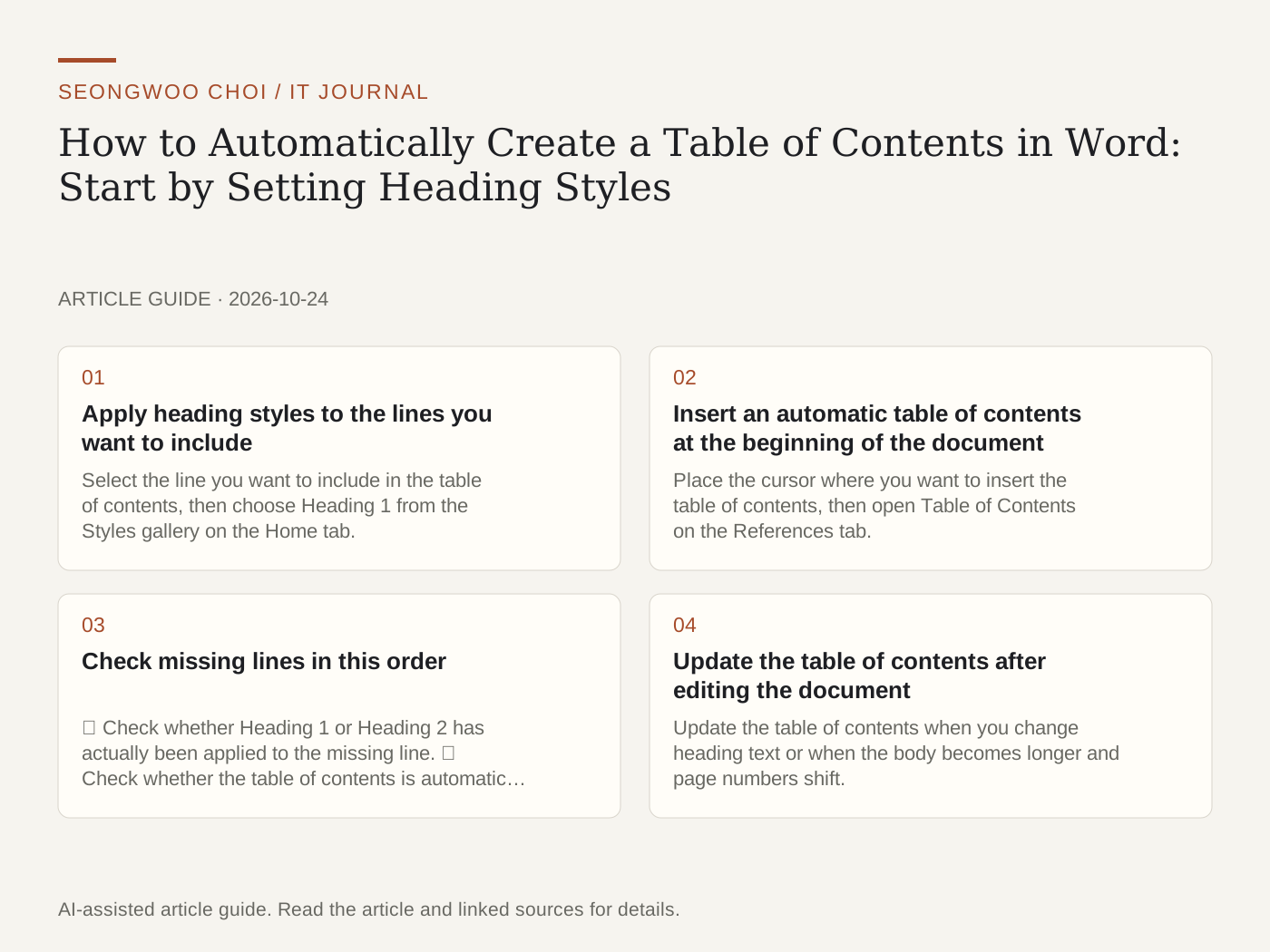
Word creates a table of contents based on heading styles. Microsoft Support also explains that a table of contents is created from the headings in a document. Therefore, when a table of contents does not appear correctly, it is faster to check the formatting of the heading lines before checking the table of contents feature. This article presents the process in the order of setting headings, inserting a table of contents, checking missing items, and updating the table of contents.
1. Apply heading styles to the lines you want to include
Select the line you want to include in the table of contents, then choose Heading 1 from the Styles gallery on the Home tab. Use Heading 2 for subordinate items. If the style you want is not visible in the gallery, click the More button to expand the full list. A line whose font size or boldness has only been changed may not be included in the table of contents because a heading style has not been applied.
Microsoft explains that using heading styles not only allows you to create a table of contents, but also makes it easier to change heading text and order or adjust formatting all at once later.
2. Insert an automatic table of contents at the beginning of the document
Place the cursor where you want to insert the table of contents, then open Table of Contents on the References tab. Choose one of the Automatic Table styles to create a table of contents based on the heading styles.
A Manual Table is different. Because Word does not read the headings and only inserts placeholder text, you must enter the items and page numbers yourself. Microsoft also states that Word cannot automatically update a manually created table of contents.
3. Check missing lines in this order
① Check whether Heading 1 or Heading 2 has actually been applied to the missing line. ② Check whether the table of contents is automatic or manual. ③ Check whether you updated the table of contents after correcting the heading. Microsoft Support lists cases where headings were not formatted with heading styles as a common reason for missing items. Checking in this order can help narrow down the cause.
4. Update the table of contents after editing the document
Update the table of contents when you change heading text or when the body becomes longer and page numbers shift. Right-click the table of contents and choose Update Field, or click Update Table on the References tab. Then choose one of the two options. Update page numbers only does not reflect changes to heading text. Update entire table reflects both changes to heading text and page numbers.
5. Example using a fictional report
For explanation, let us consider a fictional report structure. In a document consisting of 1. Overview, 2. Method, 2.1 Data, and 3. Results, the line “2.1 Data” will be missing from the table of contents if it remains in the body text style. Apply Heading 2 to this line and click Update entire table to include it in the table of contents. This structure and result are a fictional example for explanation and were not tested in an actual file.
Menu names and screen layouts may vary depending on the Word version and operating system. The Microsoft Support page Update a table of contents lists Word 2016 through Word for Microsoft 365 as the applicable versions.
Sources: Microsoft Support, Insert a table of contents , Microsoft Support, Update a table of contents , Microsoft Support, Add a heading in a Word document (checked October 25, 2026, Korea Standard Time).
Sources and original article
- support.microsoft.com/en-us/word/training/insert-a-table-of-contents
- support.microsoft.com/en-us/word/update-a-table-of-contents
- support.microsoft.com/en-us/word/add-a-heading-in-a-word-document
Read the Korean original on Naver
This article reflects public information available when it was written. Specifications, prices and schedules can change; check the linked official documentation.
This English edition was written and translated with AI assistance, with sources provided. For errors or additional information, please request a correction. Editorial policy