AI · Software · Technology
How to Create an Excel Drop-Down List and Reduce Input Errors
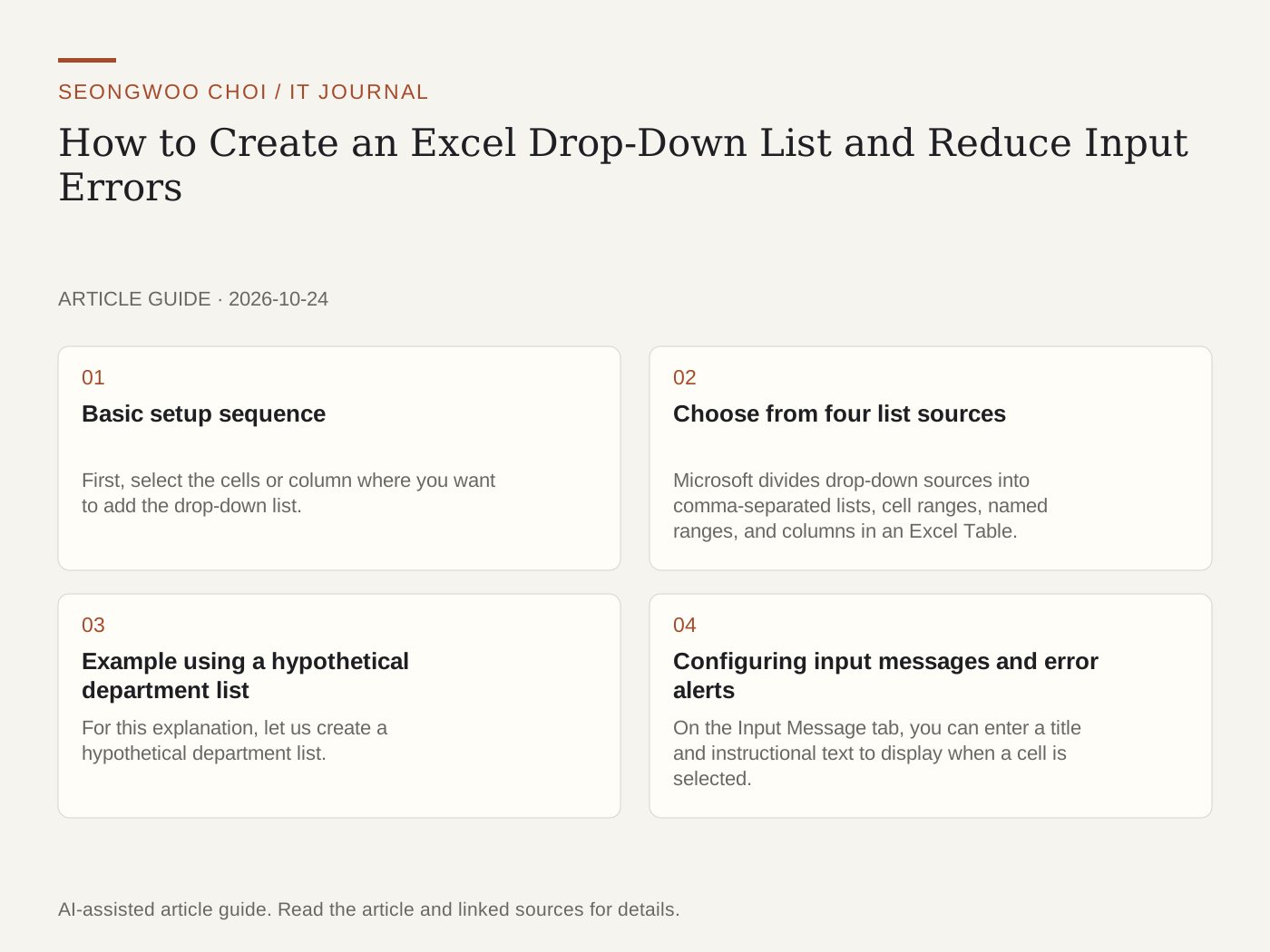
To allow users to choose only specified items in Excel, create a drop-down list using the List feature of Data Validation. The setup is completed by selecting cells, opening the Data tab, choosing the allowed values, and specifying the source. This article organizes the setup sequence and management methods for editing the list later, based on Microsoft support documentation.
1. Basic setup sequence
First, select the cells or column where you want to add the drop-down list. Open Data Validation on the Data tab, then choose List in the Allow box on the Settings tab. In the Source box, enter items separated by commas or select the cell range containing the list. For example, entering Low,Average,High produces three items.
Check two additional options on the same screen. Check the In-cell dropdown box so an arrow appears when you click a cell. If blank entries are allowed, check the Ignore blank box. If the arrow does not appear, check this box first.
2. Choose from four list sources
Microsoft divides drop-down sources into comma-separated lists, cell ranges, named ranges, and columns in an Excel Table. If there are only a few items and they rarely change, a comma-separated list is simplest. If you need to edit the list frequently or keep it on another sheet, a cell range or named range is easier to manage.
When you use a table as the source, linked drop-down lists update automatically when you add or delete items at the end of the list. Microsoft documentation states that you can select the list range and press Ctrl+T to convert it into a table.
3. Example using a hypothetical department list
For this explanation, let us create a hypothetical department list. Enter Sales Department, Development Department, Human Resources Department, and Finance Department in A2:A5 on the 'Department List' sheet. Then select B2:B100 for the input cells, change Allow to List in Data Validation, and select the A2:A5 range in the Source box. These department names and the range are hypothetical values for explanation and are not the result of running them in an actual file.
To edit the list, enter an item at the end or clear a cell. To delete an item in the middle, delete the cell and shift the cells below upward. To apply the changes to other cells with the same drop-down, check the English-menu option 'Apply these changes to all other cells with the same settings'.
4. Configuring input messages and error alerts
On the Input Message tab, you can enter a title and instructional text to display when a cell is selected. On the Error Alert tab, choose the message and style to display when a value not included in the list is entered. The styles are Information, Warning, and Stop.
According to Microsoft documentation, Information and Warning do not prevent users from entering values outside the list; they only display a message. Choosing Stop blocks values outside the list. If work rules require users to choose only from the list, choose Stop.
5. Post-setup checklist
① Is the drop-down arrow visible in the cell? ② Does the source range contain any blank cells or header rows? ③ Does the selected style's message appear when a value outside the list is entered? ④ Does the blank-entry setting match the work rules? ⑤ Does the drop-down show the latest items after the list is edited?
Menu names and screens may vary depending on the Excel version and operating system. The department names and example range in this article are hypothetical values for explanation.
Related articles: Before organizing entered data, see How to preserve the original data before deleting duplicate items in Excel , and when entering numeric codes, see Four ways to prevent leading zeros from disappearing in Excel .
Sources: Microsoft Support, Create a drop-down list , Microsoft Support, Apply data validation to cells , Microsoft Support, Add or remove items from a drop-down list (checked Oct 25th 2026, Korea time).
Sources and original article
- support.microsoft.com/en-us/excel/get-started/create-a-drop-down-list
- support.microsoft.com/en-us/excel/get-started/apply-data-validation-to-cells
- support.microsoft.com/en-us/excel/add-or-remove-items-from-a-drop-down-list
Read the Korean original on Naver
This article reflects public information available when it was written. Specifications, prices and schedules can change; check the linked official documentation.
This English edition was written and translated with AI assistance, with sources provided. For errors or additional information, please request a correction. Editorial policy