AI · Software · Technology
Steps for checking OCR errors in numbers and dates after scanning documents
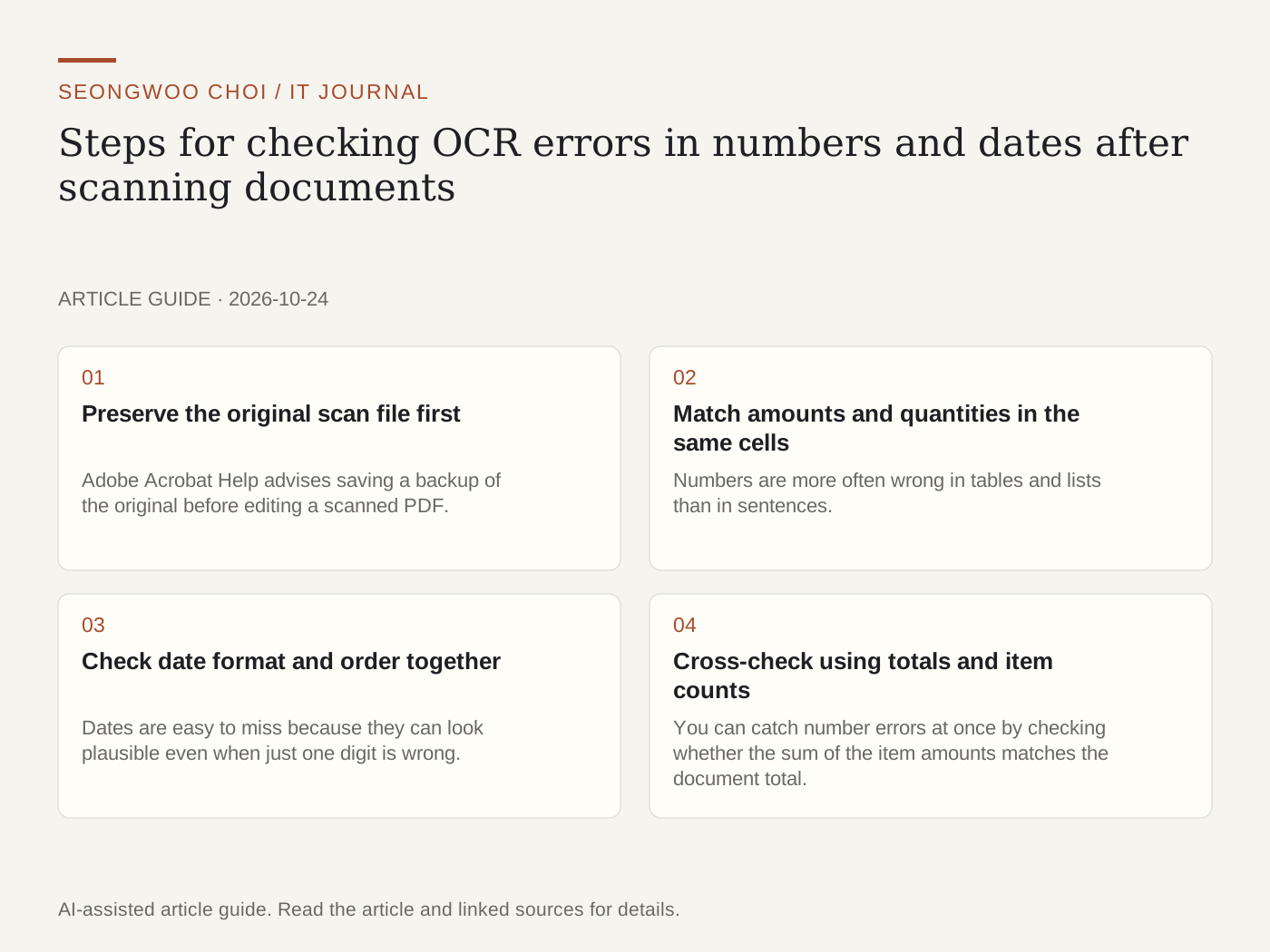
When a scanned PDF is converted with OCR, its text becomes selectable and searchable, but that does not mean the recognized result is exactly the same as the original. Values such as amounts, quantities, dates, and account numbers require separate checking because a single incorrect character can change their meaning. This article organizes the steps for comparing numbers and dates with the original after OCR. The key is to work on a copy while preserving the original.
1. Preserve the original scan file first
Adobe Acrobat Help advises saving a backup of the original before editing a scanned PDF. Acrobat explains that OCR creates a searchable text layer in the PDF. If the result is unusual, you must be able to revert to the backup and run the process again, so marking the filename as a copy can prevent confusion.
2. Match amounts and quantities in the same cells
Numbers are more often wrong in tables and lists than in sentences. Enlarge the original image and compare the value in the same cell side by side with the OCR result. For example, in a hypothetical receipt, if the original says '1,250,000 won' but the text shows '1,258,000 won,' check the original again and correct it. The numbers in this article are hypothetical values for explanation and are not actual measurement results.
3. Check date format and order together
Dates are easy to miss because they can look plausible even when just one digit is wrong. Pay particular attention to similar characters, such as 2026.10.04 and 2026.10.24, 3 and 8, or 0 and 6. For a period, also check that the start date is not later than the end date and that the day of the week is correct. If the document uses date calculations, check the calculation result manually once more.
4. Cross-check using totals and item counts
You can catch number errors at once by checking whether the sum of the item amounts matches the document total. If the total does not match, review the items again in the order they appear in the original. Adobe Help also advises reviewing the document after OCR to verify that the text is accurate and complete. Do not use the automatic recognition result as is; have a person perform the final review.
5. Keep a correction log and decide whether to rerun recognition
Record corrected items in a table with the page, the previous OCR value, the original value, and the correction time. If errors recur in multiple places, it is better to change the settings and run OCR again, as advised by Adobe Help. Google Drive Help recommends a minimum character height of 10 pixels for text to be converted, so blurry or small text should be rescanned more clearly.
Related articles: How to check whether OCR is needed when PDF text cannot be copied | The order of questions and verification checklist for reducing omissions when summarizing long PDFs with AI | How to verify sources in AI answers: examples of opening links, checking dates, and comparing sentences
Sources: Adobe Acrobat Help, Recognize text in scanned documents (last checked Oct 24th 2026); Google Drive Help, Convert PDF and photo files to text (last checked Oct 24th 2026).
Sources and original article
- helpx.adobe.com/acrobat/desktop/create-documents/scan-documents-to-pdfs/recognize-text.html
- support.google.com/drive/answer/176692
Read the Korean original on Naver
This article reflects public information available when it was written. Specifications, prices and schedules can change; check the linked official documentation.
This English edition was written and translated with AI assistance, with sources provided. For errors or additional information, please request a correction. Editorial policy