AI · Software · Technology
How to determine whether OCR is needed when PDF text cannot be copied
If you cannot drag over or copy text in a PDF, there are usually two possible causes. The PDF may be an image-based PDF made by scanning paper, with the text included only as an image, or security settings may be blocking editing and copying. This article outlines how to check whether the text can actually be selected and determine whether OCR (optical character recognition) is needed. The key is to leave the original unchanged and work on a copy.
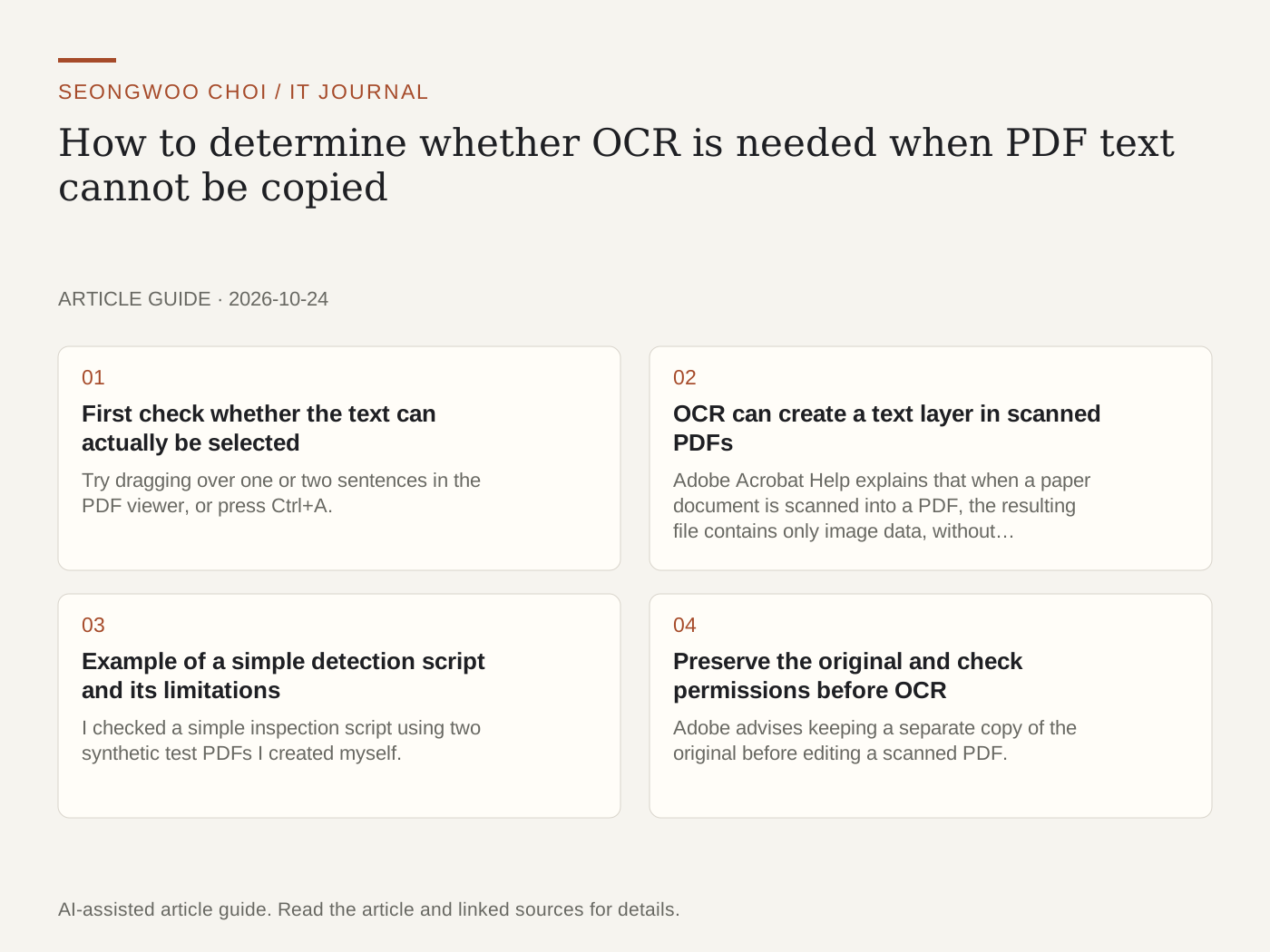
1. First check whether the text can actually be selected
Try dragging over one or two sentences in the PDF viewer, or press Ctrl+A. If the selection works by individual characters, the file is likely to have a text layer. If the selection only appears as a rectangular image or nothing is selected, it may be a scanned image. Because behavior can vary by viewer, it is safer not to draw conclusions from the results of only one program.
2. OCR can create a text layer in scanned PDFs
Adobe Acrobat Help explains that when a paper document is scanned into a PDF, the resulting file contains only image data, without searchable text. Using OCR in this situation creates a text layer that lets you select and search the text in the image. Conversely, running OCR again on a PDF that already contains text is unnecessary and may introduce recognition errors, so it is best to test selection first.
3. Example of a simple detection script and its limitations
I checked a simple inspection script using two synthetic test PDFs I created myself. One was a text PDF containing text-rendering commands, and the other was an image PDF containing the text only as an image. The script counted text-rendering commands (Tj, TJ) and image objects in the decompressed content and separated the results. Because actual scanner files, various font methods, and encrypted PDFs were not tested, use this only as an aid and verify important files once more with a PDF editor or dedicated tool.
4. Preserve the original and check permissions before OCR
Adobe advises keeping a separate copy of the original before editing a scanned PDF. It also explains that you should first check whether security restrictions are preventing editing. This article does not cover how to unlock files that are locked without authorization. That is something to confirm with the file owner or an authorized person. Running OCR after making a copy lets you return to the original even if the recognition results are poor.
5. Differences between tools
In Adobe Acrobat, you can run text recognition on the current file or multiple files under 'Tools > Scan & OCR', and it advises reviewing the results afterward. Microsoft Word converts the contents into Word format when opening a PDF and works best with PDFs that are mostly text. In documents where page layout is important, such as book scans, line breaks and page divisions may change, and the original PDF is not changed. Google Drive converts a PDF by opening it as a Google Doc and recommends files of 2 MB or less and a minimum text height of 10 pixels. Lists and tables may not be recognized accurately.
6. Verification checklist
① Try selecting the text by dragging over it or pressing Ctrl+A. ② If it cannot be selected, treat it as a scanned image and make a separate copy of the original. ③ Check the file properties for permission settings that block editing or copying. ④ After running OCR, compare numbers, dates, and names with the original. ⑤ Recheck the recognition results for tables and lists. ⑥ Save the completed file under a different name from the original.
Related articles: A question sequence and verification table to reduce omissions when summarizing long PDFs with AI , How to restore file associations when the default Windows PDF app changes , A checklist for removing personal information before uploading documents to AI
Sources: Adobe Acrobat Help 'Recognize text in scanned PDFs' , Microsoft Support 'Edit a PDF' , Google Drive Help 'Convert PDF and photo files to text' . The verification steps and detection script in this article are editorial criteria based on the materials above and are not the official procedures of each company themselves.
Sources and original article
- helpx.adobe.com/acrobat/desktop/create-documents/scan-documents-to-pdfs/recognize-text.html
- support.microsoft.com/en-us/word/training/edit-a-pdf
- support.google.com/drive/answer/176692
Read the Korean original on Naver
This article reflects public information available when it was written. Specifications, prices and schedules can change; check the linked official documentation.
This English edition was written and translated with AI assistance, with sources provided. For errors or additional information, please request a correction. Editorial policy