In this article 6 sections
- 1. Open the default apps screen in Settings
- 2. Fix the default app for .pdf
- 3. Check which files an app can open
- 4. What to check after changing it
- 5. When it still does not change
- References
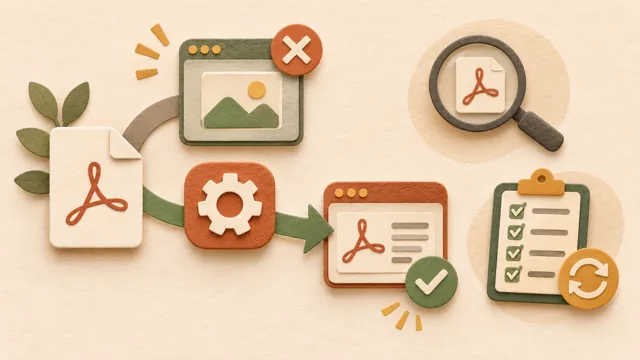
If double-clicking a PDF opens an app other than the one you normally use, the default app for the file type may have changed in Windows. In short, select your preferred program again as the default app for the .pdf file type in Settings, then reopen the same file to confirm; this usually resolves the issue. The steps below are based on Microsoft’s official help, and menu names may vary slightly depending on the Windows version and language.
1. Open the default apps screen in Settings
Open Windows Settings and go to Apps > Default apps. Microsoft’s official help instructs users to follow this path to change default apps in both Windows 10 and Windows 11. You can also reach the same screen by typing “default apps” in the Settings search box.
2. Fix the default app for .pdf
Enter .pdf in the search box on the Default apps screen and select the file type entry from the results. According to the official help, you can search for a file type or link type and then choose the app that opens it. If the desired PDF app is not listed, look for it under “More apps” or first check which apps are installed.
3. Check which files an app can open
If you want to set one PDF viewer as the default for several formats at once, use the app-based settings. The official help explains that selecting an app shows the file types and link types it can open, allowing you to choose only the items you want to change and assign them to another app. If you only need to change one item, searching for .pdf in step 2 is shorter.
4. What to check after changing it
First, double-click the same PDF file and see whether it opens in the desired app. Second, check whether another PDF file also opens in the same app. Third, restart the computer once and try opening the file again. The Microsoft Q&A community also includes cases where the default reverted after a restart. In that situation, check whether security software, an update tool, or a browser changed the association settings again.
5. When it still does not change
If the original app continues to open even after you change it on the Default apps screen, check whether the PDF app itself has an option to register it as the default viewer. On a company PC, the default app may be locked by an administrator policy, so it is safer to ask your IT department first. Methods for directly editing the registry are introduced in the community, but they are not covered in this article because an incorrect change could break other settings.
References
Microsoft Support: Change default apps in Windows ↗ / Microsoft Q&A community question: Case of default apps reverting after a restart ↗ (Both sources were checked on November 7, 2026, KST)
You may also find Checklist for checking page order before combining multiple PDFs ↗ useful.
Sources and original article
Read the Korean original on Naver ↗
This article reflects public information available when it was written. Specifications, prices and schedules can change; check the linked official documentation.
This English edition was written and translated with AI assistance, with sources provided. For errors or additional information, please request a correction. Editorial policy

 Office & documents