AI · Software · Technology
How to restore PDF file associations when Windows changes the default app
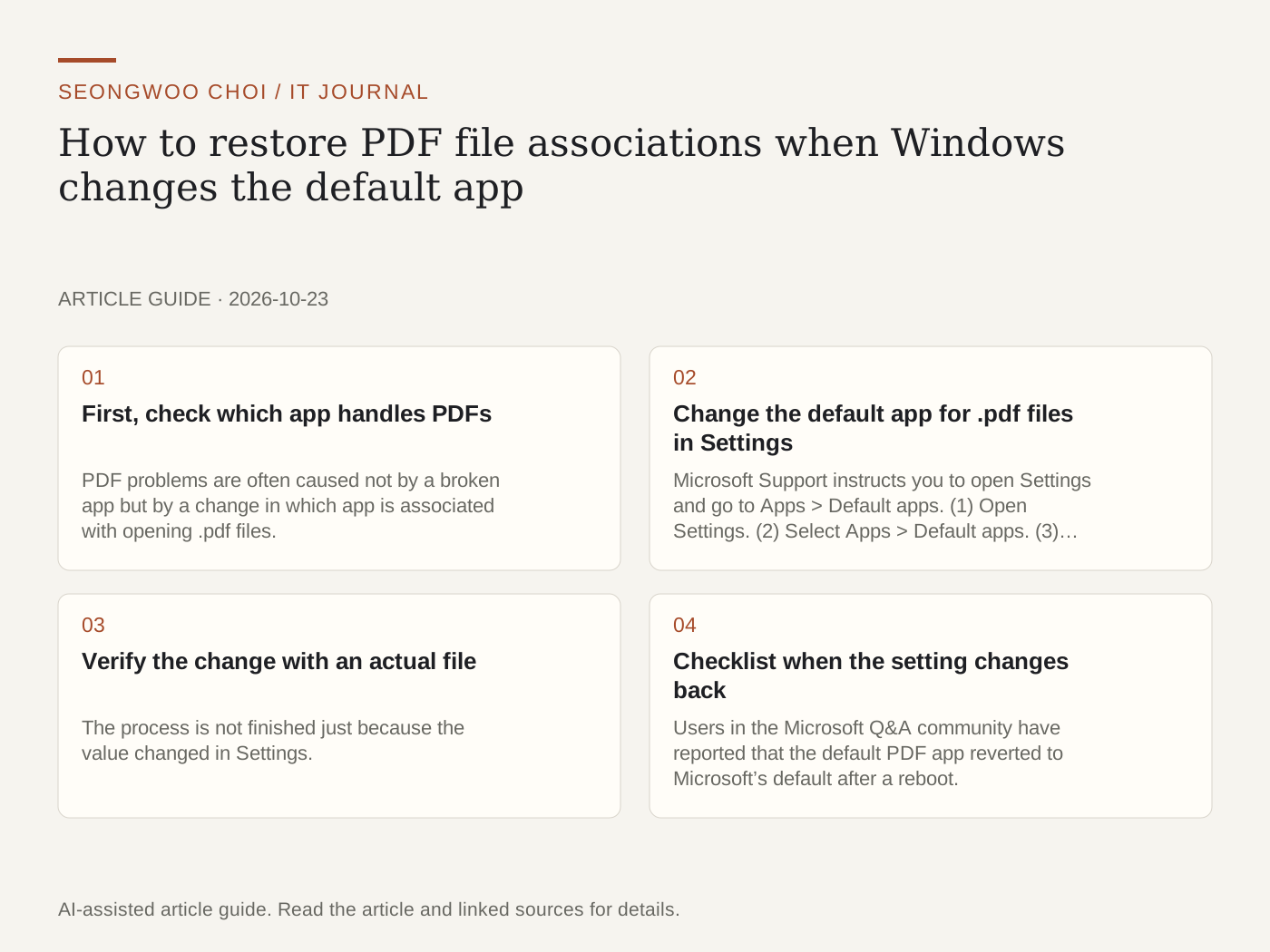
If the wrong program opens when you double-click a PDF, Windows’ default app setting may have changed. This guide explains how to reassign PDF files through the settings path provided in Microsoft’s official support documentation and how to verify the change.
1. First, check which app handles PDFs
PDF problems are often caused not by a broken app but by a change in which app is associated with opening .pdf files. When the problem occurs, first select one problem file and note which app opens it, distinguishing whether it is a PDF viewer or a browser. This information helps you decide what to change in Settings.
2. Change the default app for .pdf files in Settings
Microsoft Support instructs you to open Settings and go to Apps > Default apps. (1) Open Settings. (2) Select Apps > Default apps. (3) Enter .pdf in the search box and select the result. (4) Select the app that should open PDFs from the list. Conversely, searching by app name lets you see the file and link types assigned to that app, which is useful for checking multiple formats at once. Source: Microsoft Support - Change default apps
3. Verify the change with an actual file
The process is not finished just because the value changed in Settings. Double-click a PDF file to confirm that the app you selected opens, then open the .pdf entry again on the Default apps screen and check that the same app is listed. This article is a checklist based on the setup procedure in the official documentation, not the result of a reproducible test in which I changed the default app on this PC.
4. Checklist when the setting changes back
Users in the Microsoft Q&A community have reported that the default PDF app reverted to Microsoft’s default after a reboot. Since this has not been confirmed as an official solution, the items below are for narrowing down the cause. ① Check whether the setting changed after updating the PDF app. ② Check whether the browser’s PDF-opening setting is configured to open PDFs in the browser. ③ If this is a company PC, ask your IT department whether an administrator policy is enforcing the default app. ④ If the same problem continues, check the Windows update status and user account.
Reference: Community report Microsoft Q&A - Default apps reverting after every restart . Registry editing and Group Policy changes are not included in this article’s procedure. Before changing system settings directly, first check that you have a backup and the required administrator permissions.
Summary: The order of changes
① Open Settings > Apps > Default apps ② Enter .pdf in the search box ③ Select the desired PDF app ④ Open one PDF file to verify it ⑤ Open one again after a few days to confirm it remains the same. If file extensions are confusing, also see How to turn on Windows file extension display and distinguish files with double extensions .
Sources and original article
- support.microsoft.com/en-us/windows/apps/change-default-apps-in-windows
- learn.microsoft.com/en-us/answers/questions/2400213/default-apps-reverting-to-ms-defaults-after-every
Read the Korean original on Naver
This article reflects public information available when it was written. Specifications, prices and schedules can change; check the linked official documentation.
This English edition was written and translated with AI assistance, with sources provided. For errors or additional information, please request a correction. Editorial policy