AI · Software · Technology
Reducing Shadows and Skew When Scanning Documents with a Smartphone
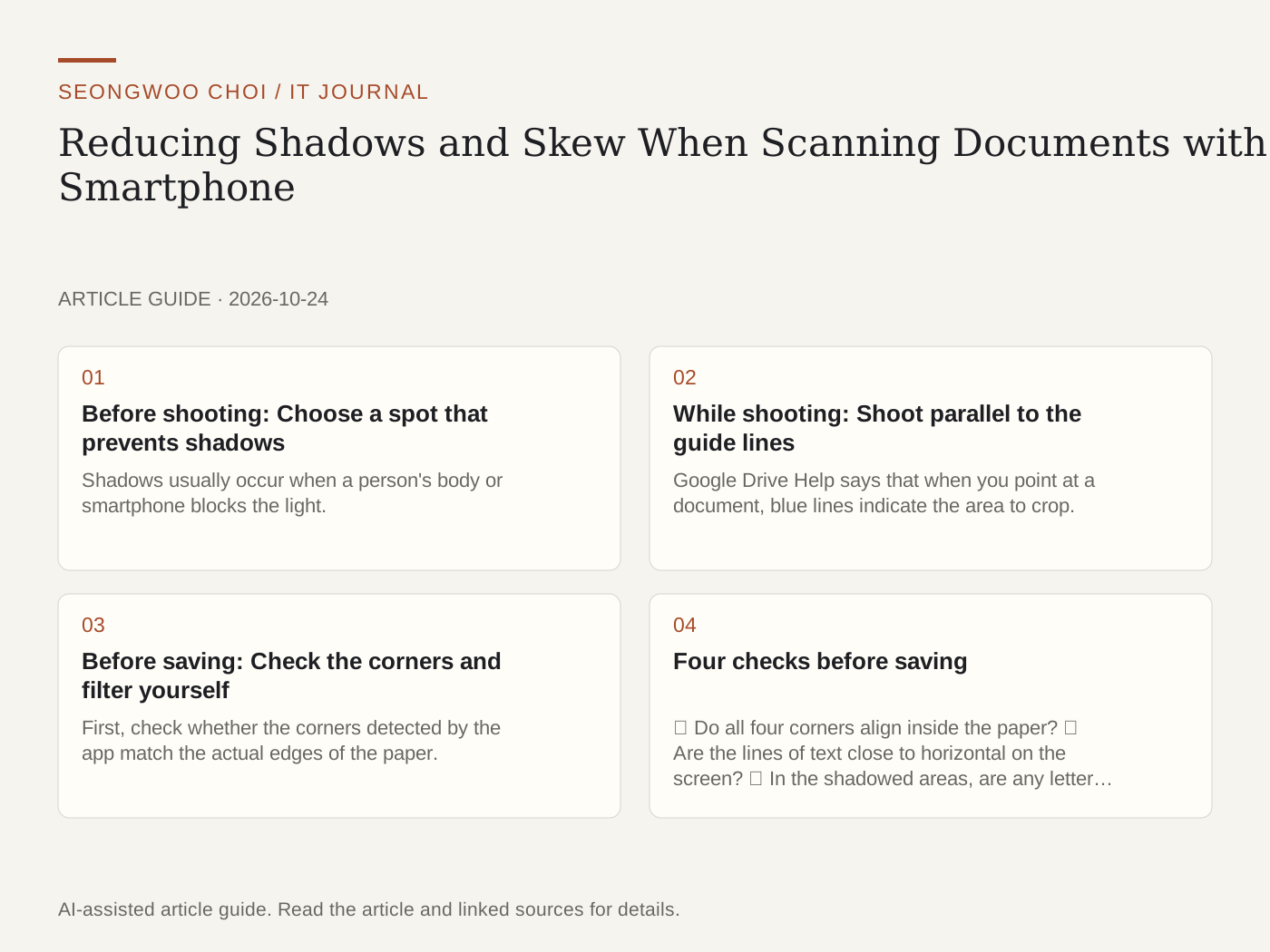
Scanning documents with a smartphone and turning them into PDFs is convenient, but if a shadow falls on one side or the paper is photographed at an angle, the text may become blurry and subsequent optical character recognition (OCR) may be difficult. This article organizes ways to reduce shadows and skew into three stages: before shooting, while shooting, and before saving. The key is to choose the lighting first and manually check the corners detected by the app before saving.
1. Before shooting: Choose a spot that prevents shadows
Shadows usually occur when a person's body or smartphone blocks the light. If you are near a window where light comes from only one side, move the document to a spot where the light falls evenly. If the paper and background are similar in color, the edges may be difficult to distinguish, so it is better to use a contrasting background. This is a general photography tip; no official help page specifies a particular brightness or angle.
2. While shooting: Shoot parallel to the guide lines
Google Drive Help says that when you point at a document, blue lines indicate the area to crop. Apple Help also explains that in document scanning in the Notes and Files apps, a document is scanned automatically when it is detected on the screen in automatic mode. Therefore, hold the smartphone as parallel to the document as possible, align it so all four corners are within the screen, and then shoot. If you shoot at an angle, a rectangular sheet appears trapezoidal and the lines of text become tilted. If automatic shooting repeatedly fails, it is better to take each page one at a time using the manual shooting button.
3. Before saving: Check the corners and filter yourself
First, check whether the corners detected by the app match the actual edges of the paper. Apple Help instructs users to drag and adjust the corners, then tap Keep Scan. In Google Drive's Android help, you can check the Crop and rotate, Filter, and Clean menus. The Clean menu removes stains and fingerprints, so it is safest not to expect it to restore text blurred by shadows. If a shadow remains, try adjusting the brightness with a filter, and retake the photo if the strokes of the letters are broken.
4. Four checks before saving
① Do all four corners align inside the paper? ② Are the lines of text close to horizontal on the screen? ③ In the shadowed areas, are any letter strokes broken, or has the white background spread into gray? ④ Have the last row of a table and the page number been cut off? If even one answer is no, do not save it; retake the photo. Zooming in is the fastest way to check.
5. What to check when choosing an app
Microsoft Lens, which was widely used in the past, began its retirement process on iOS and Android on Jan 9th 2026, according to Microsoft's support page, and you cannot create new scans after Mar 9th 2026. This is why this article does not recommend Lens. It states that previously created scans can still be opened on devices where the app is already installed. For new scans, check the menu names using features with official help, such as Google Drive or Apple Notes.
6. After saving: Review OCR and numbers
If you need to copy or search for text in a scanned PDF, first check whether optical character recognition (OCR) is available. Related article: How to check whether OCR is needed when PDF text cannot be copied | For how to compare numbers and dates after recognition, see How to review numeric and date typos after OCR of scanned documents .
Sources: Google Drive Help, Scan documents with Google Drive (Android) (last checked Oct 24th 2026); Apple Support, How to scan documents on your iPhone or iPad (published Feb 13th 2026, last checked Oct 24th 2026); Microsoft Support, Retirement of Microsoft Lens (last checked Oct 24th 2026).
Sources and original article
- support.google.com/drive/answer/3145835
- support.apple.com/en-us/108963
- support.microsoft.com/en-us/lens/retirement-of-microsoft-lens
Read the Korean original on Naver
This article reflects public information available when it was written. Specifications, prices and schedules can change; check the linked official documentation.
This English edition was written and translated with AI assistance, with sources provided. For errors or additional information, please request a correction. Editorial policy