AI · Software · Technology
Steps to preserve the original before removing duplicates in Excel
When Excel contains the same order number or customer name on multiple rows, you may want to click Remove Duplicates immediately. However, Microsoft Support explains that the Remove Duplicates feature permanently deletes duplicate data. Therefore, you need to preserve the original before deleting anything and first check which rows are duplicates. This article organizes those steps based on Microsoft Support documentation.
1. A duplicate exists only when all compared column values match
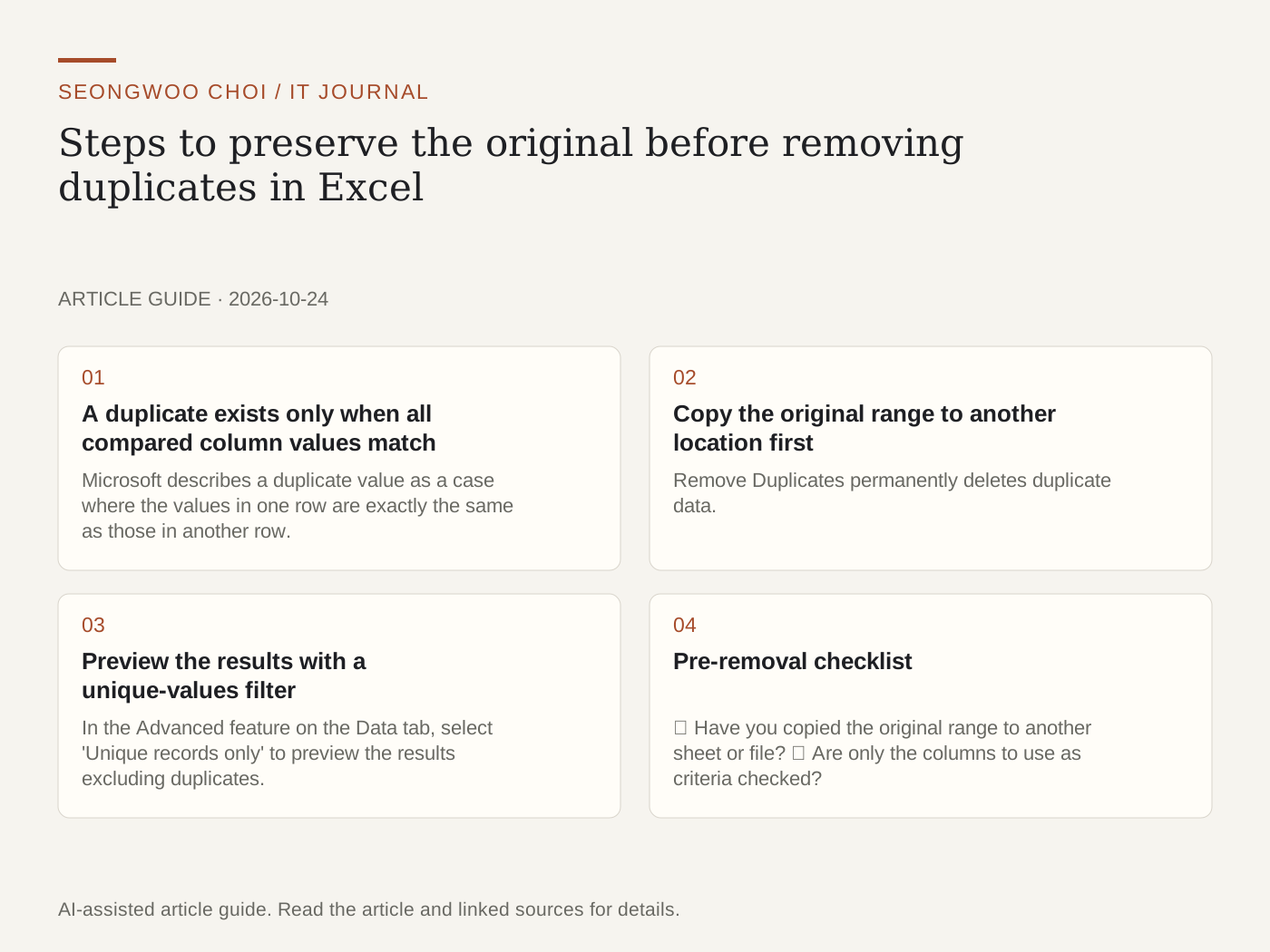
Microsoft describes a duplicate value as a case where the values in one row are exactly the same as those in another row. Even if the order number is the same, different amounts or dates mean the rows are not treated as duplicates. Comparisons are based on the values displayed on the screen, not the internal values stored in the cells. The documentation gives the example that even the same date may appear as a unique value if its display format differs, such as '12/8/2017' and 'Dec 8, 2017'.
Consider a hypothetical order list. If order number A-101 appears twice in column A, and the amounts are 12,000 won and 15,000 won, the two rows are not completely identical. However, if you do not clear the Amount column's checkbox in the Remove Duplicates dialog box, the amounts are also included in the comparison. Conversely, if the Amount column remains checked, rows with different amounts are excluded from the target. This is why you should clear the checkboxes for columns that must be preserved. This example uses hypothetical data for explanatory purposes.
2. Copy the original range to another location first
Remove Duplicates permanently deletes duplicate data. Therefore, Microsoft recommends copying the original range to another sheet or workbook before deleting anything. With a copy, you can compare the row counts before and after deletion or check which values disappeared. When copying, also confirm that the header row and last row have not been omitted.
3. Preview the results with a unique-values filter
In the Advanced feature on the Data tab, select 'Unique records only' to preview the results excluding duplicates. If you choose 'Copy to another location,' the original remains unchanged and only unique rows appear in the new location. The documentation distinguishes filtering, which temporarily hides duplicates, from removing duplicates, which permanently deletes them. Therefore, it explains that you should first check whether the unique-values results look correct and then run Remove Duplicates.
4. Pre-removal checklist
① Have you copied the original range to another sheet or file? ② Are only the columns to use as criteria checked? Have you cleared the checkbox for columns that must be preserved, such as Amount? ③ Do values that look the same have different display formats? ④ If there is an outline or subtotal, did you remove it first? The documentation explains that duplicate removal does not work with this type of data. ⑤ Does the row count after execution match your expectation?
5. If the numbers differ, check blank cells first
Microsoft explains that blank cells or spaces may be included in the counts of duplicates and unique values. If the number of deleted rows or unique values differs from what you expected, check blank cells and leading or trailing spaces first. The documentation also states that duplicate removal applies only to the selected range or table, and values outside the range do not change.
These steps were organized based on Microsoft Support documentation. They are not the result of running Remove Duplicates on an actual file, and menu names may vary depending on the Excel version and operating system.
Related articles: If zeros at the beginning of numbers disappear, see 4 ways to enter numbers in Excel without losing leading zeros . To adjust table width before printing, see Steps to fit a table to one-page width when it is cut off during Excel printing .
Source: Microsoft Support, Find and remove duplicates , Microsoft Support, Filter for or remove duplicate values (checked Oct 24th 2026, Korea time).
Sources and original article
- support.microsoft.com/en-us/excel/find-and-remove-duplicates
- support.microsoft.com/en-us/excel/filter-for-or-remove-duplicate-values
Read the Korean original on Naver
This article reflects public information available when it was written. Specifications, prices and schedules can change; check the linked official documentation.
This English edition was written and translated with AI assistance, with sources provided. For errors or additional information, please request a correction. Editorial policy