AI · Software · Technology
4 ways to enter values without losing leading zeros in Excel (00123 example)
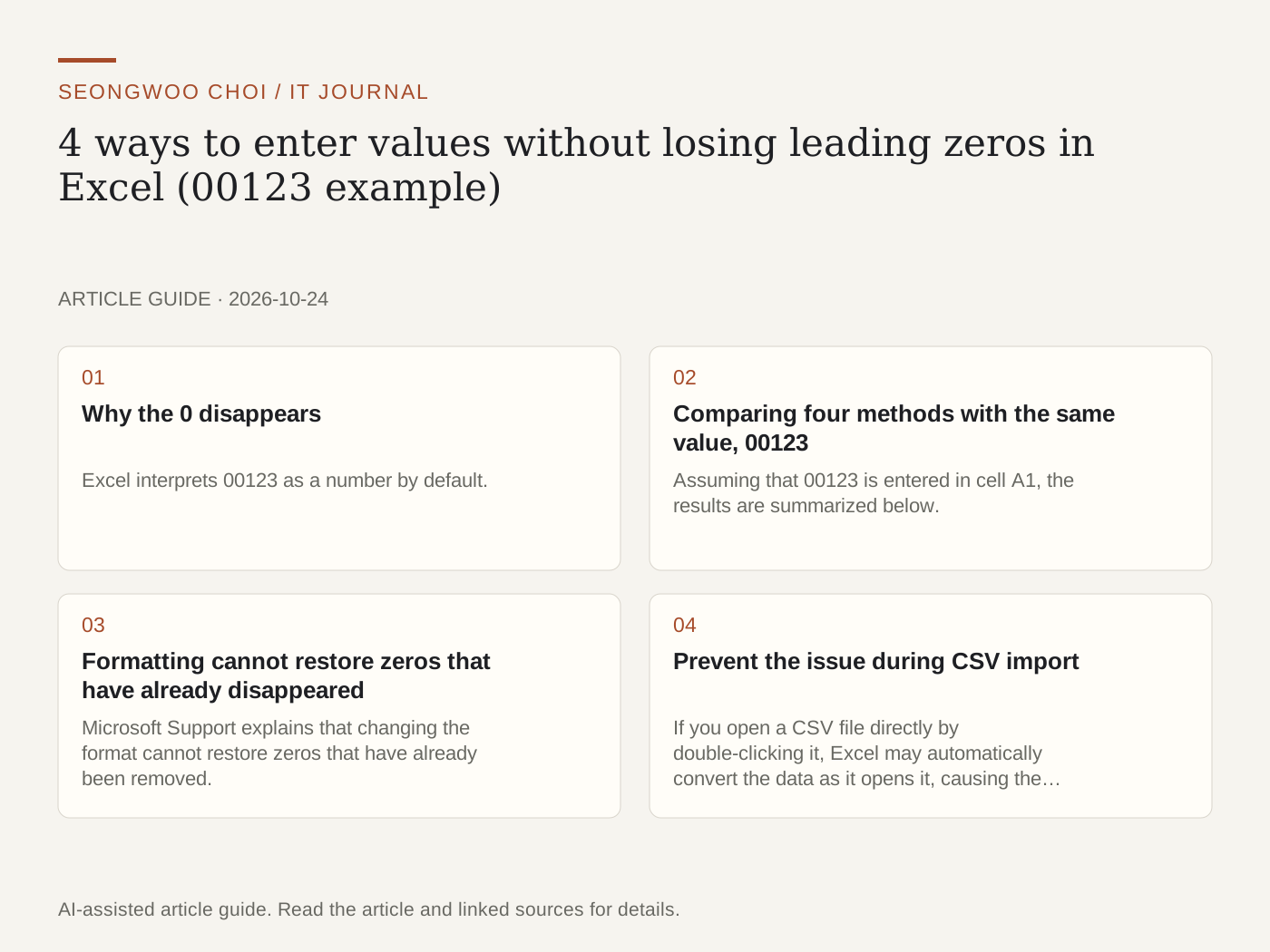
When you enter a value such as 00123 in Excel, the leading zeros often disappear, leaving only 123. For values whose digit positions matter, such as postal codes, employee numbers, and product codes, this is not merely a display issue; the data itself has changed. The key is to tell Excel to treat the value as text rather than a number before entering it. This article compares what remains when four methods are applied to the same input value, 00123, and outlines criteria for choosing one by situation.
1. Why the 0 disappears
Excel interprets 00123 as a number by default. Because the number 123 has no place for a leading 0 to be displayed, 123 remains in the cell. Microsoft Support explains that Excel automatically converts numeric text by removing leading zeros for numerical calculations. Therefore, you must change the input method or formatting to preserve the 0.
2. Comparing four methods with the same value, 00123
Assuming that 00123 is entered in cell A1, the results are summarized below. The same information is also included in the diagram below. This comparison summarizes the help documentation and was not measured by running it directly in Excel.
① Default entry: The cell value is the number 123, and 123 also appears on screen. Calculations are possible, but the leading 0 disappears.
② Text format: If you change the cell format to Text before entering the value, it is stored as the text 00123. This is suitable for code columns that do not require numerical calculations. However, the format applies only to values entered after it is applied.
③ Custom format 00000: The cell value remains the number 123, while only the display shows 00123. Microsoft Support explains that this method is for numbers with fewer than 16 digits and is suitable when used only within a workbook. It may not be appropriate when another program imports the cell value as a data source.
④ TEXT function: Entering =TEXT(A1,"00000") in an empty column beside the original produces the text 00123. Because it leaves the original column unchanged and creates a new column, it is easy to undo.
⑤ Apostrophe: Adding an apostrophe at the beginning, as in '00123, stores the value as text. The apostrophe itself is an input symbol that does not appear in the cell.
3. Formatting cannot restore zeros that have already disappeared
Microsoft Support explains that changing the format cannot restore zeros that have already been removed. Formatting affects only values entered after it is applied. Therefore, check the original file first. If the zeros remain in the original, import it again; if they have already been removed from the column, it is safer to download the same items again from the source system.
4. Prevent the issue during CSV import
If you open a CSV file directly by double-clicking it, Excel may automatically convert the data as it opens it, causing the zeros to disappear first. The help documentation explains how to import through Data → From Text/CSV and change the relevant column to Text in the editor. The sequence is Data → From Text/CSV → Transform Data → Select the column header → Home → Transform → Data Type → Text → Replace Current → Close & Load. If the file changes, you can apply the same transformation again through Data → Refresh. This sequence is based on the help documentation and was not verified by running it directly with a CSV file.
5. Use text before entering numbers with 16 or more digits
For values with 16 or more digits, such as credit card numbers, Excel changes the portion beyond its 15-digit precision to zeros. The help documentation instructs users to format the entire column as Text or add an apostrophe before entering such codes. Because changing the format cannot fix values that have already been entered, set it before entry.
6. Selection checklist
① Do you calculate sums or averages using this column? If not, Text format is appropriate.
② Is it sufficient for the 0 to appear only on screen, or must the value itself contain the 0? If the value itself must contain it, use Text format or an apostrophe.
③ Will the file be transferred to another program or system? If so, a value stored as text is safer than a custom format. Follow the recipient's requirements for the final format.
④ After entering the values, did you zoom in on the first and last rows to check that the 0 remains?
7. Related article
The process for checking typographical errors in numbers after transferring them is covered separately in How to proofread numbers and dates for OCR errors after scanning documents . It is useful to read it alongside this article because both involve comparing entered numbers with the original.
Source: Microsoft Support, Keeping leading zeros and large numbers (checked Oct 24th 2026, Korea time). This help article includes features based on Microsoft 365 and Excel 2024. Menu names or automatic conversion settings may vary by version.
Sources and original article
Read the Korean original on Naver
This article reflects public information available when it was written. Specifications, prices and schedules can change; check the linked official documentation.
This English edition was written and translated with AI assistance, with sources provided. For errors or additional information, please request a correction. Editorial policy