AI · Software · Technology
What to Check When Wi-Fi Is Connected but the Internet Does Not Work
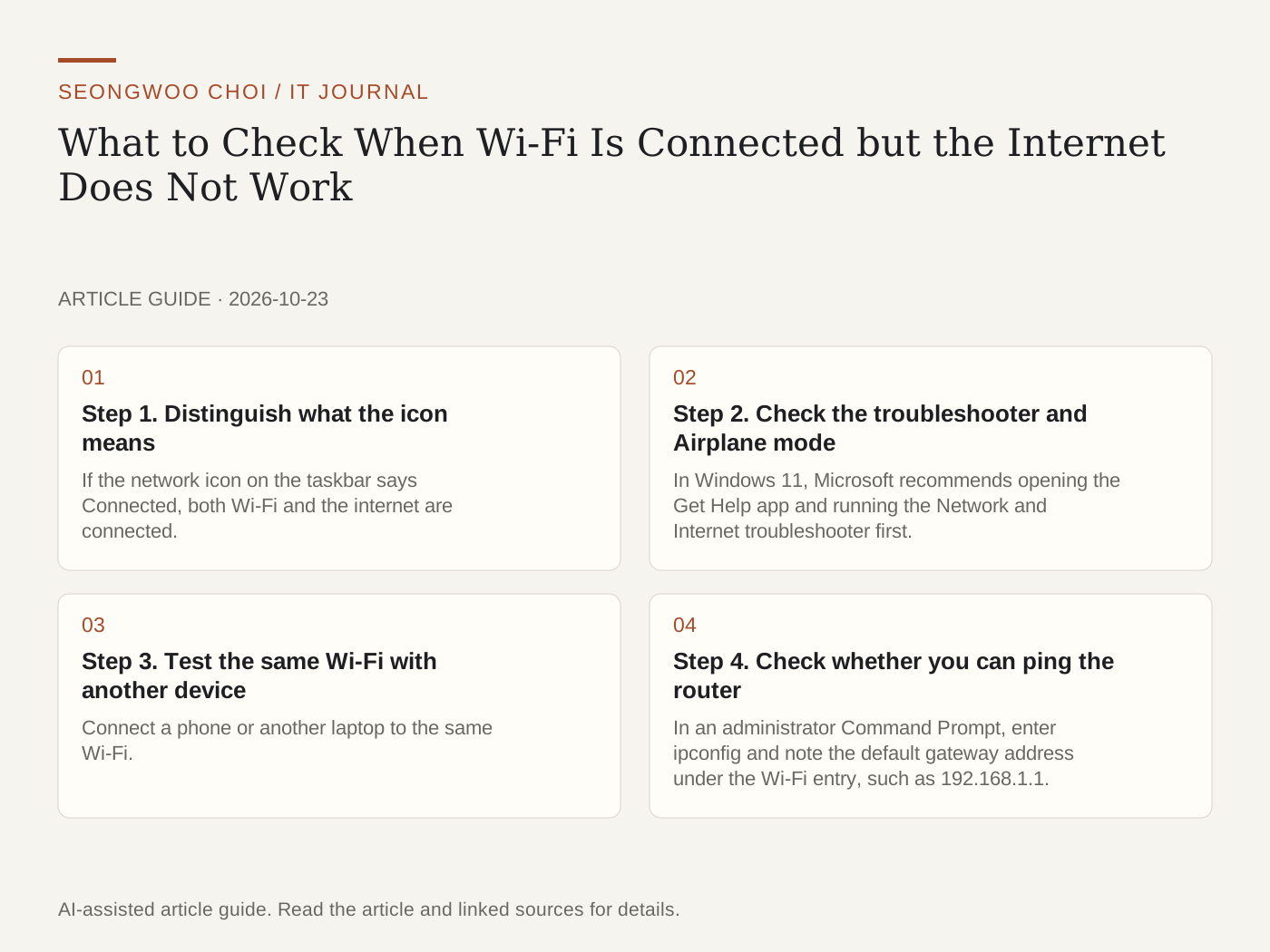
If the Wi-Fi icon says connected but web pages do not open, it is faster to determine where the path to the internet is broken rather than focusing only on the Wi-Fi connection itself. Microsoft Support also explains that internet access may be blocked by a specific app, website, or firewall even when the connection icon is visible. This article organizes the checks in order: PC, router, and connection. It rearranges steps from official documentation into a troubleshooting sequence; it is not the result of reproducing the issue on my PC.
Source: Microsoft Support - Fix Wi-Fi connection issues in Windows
Step 1. Distinguish what the icon means
If the network icon on the taskbar says Connected, both Wi-Fi and the internet are connected. If No internet appears, the device is not receiving an internet connection. If it says connected but only certain sites do not open, check the app, website, or firewall. If the signal bars keep rising and falling, the connection is still in progress, so wait a moment.
Step 2. Check the troubleshooter and Airplane mode
In Windows 11, Microsoft recommends opening the Get Help app and running the Network and Internet troubleshooter first. Also check that Settings › Network & internet › Airplane mode is turned off. If Airplane mode is on, Wi-Fi may be disabled entirely. If you are using an earlier version of Windows, skip this step and proceed to the next one.
Step 3. Test the same Wi-Fi with another device
Connect a phone or another laptop to the same Wi-Fi. If the other device also cannot access the internet, the router or internet connection is likely the cause. If only this PC does not work, check the PC settings first. This test takes the least time for narrowing down the cause.
Step 4. Check whether you can ping the router
In an administrator Command Prompt, enter ipconfig and note the default gateway address under the Wi-Fi entry, such as 192.168.1.1. Then enter a command such as ping 192.168.1.1 and check the response. If responses continue to arrive, the connection between the PC and router is working, so check the modem or telecommunications provider. If there is no response, restart the router and modem and, if possible, connect the PC directly with an Ethernet cable for comparison.
Step 5. Run commands related to IP and DNS
In the same administrator Command Prompt, enter netsh winsock reset, netsh int ip reset, ipconfig /release, ipconfig /renew, and ipconfig /flushdns in that order. The first two commands reset network settings, so note whether you use a proxy or VPN before running them. When the commands finish, check whether the internet works, and if it does not, proceed to the next step.
Step 6. Check the adapter driver and power-saving options
If the problem began after an update, the driver may be the cause. In Device Manager, find the network adapter, select Uninstall device, and restart; Windows will reinstall the driver. Before uninstalling it, prepare on a USB drive the driver downloaded from the PC manufacturer's website. If the connection is dropping because of power saving, turn off the Allow the computer to turn off this device to save power option on the Wi-Fi adapter's Power Management tab.
Step 7. Reset the network as a last resort
Network reset removes network adapters and restores settings to their defaults, so use it last. In Windows 11, it can be found under Settings › Network & internet › Advanced network settings. Menu names may differ by version. Connection settings created manually, such as VPN connections, may need to be recreated. Microsoft’s documentation also recommends this method as the final step.
Summary of the check order and keeping notes
The order is: check the icon, run the troubleshooter and check Airplane mode, test another device, ping the router, run network commands, check the driver and power-saving settings, and reset the network. Note the step at which the response stops so you can quickly determine whether to inspect the router or contact the telecommunications provider. If every device on the same network is affected, check the router's status before the PC settings.
Sources and original article
Read the Korean original on Naver
This article reflects public information available when it was written. Specifications, prices and schedules can change; check the linked official documentation.
This English edition was written and translated with AI assistance, with sources provided. For errors or additional information, please request a correction. Editorial policy