AI · Software · Technology
What to check when Bluetooth earbuds connect to Windows but produce no sound
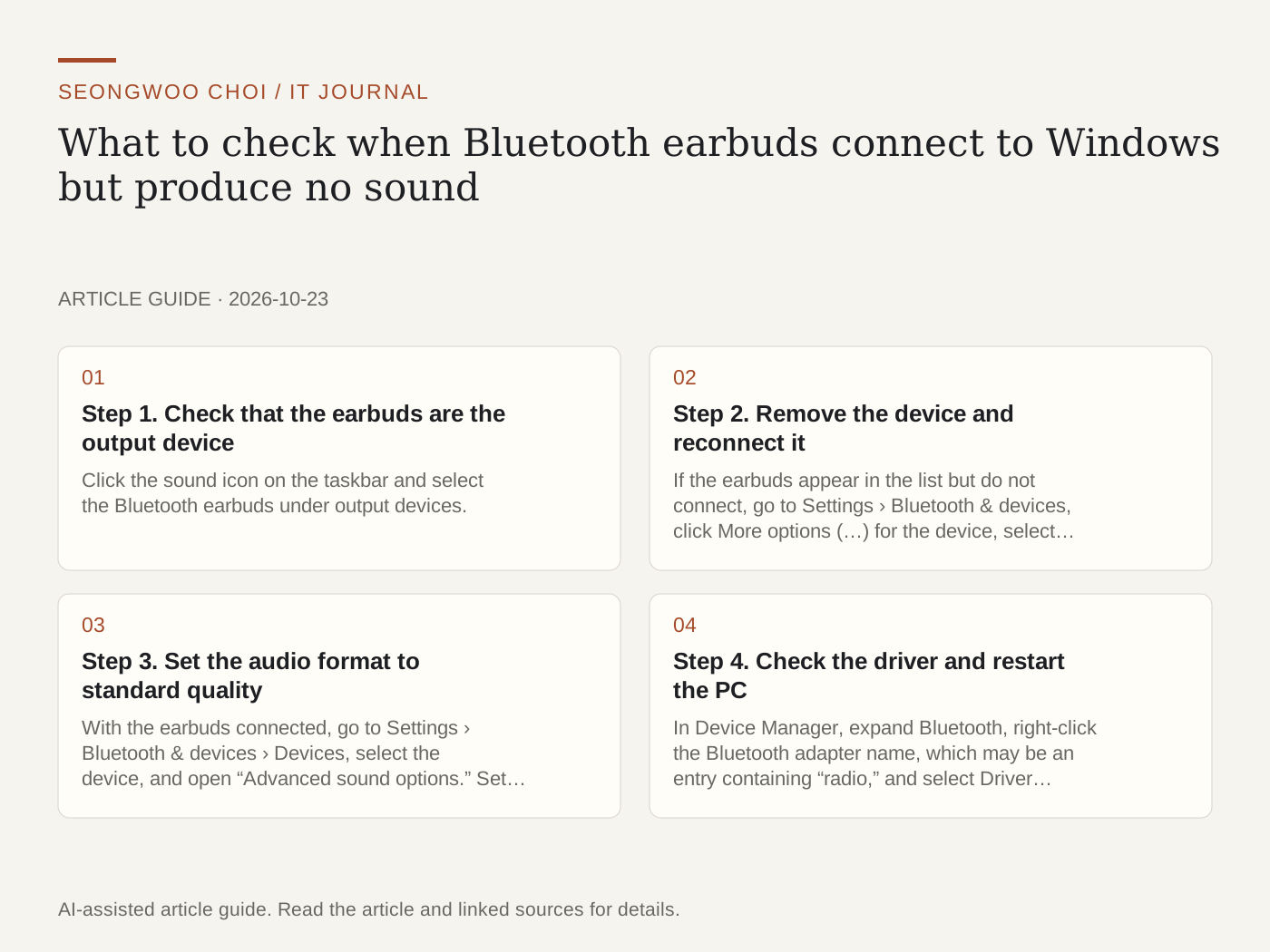
If Bluetooth earbuds are connected to a PC but produce no sound, it is easy to conclude that the earbuds are defective. In reality, the output device may be set elsewhere, the connection may be disrupted, or there may be an issue with the audio format or driver. This article organizes the solutions from Microsoft’s official support documentation into an order to check. These are not results reproduced on my PC.
Step 1. Check that the earbuds are the output device
Click the sound icon on the taskbar and select the Bluetooth earbuds under output devices. Also check that the same device is selected under Settings › System › Sound, in the “Output” section. If the default output is set to another device, such as monitor speakers, sound will be sent there even when the earbuds are connected. Also check that the volume is not set to 0 or muted. Source: Microsoft Support - Fix Bluetooth connected but no sound issue on Windows
Step 2. Remove the device and reconnect it
If the earbuds appear in the list but do not connect, go to Settings › Bluetooth & devices, click More options (…) for the device, select “Remove device,” and register it again with “Add device.” On the same screen, simply turning Bluetooth off, waiting about 10 seconds, and turning it back on can also restore the connection. Both methods are recommended by Microsoft in its official documentation.
Step 3. Set the audio format to standard quality
With the earbuds connected, go to Settings › Bluetooth & devices › Devices, select the device, and open “Advanced sound options.” Set the format under output settings to “2 channel, 16 bit, 48000 Hz (DVD quality)” and apply it. This menu appears only when the device is connected. Menu names may vary depending on the Windows version and language settings.
Step 4. Check the driver and restart the PC
In Device Manager, expand Bluetooth, right-click the Bluetooth adapter name, which may be an entry containing “radio,” and select Driver update › Search automatically for drivers. This step is particularly important if the problem began after a Windows update. When installation is complete, restart the PC, connect the earbuds, and test the sound. Whether the earbuds support A2DP, a high-quality transmission method, can be confirmed in the manufacturer’s documentation.
Why this order was chosen (hypothetical example)
A hypothetical situation would look like this. If earbuds are connected to a laptop but only YouTube produces no sound, check the output device and app volume before changing the driver. Only when the earbuds still appear as “Not connected” should you remove and add the device again. Driver updates and restarting take more time, so they are left until last. In Windows 11, you can also try running the Bluetooth troubleshooter first from Settings search. This order is my own organizing principle, not a diagnostic sequence established by Microsoft.
If the earbuds are connected but only a specific app produces no sound, also check What to check first in the volume mixer when only a specific Windows app has no sound . If the microphone is the problem, see What to check first in app permissions when Windows is not receiving microphone sound .
Sources and original article
Read the Korean original on Naver
This article reflects public information available when it was written. Specifications, prices and schedules can change; check the linked official documentation.
This English edition was written and translated with AI assistance, with sources provided. For errors or additional information, please request a correction. Editorial policy