AI · Software · Technology
The order to check app permissions first when Windows microphone audio is not coming through
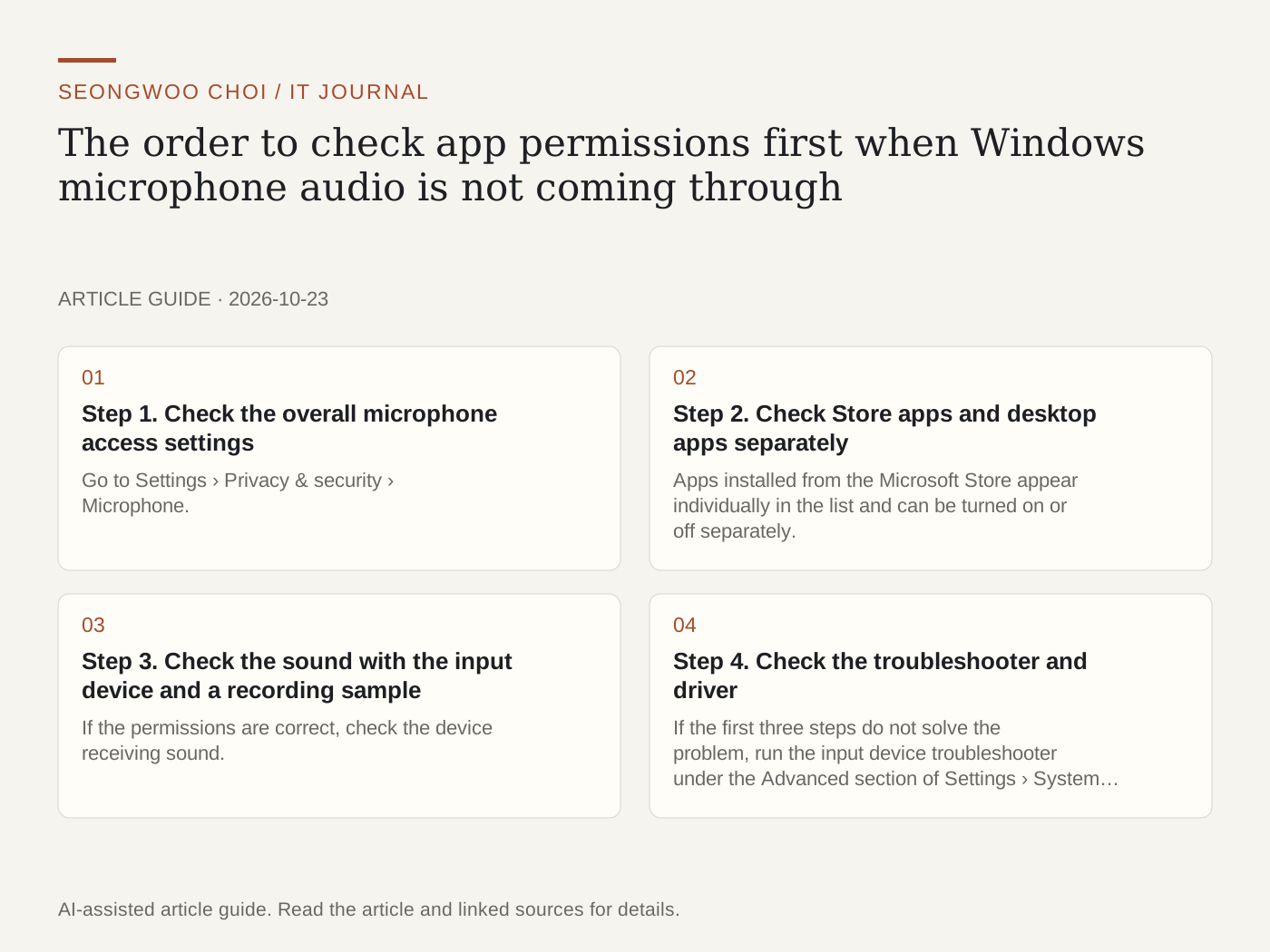
When someone says, “I can’t hear you” in a video meeting, it is easy to immediately assume that the microphone is broken. In reality, the app’s microphone access is often turned off in Windows privacy settings, or the wrong input device is selected to receive sound. This article organizes the checks from Microsoft’s official support documentation into an order. These results were not reproduced on my PC.
Step 1. Check the overall microphone access settings
Go to Settings › Privacy & security › Microphone. This is based on Windows 11. Both “Microphone access” and “Let apps access your microphone” must be turned on. Microsoft explains that these two settings and the per-app switches must all be turned on for an app to use the microphone. If this is turned off, sound will not come through no matter how much you change the per-app settings below. Source: Microsoft Support - Windows camera, microphone, and privacy
Step 2. Check Store apps and desktop apps separately
Apps installed from the Microsoft Store appear individually in the list and can be turned on or off separately. In contrast, conventional installed programs, or desktop apps, may not appear in the list and are managed by the single “Let desktop apps access your microphone” switch near the bottom of the same screen. If your meeting program is not listed, do not assume that there is no permissions issue; check this switch. Microsoft notes that turning off this switch may also affect features such as Windows dictation.
Step 3. Check the sound with the input device and a recording sample
If the permissions are correct, check the device receiving sound. Go to Settings › System › Sound › Input and confirm that “Choose a device for speaking or recording” is the microphone or headset you are actually using. If it is a Bluetooth headset, also check its pairing and connection status. After selecting the device, click “Start test” under Input device properties, speak, and then use “Stop” and “Play” to listen to the recording sample. If you cannot hear your voice in the sample, raise the input volume slider as well and check again. If the headset has a mute button, make sure it is turned off.
Step 4. Check the troubleshooter and driver
If the first three steps do not solve the problem, run the input device troubleshooter under the Advanced section of Settings › System › Sound. If Windows does not recognize the microphone itself, Microsoft advises removing the audio device under “Sound, video and game controllers” in Device Manager and rebooting to reinstall the driver, or trying to update the driver. Because removing the device is involved, note the current device name and settings, and do this when you have time rather than immediately before a meeting.
Confirmation checklist
☐ Are Microphone access and Let apps access your microphone turned on?
☐ If it is a Store app, is that app’s switch turned on?
☐ If it is a desktop app, is “Let desktop apps access your microphone” turned on?
☐ Is the input device selected as the microphone or headset you actually use?
☐ Can you hear your voice in the recording sample?
☐ Is the headset’s mute button turned off?
Criteria for choosing the order (hypothetical example)
In a hypothetical situation, it works like this. If the other person cannot hear my voice in a meeting, but my voice sounds normal in the recording sample, the device itself is working. In that case, check the meeting program’s microphone permissions or the input device selected within the meeting program first. If there is no sound in the recording sample either, return to Steps 1 and 2 to check the permissions again, then check the device connection and driver. This decision order is a troubleshooting standard I organized; it is not a diagnostic rule provided by Microsoft.
If the issue involves changing the input device, also see The order and shortcuts for recovering a Windows window that has disappeared off-screen , and if input method settings are involved, see 4 steps to check the input method when Korean input does not work in Windows . Menu names may differ depending on the Windows version and language settings, so if your screen looks different, search for microphone or input device in the Settings search box.
Sources and original article
- support.microsoft.com/en-us/windows/privacy/windows-camera-microphone-and-privacy
- support.microsoft.com/en-us/windows/hardware/drivers/fix-microphone-problems
Read the Korean original on Naver
This article reflects public information available when it was written. Specifications, prices and schedules can change; check the linked official documentation.
This English edition was written and translated with AI assistance, with sources provided. For errors or additional information, please request a correction. Editorial policy