In this article 4 sections
- 1. Check who initiated contact first
- 2. See what level of access the other person wants
- 3. Warning signs that require immediate action
- 4. Remove access as soon as the connection ends
If a caller or popup asks you to connect through Quick Assist, claiming that your computer has a problem, it is safest to stop first. Quick Assist is a remote support tool built into Windows, so if someone uses it to view or control your screen, your files and account information may be exposed. This article organizes the steps to check before allowing a connection, based on official Microsoft support documents. It is not the result of testing an actual scam call.
1. Check who initiated contact first
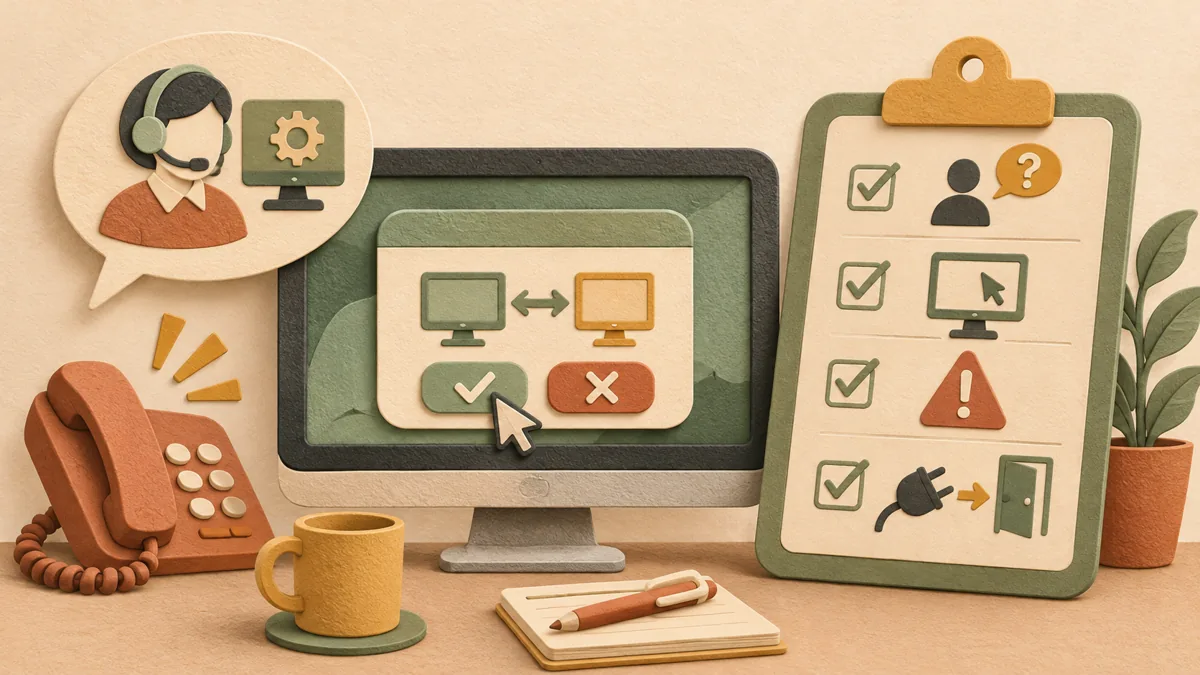
Microsoft support documentation advises allowing a Helper to connect only when you have directly contacted Microsoft Support and initiated the interaction. If the connection began after you received a phone call, saw a warning popup, or received a message, that alone is grounds for suspicion.
After hanging up, do not call back using the number the other person provided. Instead, find the official number on the manufacturer's or Microsoft Support's website and verify it directly.
2. See what level of access the other person wants
In Quick Assist, you can choose between allowing someone to view your screen and allowing them to control it remotely. Microsoft support documentation advises using this feature only with people you trust. If there is no clear reason to receive help, it is safest not to grant even screen-viewing access.
The six-digit security code is the key that opens the connection. If the other person asks you to tell them the code or read the code displayed on your screen, stop the connection request at that moment.
3. Warning signs that require immediate action
Microsoft's online scam prevention guidance identifies unexpected contact, pressure to act quickly, and messages exaggerating account or payment problems as warning signs. The Better Business Bureau's guidance on tech support scams also warns about calls that report a computer problem and request remote access.
If any of these apply, end the connection and, if necessary, contact an official support channel from another device. If you have already connected, change your passwords afterward and check your bank or card company's transaction history.
4. Remove access as soon as the connection ends
When the work is finished, disconnect from the Quick Assist window. If you allowed remote control, revoke access first and then close the window. To check whether a suspicious connection occurred, it is helpful to review both Windows security settings and the list of installed programs.
If personal information may have been visible on the screen, check how to hide it before capturing and sharing a screenshot. Related articles: How to hide personal information in Windows screenshots and check for traces in the original ↗, How to check quarantined files in Windows Security ↗
In summary, first confirm that you initiated the request, keep the permissions you allow to a minimum, disconnect immediately if you see a warning sign, and revoke access when finished.
Sources: Solve PC problems remotely using Quick Assist - Microsoft Support ↗, Protect yourself from online scams and attacks - Microsoft Support ↗, Quick Assist - Microsoft Learn ↗, BBB Tip: Tech Support Scams ↗
Sources and original article
Read the Korean original on Naver ↗
This article reflects public information available when it was written. Specifications, prices and schedules can change; check the linked official documentation.
This English edition was written and translated with AI assistance, with sources provided. For errors or additional information, please request a correction. Editorial policy

 Privacy & backup