AI · Software · Technology
Four steps to check when Korean input does not work in Windows
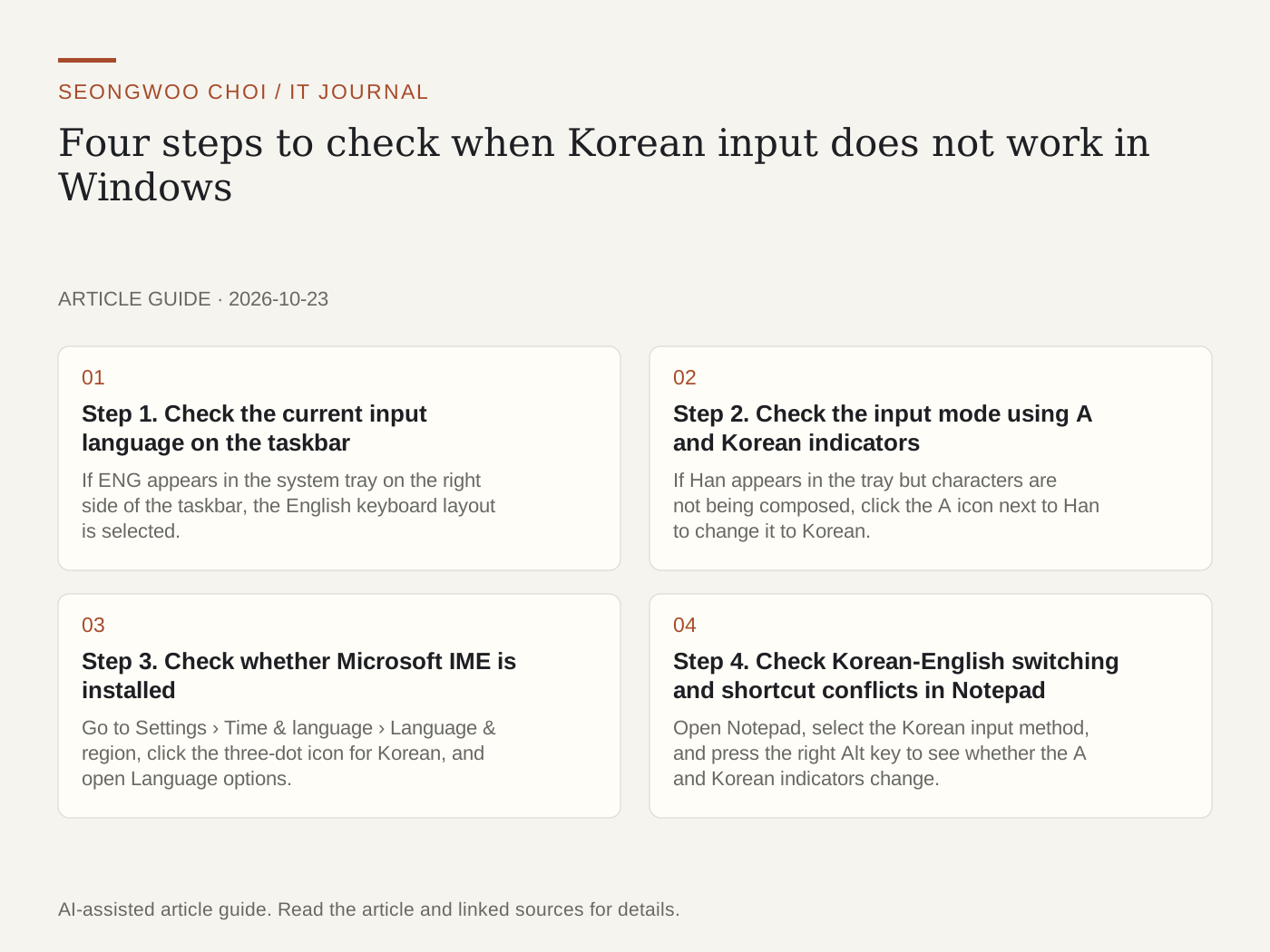
When Korean input suddenly stops working or only English appears, it is usually due to one of three causes: the input language is set to English (ENG), the input mode is A (English input), or the Korean input method (Microsoft IME) is not selected. Checking in the order below can narrow down where the problem occurs. This article rearranges explanations from official Microsoft documentation into a troubleshooting sequence and is not based on results reproduced on my PC.
Step 1. Check the current input language on the taskbar
If ENG appears in the system tray on the right side of the taskbar, the English keyboard layout is selected. According to Microsoft documentation, you can switch between installed input languages with the Windows logo key + Spacebar, or click the tray icon and choose from the list. If Korean itself is not in the list, you need to add the input method in Step 3, not Step 2. Source: Microsoft Learn - Korean IME
Step 2. Check the input mode using A and Korean indicators
If Han appears in the tray but characters are not being composed, click the A icon next to Han to change it to Korean. When the Korean indicator appears, Korean characters can be composed. Microsoft documentation explains that you can use the right Alt key to switch between English and Korean input. If Old appears in the tray, the Microsoft Old Hangul input method is selected; to type standard Korean, select Korean Microsoft IME.
Step 3. Check whether Microsoft IME is installed
Go to Settings › Time & language › Language & region, click the three-dot icon for Korean, and open Language options. Microsoft IME should appear in the keyboard list. If Korean is not listed, select Korean under Add a language, then follow the Next and Install steps. According to Microsoft documentation, Microsoft IME is installed by default with Korean support. If unused Korean keyboards are registered redundantly, you may consider removing them. This check is based on a response in the Microsoft Q&A community. Source: Microsoft Q&A - Keyboard language switch not working correctly
Step 4. Check Korean-English switching and shortcut conflicts in Notepad
Open Notepad, select the Korean input method, and press the right Alt key to see whether the A and Korean indicators change. If it works in Notepad but not in another app, the cause is more likely that app's input settings than the Windows input method. This is my troubleshooting sequence, not content from official documentation. A case in which it does not work even in Notepad and switches back to English after changing windows with Alt+Tab has been posted on Microsoft Q&A. In this case, a community response recommends changing the key for switching between input languages under the language bar options in advanced keyboard settings. Note the existing key setting before changing it. Source: Microsoft Q&A - Switching between Korean and English keyboards
Troubleshooting checklist
☐ Does Han (or Old) appear in the tray?
☐ Can you press A to change it to the Korean indicator?
☐ Is Microsoft IME listed under language options?
☐ Does the right Alt key switch between Korean and English in Notepad?
☐ If it fails only in another app, have you checked that app's input settings?
If you are confused about the shortcuts, also see How to recover a Windows window that has disappeared off-screen, including the steps and shortcuts . Menu names may differ depending on the Windows version and language settings, so if your screen differs, search for input-related items in the Settings search box.
Sources and original article
- learn.microsoft.com/en-us/globalization/input/korean-ime
- learn.microsoft.com/en-us/answers/questions/5938763/keyboard-language-switch-not-working-correctly
- learn.microsoft.com/en-us/answers/questions/5563111/switching-between-korean-and-english-keyboards
Read the Korean original on Naver
This article reflects public information available when it was written. Specifications, prices and schedules can change; check the linked official documentation.
This English edition was written and translated with AI assistance, with sources provided. For errors or additional information, please request a correction. Editorial policy