AI · Software · Technology
Steps and shortcuts to recover a Windows window that disappeared off-screen
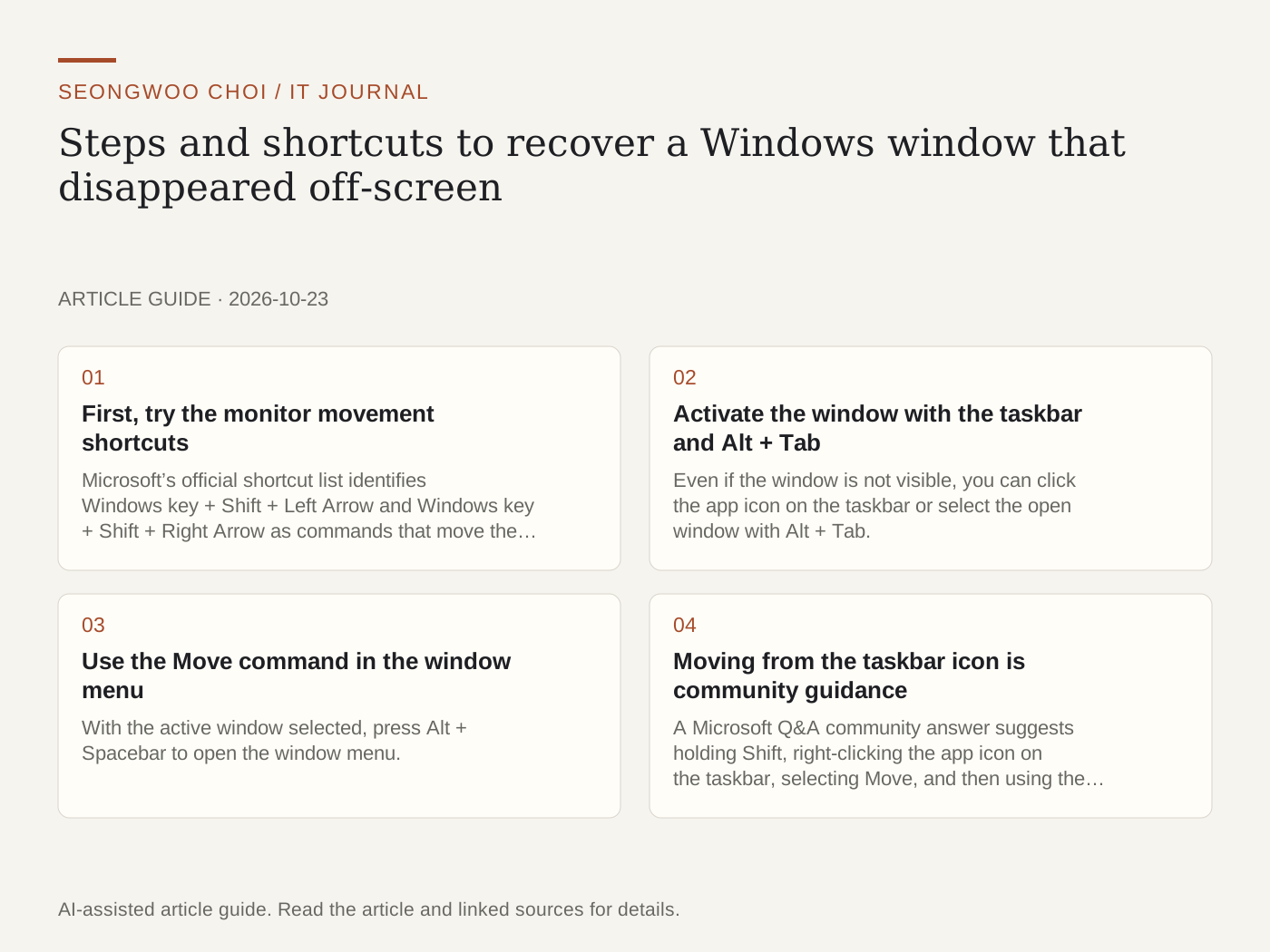
After disconnecting a monitor, or disconnecting a laptop from an external monitor, a window may be pushed off-screen and become invisible. If the app icon remains on the taskbar but the window is not visible, the window itself is likely still active. This article organizes the steps for bringing the window back onscreen based on Microsoft’s official shortcut list.
1. First, try the monitor movement shortcuts
Microsoft’s official shortcut list identifies Windows key + Shift + Left Arrow and Windows key + Shift + Right Arrow as commands that move the active window to the left or right monitor. First, click the app on the taskbar to activate it, then press the shortcut. This is the first method to try when one of several monitors has been disconnected. If there is only one monitor, this method may not solve the problem. Source: Microsoft Support - Windows keyboard shortcuts
2. Activate the window with the taskbar and Alt + Tab
Even if the window is not visible, you can click the app icon on the taskbar or select the open window with Alt + Tab. Microsoft’s list describes Alt + Tab as switching between open windows and Ctrl + Alt + Tab as displaying open apps as thumbnails. The window must be active before you can use the movement menu in the next step. If the app icon is not on the taskbar either, the app may be closed or not running, so this article’s methods cannot recover the window.
3. Use the Move command in the window menu
With the active window selected, press Alt + Spacebar to open the window menu. Microsoft’s list identifies this key combination as opening the context menu for the active window. Select the Move item in the menu, then press an arrow key to move the window with the cursor. Community guidance says that Move can be selected with the M key, but this key behavior is not specified in the official list. If an underlined letter appears in the menu, press that letter and check onscreen that the Move command has been executed. When the window comes onscreen, press Enter to confirm its position.
4. Moving from the taskbar icon is community guidance
A Microsoft Q&A community answer suggests holding Shift, right-clicking the app icon on the taskbar, selecting Move, and then using the arrow keys to move the window. This method is based on a community answer, not the official shortcut list. The menu name and behavior may vary by Windows version, so confirm that the window actually moves before continuing to use it. Reference (community): Microsoft Q&A - App runs off screen in Windows 11
5. Arrange the window after recovering it
Once the window is visible, use Windows key + Up Arrow to maximize it, or Windows key + Left Arrow or Right Arrow to snap it to one side of the screen. To restore a maximized or snapped window to its original size, use Windows key + Shift + Down Arrow. These three shortcuts are also included in the official shortcut list. If the same problem occurs frequently, it is a good idea to check the monitor connection status and display resolution settings together. If PDF app settings are also involved, see How to restore the association when the default Windows PDF app changes .
Summary: recovery order
① If there are multiple monitors, move the window with Windows key + Shift + an arrow key. ② Select the window from the taskbar or with Alt + Tab. ③ Open the window menu with Alt + Spacebar, choose Move, and use the arrow keys to bring it onscreen. ④ Once visible, arrange it with Windows key + Up Arrow or a Left/Right Arrow shortcut. For issues involving confusing file extensions, also see How to enable Windows file extension display and distinguish files with double extensions .
Sources and original article
- support.microsoft.com/en-us/accessibility/windows/keyboard-shortcuts-in-windows
- learn.microsoft.com/en-us/answers/questions/4139775/app-runs-off-screen-in-windows-11
Read the Korean original on Naver
This article reflects public information available when it was written. Specifications, prices and schedules can change; check the linked official documentation.
This English edition was written and translated with AI assistance, with sources provided. For errors or additional information, please request a correction. Editorial policy