AI · Software · Technology
What to check first in Volume Mixer when only a specific Windows app has no sound
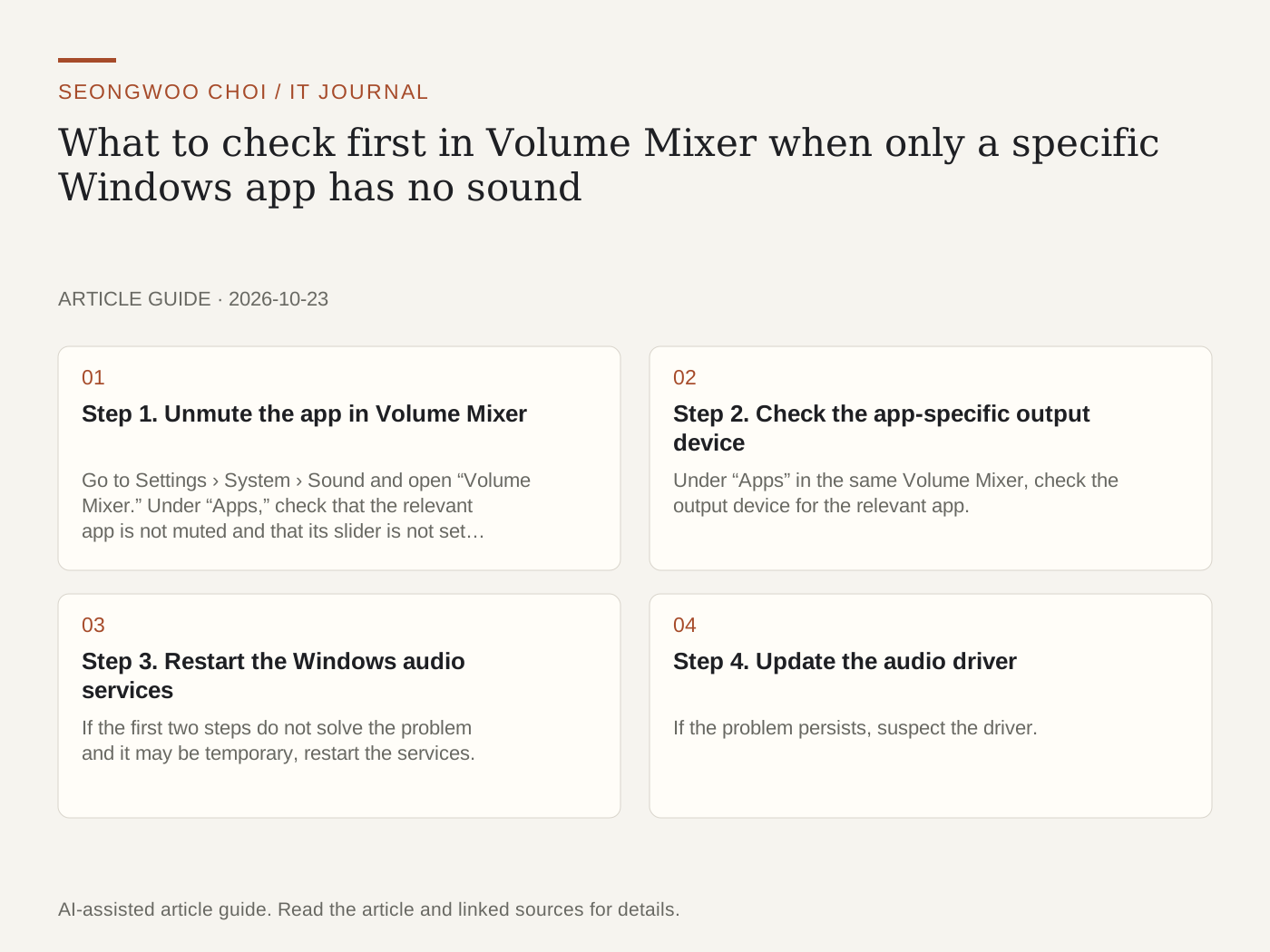
There are times when Windows alert sounds are audible during a video call or while watching a video, but a specific app has no sound. It is easy to immediately conclude that the speakers are broken, but the actual cause is often the app-specific volume or the output device selected by the app. This article organizes the checks from Microsoft’s official support document into an order. It is not based on results reproduced on my PC.
Step 1. Unmute the app in Volume Mixer
Go to Settings › System › Sound and open “Volume Mixer.” Under “Apps,” check that the relevant app is not muted and that its slider is not set to 0. This is based on Windows 11. App-specific volume operates separately from the overall volume, so even if the system volume is at maximum, the app will produce no sound if its slider is set to 0. Source: Microsoft Support - Fix app audio not working while system sounds work in Windows
Step 2. Check the app-specific output device
Under “Apps” in the same Volume Mixer, check the output device for the relevant app. An app can use a different device from the Windows default output device. For example, if the default device is the speakers but the app is set to disconnected Bluetooth earbuds, alert sounds may come from the speakers while the app produces no sound. Change the output device to the one you actually listen through, then restart the app.
Step 3. Restart the Windows audio services
If the first two steps do not solve the problem and it may be temporary, restart the services. Enter services.msc in the Start menu to open Services, then restart “Windows Audio” and “Windows Audio Endpoint Builder” separately. Administrator privileges may be required, so if this is a company PC, check with an administrator first. After restarting, test the sound in the relevant app.
Step 4. Update the audio driver
If the problem persists, suspect the driver. In Device Manager, expand “Sound, video and game controllers,” select the audio device, run the driver update, and restart the PC. Microsoft advises that outdated or incompatible drivers can prevent an app from outputting sound.
How to choose the order (hypothetical example)
Consider this hypothetical situation: if YouTube has no sound but alert sounds work normally, suspect the app volume or app-specific output device before a hardware failure. Therefore, check Steps 1 and 2 first, and move on to Steps 3 and 4 only when all other apps also have no sound. This order is a troubleshooting guideline I organized and is not a diagnostic rule established by Microsoft.
If the problem concerns microphone permissions, also check What to check first in app permissions when the Windows microphone has no input . Menu names may differ depending on the Windows version and language settings, so if your screen looks different, search for Volume Mixer in the Settings search box.
Sources and original article
Read the Korean original on Naver
This article reflects public information available when it was written. Specifications, prices and schedules can change; check the linked official documentation.
This English edition was written and translated with AI assistance, with sources provided. For errors or additional information, please request a correction. Editorial policy