In this article 6 sections
- 1. Match scaling across monitors
- 2. Sign out and sign in again after changing settings
- 3. Check only the blurry app separately
- 4. Treat the driver as a last step
- 5. When you only want to increase text size
- Summary
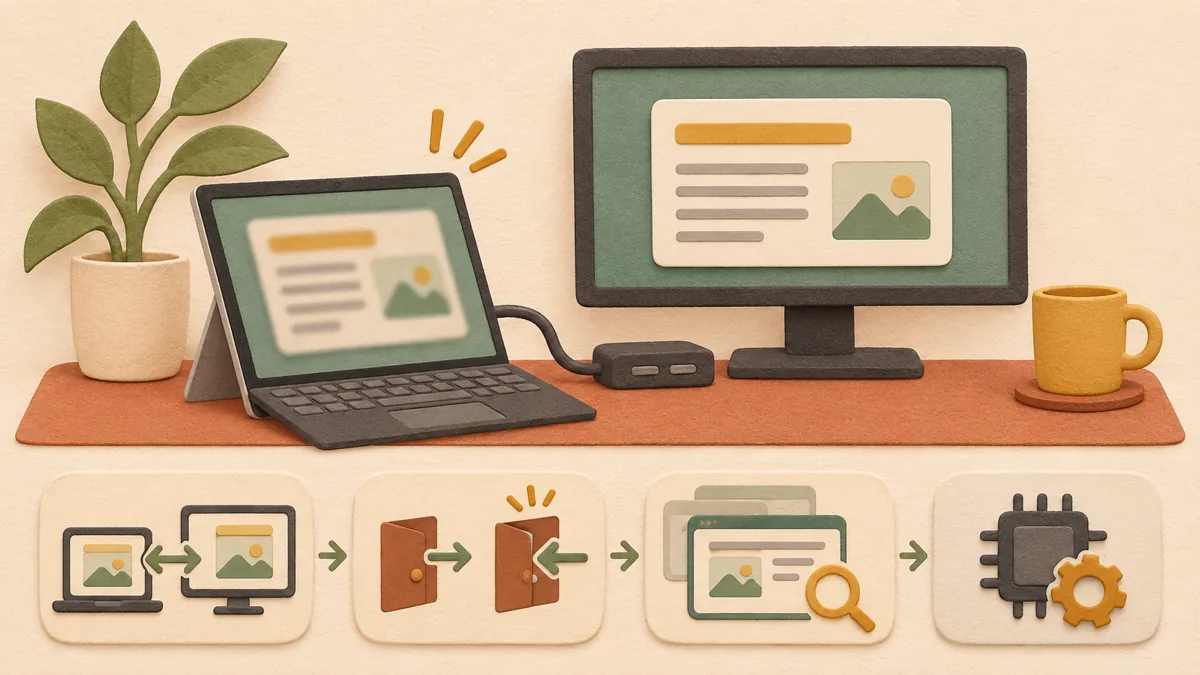
When text and app screens look blurry after connecting an external monitor or docking and undocking a laptop, it is easy to suspect the graphics driver first. However, Microsoft’s official support documentation advises checking first whether scaling differs between monitors or whether you have not signed in again after changing the scaling. This article organizes the checks in order of cost, based on that guidance. These steps were not tested on an actual PC, and menu names may vary by Windows version and language.
1. Match scaling across monitors
In Settings > System > Display, check the value for “Change the size of text, apps, and other items.” Microsoft’s support documentation explains that when using multiple monitors, you should try setting the scaling on each monitor to the same value. For example, if the primary monitor is set to 150% and the secondary monitor to 100%, change both to the same value, such as 125%, and compare which one looks clearer.
2. Sign out and sign in again after changing settings
The same document says that if apps look blurry after connecting or disconnecting a monitor, changing the docking state, or changing the scaling settings, signing out of Windows and signing in again may solve the problem. If you have unsaved work, save it first. After signing in again, check whether apps on the primary monitor look clear.
3. Check only the blurry app separately
If only a specific app looks blurry, open Properties > Compatibility > “Change high DPI settings” from the app’s shortcut or executable file. This method was not confirmed in Microsoft’s official support documentation and is frequently mentioned in community answers. Therefore, change only one value at a time, relaunch the app, and compare the result. If it has no effect, restore the default value on the same screen.
4. Treat the driver as a last step
It is reasonable to suspect a graphics driver problem only after checking scaling and signing in again has not solved the issue. Before changing the driver, note the current version and the date of the latest update so it will be easier to revert. The rollback procedure is described in Windows driver rollback steps: Reverting when a device behaves strangely after an update ↗.
5. When you only want to increase text size
If you want to enlarge only text while leaving the overall display scaling unchanged, use the text size slider under Settings > Accessibility > Text size. Microsoft’s support documentation explains that this setting affects text such as title bars, menus, and icon labels. Because it does not change the size of images or apps overall, consider it a way to improve readability rather than a fix for blurriness.
Summary
The order is to match scaling across monitors, sign out and sign in after changing settings, compare compatibility options for only the blurry app, and check the driver last. Following this order can reduce unnecessary driver reinstalls without evidence.
Sources: Office apps appear the wrong size or blurry on external monitors - Microsoft Support ↗ (because the last review date was October 12, 2018, the information may differ from the latest Windows menus), Make text and apps bigger - Microsoft Support ↗. The first document was opened and checked directly at 2026-11-01 KST, and the second document was checked through a search-results summary.
Sources and original article
Read the Korean original on Naver ↗
This article reflects public information available when it was written. Specifications, prices and schedules can change; check the linked official documentation.
This English edition was written and translated with AI assistance, with sources provided. For errors or additional information, please request a correction. Editorial policy