In this article 4 sections
- 1. Check battery usage by app first
- 2. Reduce background activity
- 3. Adjust display and sleep settings
- 4. Check capacity records with a battery report
If your laptop battery is draining faster than before, it is a good idea to first check which apps and settings are using power before suspecting the battery itself. The steps below are organized based on Microsoft Support guidance on saving battery power and caring for your battery. I want to clarify first that this is not the result of measuring battery life on an actual laptop.
1. Check battery usage by app first
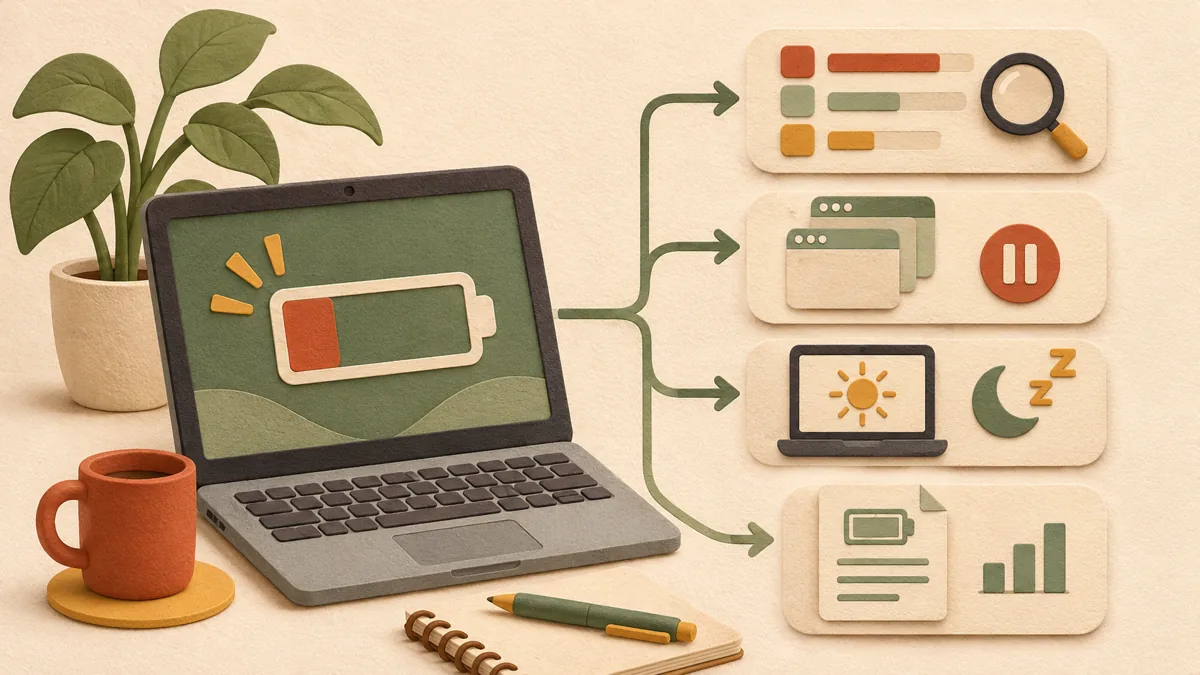
Go to Start, Settings, System, Power & battery, and Battery usage. In the battery usage by app list below, you can see which apps are using the most power. Rather than immediately concluding that you have found the cause, first check whether any apps that you do not normally use appear near the top of the list.
2. Reduce background activity
An app can use battery power if it continues running when it is not on screen. Select More options for the app in the list, go to Manage background activity, and change the setting that allows the app to run in the background. Not every app has this menu, so for apps without it, it is better to check the app's own settings for automatic startup or synchronization.
3. Adjust display and sleep settings
Lower the screen brightness and shorten the time before the screen turns off when using battery power. Under Energy recommendations in Power & battery, you can view power-intensive settings at once or choose them individually. Changing the power mode to a more efficient mode is another option, but this option may not be available depending on the PC hardware and manufacturer.
4. Check capacity records with a battery report
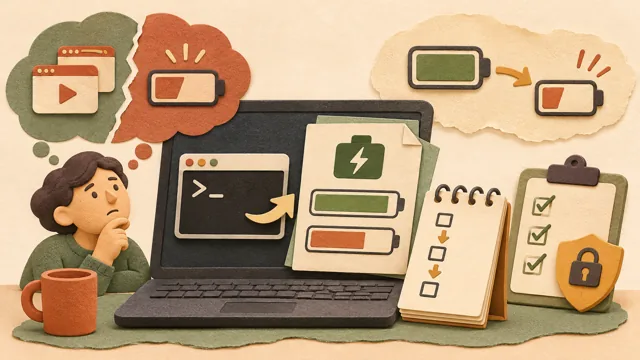
If the battery continues to drain quickly even after reducing app and setting usage, open Command Prompt with administrator privileges and enter powercfg /batteryreport. Open the saved HTML file to view the installed batteries, recent usage, and battery usage sections. Because the report is diagnostic material, if it shows records of declining capacity, it is safest to also consider contacting the manufacturer's support service or arranging a professional inspection.
Recommended reading: For criteria on choosing a sleep mode, see Criteria for choosing sleep and hibernate modes on a laptop ↗; for items running in the background, see Guide to organizing Windows startup programs ↗.
References: Microsoft Support, Battery saving tips for Windows ↗, Microsoft Support, Caring for your battery in Windows ↗
Sources and original article
Read the Korean original on Naver ↗
This article reflects public information available when it was written. Specifications, prices and schedules can change; check the linked official documentation.
This English edition was written and translated with AI assistance, with sources provided. For errors or additional information, please request a correction. Editorial policy

 Windows