AI · Software · Technology
Organizing Windows startup programs: Three steps to check before disabling them
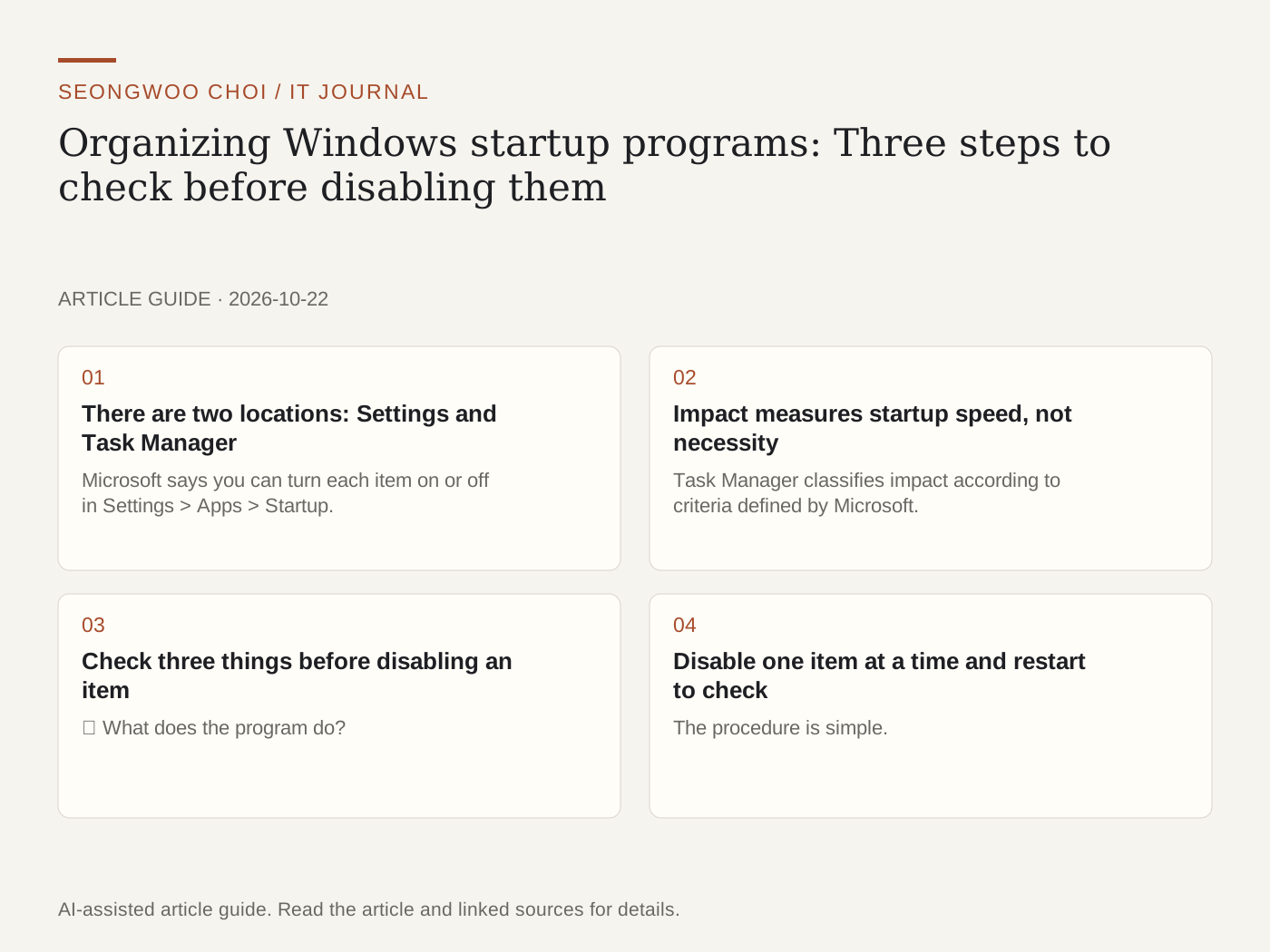
If the desktop appears slowly or disk usage stays high after starting the PC, startup programs may be responsible. However, disabling all the listed items at once may stop essential features such as antivirus software, input methods, and device assistants. Based on the settings locations and impact criteria in Microsoft’s official support documentation, this article outlines three steps to check before disabling them. The explanation is based on Windows 11, and menu names may vary depending on the version and language settings.
1. There are two locations: Settings and Task Manager
Microsoft says you can turn each item on or off in Settings > Apps > Startup. The same list also appears in Task Manager’s “Startup apps” tab. The two screens show the same items, but Task Manager also displays the startup impact for each item. Task Manager provides more detail when examining performance issues. Items not listed there are managed by adding or removing shortcuts in the Startup folder through File Explorer.
2. Impact measures startup speed, not necessity
Task Manager classifies impact according to criteria defined by Microsoft. Low means CPU usage is under 300 milliseconds and disk usage is under 292 KB. High means CPU usage exceeds 1 second or disk usage exceeds 3 MB. Not Measured means there is no measurement data; it does not mean the impact is small. Even if an item has High impact, first check what function it performs before disabling it if it is security software or a device-control program.
3. Check three things before disabling an item
① What does the program do? If the name is unfamiliar, first check the publisher and the executable file location. ② Is it connected to an essential function? Antivirus software, input methods, device-driver assistants, and synchronization programs may not show an immediate error when disabled. ③ Do you know how to turn it back on? The Settings toggle can be reversed at once, but options in the app itself are located differently in each app. If you cannot answer even one of these questions, it is safer to leave the item as it is.
4. Disable one item at a time and restart to check
The procedure is simple. Disable one item with High impact. Restart the PC. After signing in, check whether the functions, notifications, and synchronization you normally use work properly. If there is no problem, move on to the next item; if a problem occurs, turn it back on from the same screen. This approach helps narrow down the cause. However, the amount of time saved at startup varies by PC, so this article does not provide an estimate.
5. Handling “We couldn't find this app” and the Startup folder
According to Microsoft documentation, the “We couldn't find this app” message may appear when the app path is on an external or network drive, or when the app has already been deleted and the path no longer exists. Clicking the icon next to the item lets you check the registry location or file path containing the broken path. Because accidentally editing the registry can affect other functions, back it up before editing. The Startup folders are shell:startup (current user) and shell:common startup (all users). Deleting a shortcut here only stops automatic execution at sign-in; it does not delete the original program.
If you are also dealing with insufficient storage space, you can refer to the article How to separate temporary and personal files when Windows storage space is running low . Startup programs and storage space have different causes, so check the article that matches your symptoms first.
6. Make a record for reverting changes
Before disabling an item, write its name, impact, publisher, date disabled, and method for reverting the change in Notepad so you can identify the cause quickly if a problem occurs. For example, a five-column table with “Item name | Impact | Publisher | Date disabled | Reversion method” is sufficient. This table is an example for explaining the checking method and is not a value measured from actual results.
Source: Microsoft Support Configure Startup applications in Windows , checked October 23, 2026.
Sources and original article
Read the Korean original on Naver
This article reflects public information available when it was written. Specifications, prices and schedules can change; check the linked official documentation.
This English edition was written and translated with AI assistance, with sources provided. For errors or additional information, please request a correction. Editorial policy