In this article 6 sections
- 1. Check whether “I forgot my PIN” appears on the sign-in screen
- 2. If the option is missing, sign in with your password and create a new PIN
- 3. If you also forgot your password, reset the password first
- 4. Checklist for choosing a recovery path
- 5. What to prepare before recovery
- References
Forgetting the PIN used to log in to Windows can be stressful. However, a PIN is different from a Microsoft account password and is a login method used only on that PC. If you follow the steps in order, you can usually log in again. This article organizes the available paths based on Microsoft's official support documentation. It is not the result of reproducing the process on an actual PC.
1. Check whether “I forgot my PIN” appears on the sign-in screen
First, look below the PIN entry field on the lock screen. If “I forgot my PIN” appears, select it, verify your account as instructed, and create a new PIN. This option appears only for accounts that sign in with a Microsoft account. For a local account (an account that is not a Microsoft account), the option does not appear at all.
2. If the option is missing, sign in with your password and create a new PIN
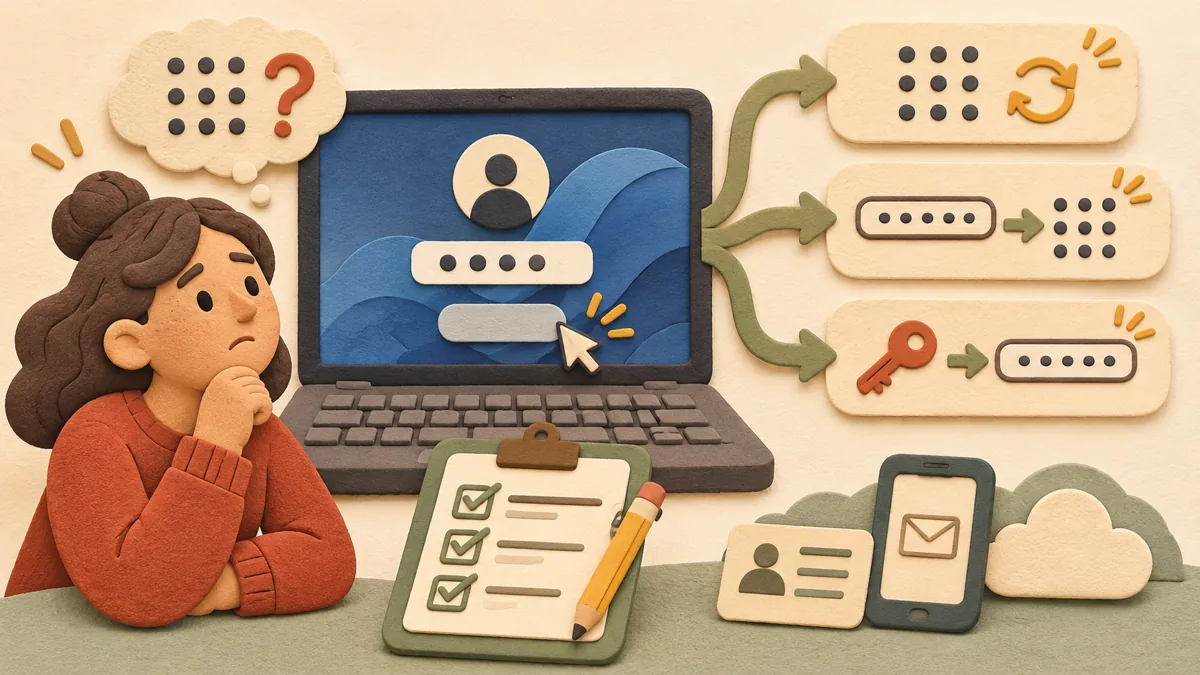
If the option is not visible, select Sign-in options near the PIN entry field, then sign in with Enter your password. After signing in, go to Settings > Accounts > Sign-in options > PIN (Windows Hello). If you already know your PIN, select Change PIN, enter the existing PIN, and set a new one. If you do not know the existing PIN, select “I forgot my PIN,” verify your account, and create a new one.
3. If you also forgot your password, reset the password first
If you have forgotten both your PIN and password, you must recover the password first. For a Microsoft account, select “I forgot my password” on the sign-in screen, or select “I forgot my password” under Web sign-in in Sign-in options. You can also open the reset page in a browser on another device. For a local account, answer the security questions in the password entry field on the sign-in screen, or use a password reset disk that you created in advance. After recovering the password, create a new PIN as described in step 2.
4. Checklist for choosing a recovery path
- “I forgot my PIN” appears on the sign-in screen → Verify your account and create a new PIN.
- The option is missing, but you remember your password → Sign in with your password and change the PIN in Settings.
- You do not know the password either → Check the account type first, reset the password, and then create a new PIN.
If you use multiple devices, remember that changing your PIN does not change the PIN on your other devices. Each PC's PIN is managed separately on that PC.
5. What to prepare before recovery
Changing your PIN does not change your Microsoft account password. Conversely, changing your password does not automatically change the PIN on the device. Knowing that these are separate values helps you avoid confusion about which option to select. If you use a local account, prepare the answers to your security questions and a reset disk in advance. If you use a Microsoft account, keep the email address and phone number used for account recovery up to date. The method of separating login methods is also explained in the article on the differences between passkeys, passwords, and two-step verification ↗. For information on separating browser accounts for work and personal use, see the article on browser profiles ↗.
Accounts provided by a company or school may have different PIN reset procedures depending on administrator policies. For these devices, you should check the recovery procedure with the administrator rather than changing the settings arbitrarily. Menu names may vary slightly depending on the Windows version and PC manufacturer.
References
Microsoft Support: Change or reset your PIN in Windows ↗
Microsoft account password reset page ↗
Microsoft Learn: Windows Hello for Business PIN reset (organizational accounts) ↗
Sources and original article
Read the Korean original on Naver ↗
This article reflects public information available when it was written. Specifications, prices and schedules can change; check the linked official documentation.
This English edition was written and translated with AI assistance, with sources provided. For errors or additional information, please request a correction. Editorial policy

 Windows