AI · Software · Technology
How to choose between sleep and hibernate on a laptop
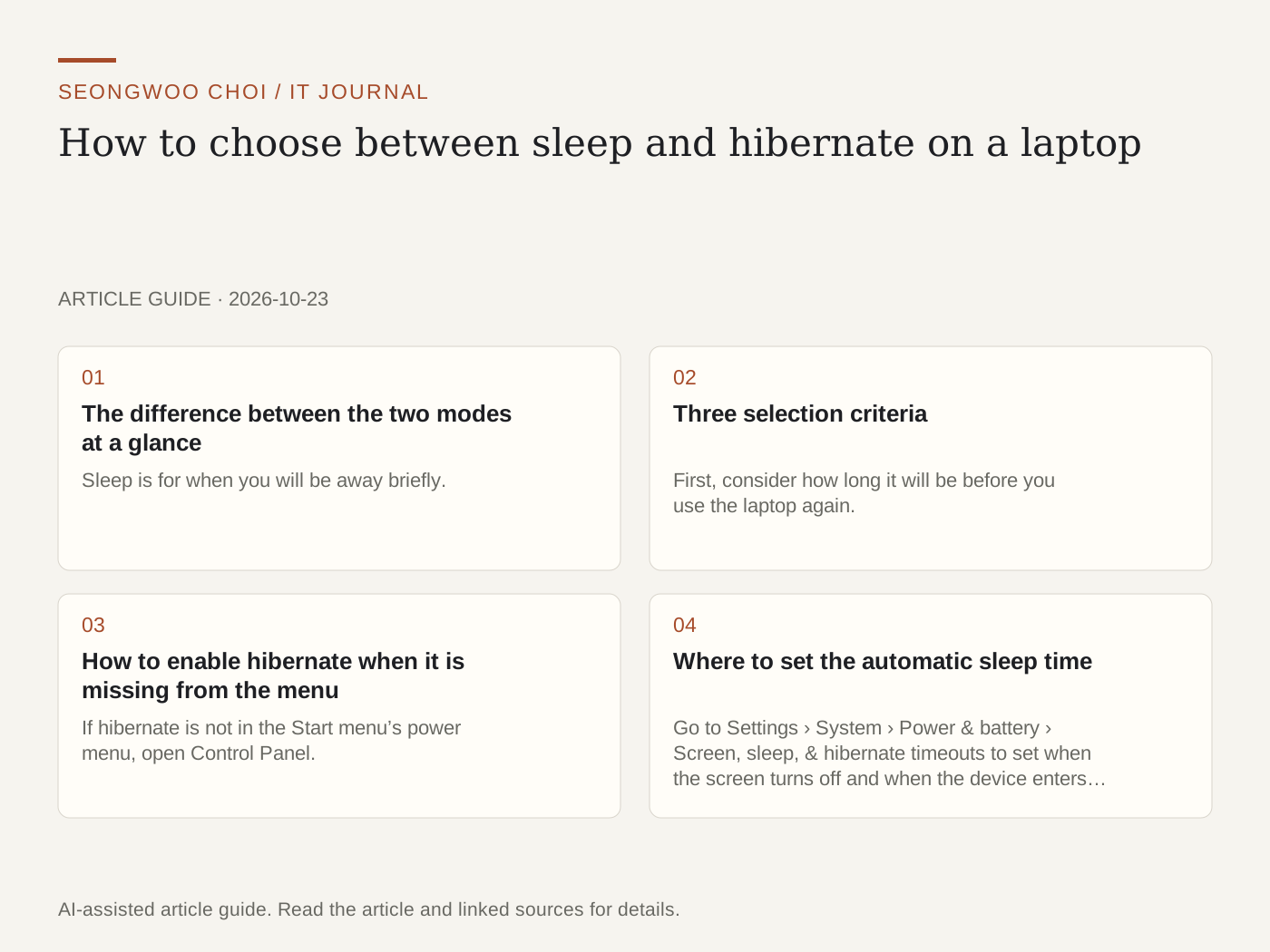
If you are unsure whether to choose sleep or hibernate when closing your laptop, there are two criteria: how long you will be away and whether you can connect a charger. Microsoft Support describes sleep as a mode that uses very little power while letting you quickly return to your previous work, and hibernate as a mode that uses less power than sleep but takes slightly longer to resume. This article organizes the official explanation into selection criteria; it does not report battery-drain measurements from my laptop.
Source: Microsoft Support - Shut down, sleep, or hibernate your PC
1. The difference between the two modes at a glance
Sleep is for when you will be away briefly. It maintains your work state while using very little power, and pressing the power button returns you immediately to the previous screen. Hibernate is for when you will be away for a long time and have no opportunity to charge. It uses less power than sleep, but takes slightly longer to wake. Microsoft explains that hibernate is an option for laptops and tablets and may not be available on some devices.
2. Three selection criteria
First, consider how long it will be before you use the laptop again. If you will return soon, such as between lunch and a meeting, sleep is appropriate. Second, consider the battery and charging environment. If you are traveling and have no charger, hibernate is more suitable. Microsoft’s document also explains that if the battery becomes too low during sleep, Windows saves your work and turns off the PC, so it is better to avoid leaving it for a long time with a low battery. Third, check the peripherals after resuming. If a monitor or printer does not work after waking, reconnect the device or restart the PC, and check that the device driver is up to date.
3. How to enable hibernate when it is missing from the menu
If hibernate is not in the Start menu’s power menu, open Control Panel. Go to System and Security › Power Options › Choose what the power buttons do › Change settings that are currently unavailable, enable the Hibernate check box under Shutdown settings, and click Save changes. Microsoft explains that PCs using InstantGo do not have a hibernate option, so if the option is not visible, it may be due to the device’s specifications. Menu names may vary depending on the Windows version and language.
4. Where to set the automatic sleep time
Go to Settings › System › Power & battery › Screen, sleep, & hibernate timeouts to set when the screen turns off and when the device enters sleep mode. You can specify separate settings for battery power and when plugged in. Microsoft explains that it adjusted the defaults for Modern Standby devices in recent versions of Windows 11, and presents 3 minutes for turning off the screen and entering sleep on battery power, and 5 minutes when plugged in, in the relevant table. Check your laptop’s current values directly in the settings screen above.
Source: Microsoft Support - Power settings in Windows 11
5. Situation-based selection checklist
The list below presents this article’s criteria based on the official explanation. It is not the result of measurements.
- If you will be away for about 1 hour and a charger is connected: sleep
- If you will not use it for several days and it is difficult to connect a charger: hibernate
- If the battery is low while traveling: save your work and shut down, or use hibernate
- If a printer or monitor does not work after resuming: check the device connection, update the driver, and restart, in that order
6. Record your settings
Record the laptop model, Windows version, whether the hibernate menu is available, and the screen-off and sleep times for battery power and when plugged in, each on a separate line. This makes it easier to compare the values if they change after an update. Writing the setting-screen names exactly as shown also helps you find the same location on another PC.
Summary of the steps
Choose sleep when you will be away briefly, and hibernate when you will be away for a long time and charging is difficult. In either case, check that connected devices work normally after resuming, and set separate automatic sleep times for battery power and when plugged in.
#LaptopSleep #HibernateMode #WindowsSleep #SleepMode #LaptopSettings #Windows11 #PowerOptions #ITInformation
Sources and original article
- support.microsoft.com/en-us/windows/experience/power-battery/shut-down-sleep-or-hibernate-your-pc
- support.microsoft.com/en-us/windows/experience/power-battery/power-settings-in-windows-11
Read the Korean original on Naver
This article reflects public information available when it was written. Specifications, prices and schedules can change; check the linked official documentation.
This English edition was written and translated with AI assistance, with sources provided. For errors or additional information, please request a correction. Editorial policy