In this article 6 sections
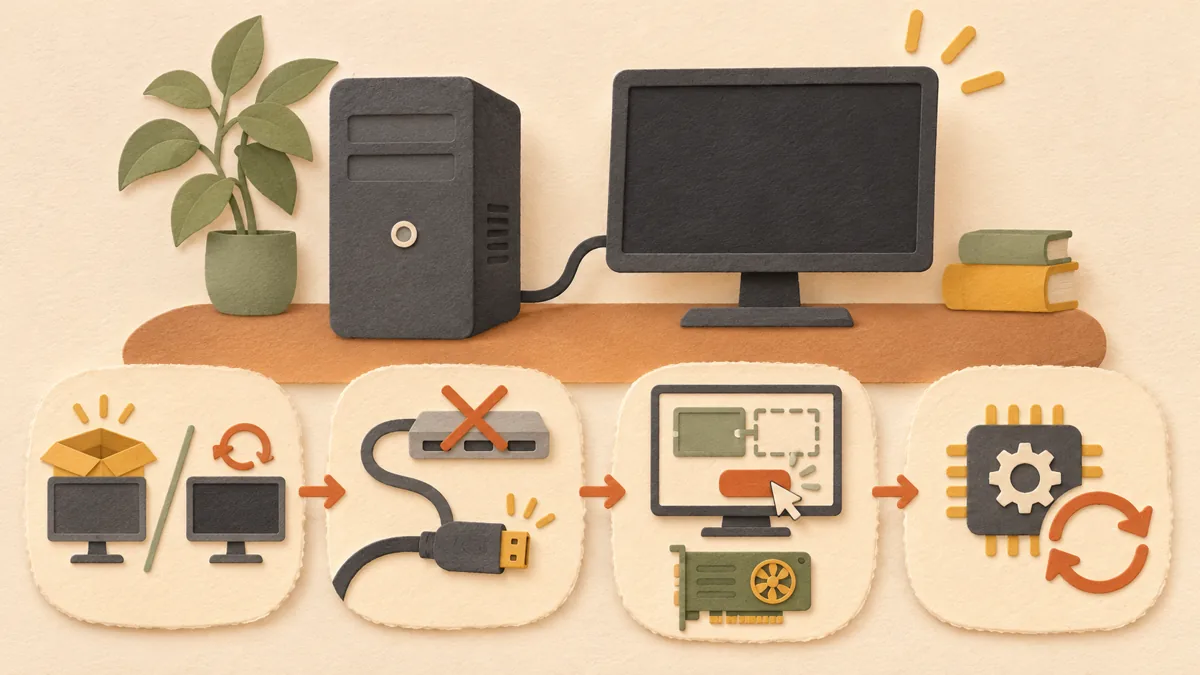
- 1. Determine whether this is a first-time connection or a previously working setup that stopped
- 2. Remove intermediate devices and connect the cable directly
- 3. Press the Detect button in Settings and check the graphics adapter
- 4. Check the driver if a previously working setup has stopped
- Summary: troubleshooting checklist
- References
When you connect an external monitor but see no image or a second display does not appear in Settings, you can narrow down the cause quickly by dividing it into three categories: cable and connection-device problems, Windows display-settings problems, and graphics-driver problems. This article is organized according to the troubleshooting order in Microsoft's official support documentation. It is not based on reproducing the issue with an actual monitor.
1. Determine whether this is a first-time connection or a previously working setup that stopped
If this is the first time you are connecting the monitor, press the Windows logo key + P and first check whether “Extend” is selected. If “Duplicate” or “PC screen only” is selected, the external monitor may appear to be turned off. Conversely, if a monitor that used to work suddenly stops appearing after an update, checking the driver may take priority over checking the cable. Microsoft provides separate guidance for these two situations.
2. Remove intermediate devices and connect the cable directly
For example, suppose you connected a monitor from a laptop through a USB-C hub but nothing appears. The following is a good order for checking:
- Remove the hub, dock, dongle, and adapter.
- Connect the monitor directly to the PC with an HDMI or DisplayPort cable. If it works when connected directly, the hub or dongle is likely the cause.
- If it still does not work when connected directly, replace the cable with another one.
- If changing the cable does not help, connect the same monitor to another PC to determine whether the monitor itself is the problem.
Microsoft's documentation also recommends changing the cable as a basic check. Since changing just one cable can sometimes solve the problem, it is worth trying before changing the driver. For the same reason, if the PC has multiple video-output ports, it is also a good idea to try a different port.
3. Press the Detect button in Settings and check the graphics adapter
If the cable connection is correct, go to Start > Settings > System > Display > Multiple displays and select “Detect.” If the new display appears, select “Identify” to check the numbers, adjust the arrangement, and select Apply. On a PC with multiple graphics cards, you may also need to change the default adapter. The method varies by manufacturer, so first check which devices are listed under Display adapters in Device Manager.
There is another point to keep in mind. The number of monitors supported by a single adapter is limited. A splitter only duplicates the same signal, so it cannot create two independent displays. To use two or more displays, you need a device that provides additional video outputs, such as a docking station or USB adapter.
4. Check the driver if a previously working setup has stopped
Microsoft recommends restarting the graphics driver with Windows logo key + Ctrl + Shift + B when an existing setup suddenly stops working. If that has no effect, restart the PC. If the problem began after an update, expand Display adapters in Device Manager, right-click the device, and select Driver rollback under Properties > Driver. If the rollback button is unavailable, you can remove the driver and then reinstall it. For detailed rollback instructions, see Windows driver rollback steps ↗.
If the display connects but text is blurry or app sizes look unusual, the problem may be the scaling settings rather than the connection. In that case, see What to check first when Windows text and app screens look blurry: scaling ↗.
Summary: troubleshooting checklist
[ ] Press Win+P and confirm that Extend is selected.
[ ] Remove the hub, dongle, and adapter, and connect the cable directly.
[ ] Try a different cable and video port.
[ ] Select Detect under Settings > Multiple displays.
[ ] If the setup used to work, check in this order: Win+Ctrl+Shift+B, restart, and driver rollback.
[ ] If it still does not work, report the situation to the manufacturer's support team or the Windows Feedback Hub.
The menu names are based on Windows 11 and may vary slightly depending on the version or PC manufacturer.
References
Microsoft Support: Troubleshoot external monitor connections in Windows ↗
Microsoft Support: How to use multiple monitors in Windows ↗
Sources and original article
Read the Korean original on Naver ↗
This article reflects public information available when it was written. Specifications, prices and schedules can change; check the linked official documentation.
This English edition was written and translated with AI assistance, with sources provided. For errors or additional information, please request a correction. Editorial policy