AI · Software · Technology
Why PowerPoint fonts change on another PC and what to check before saving
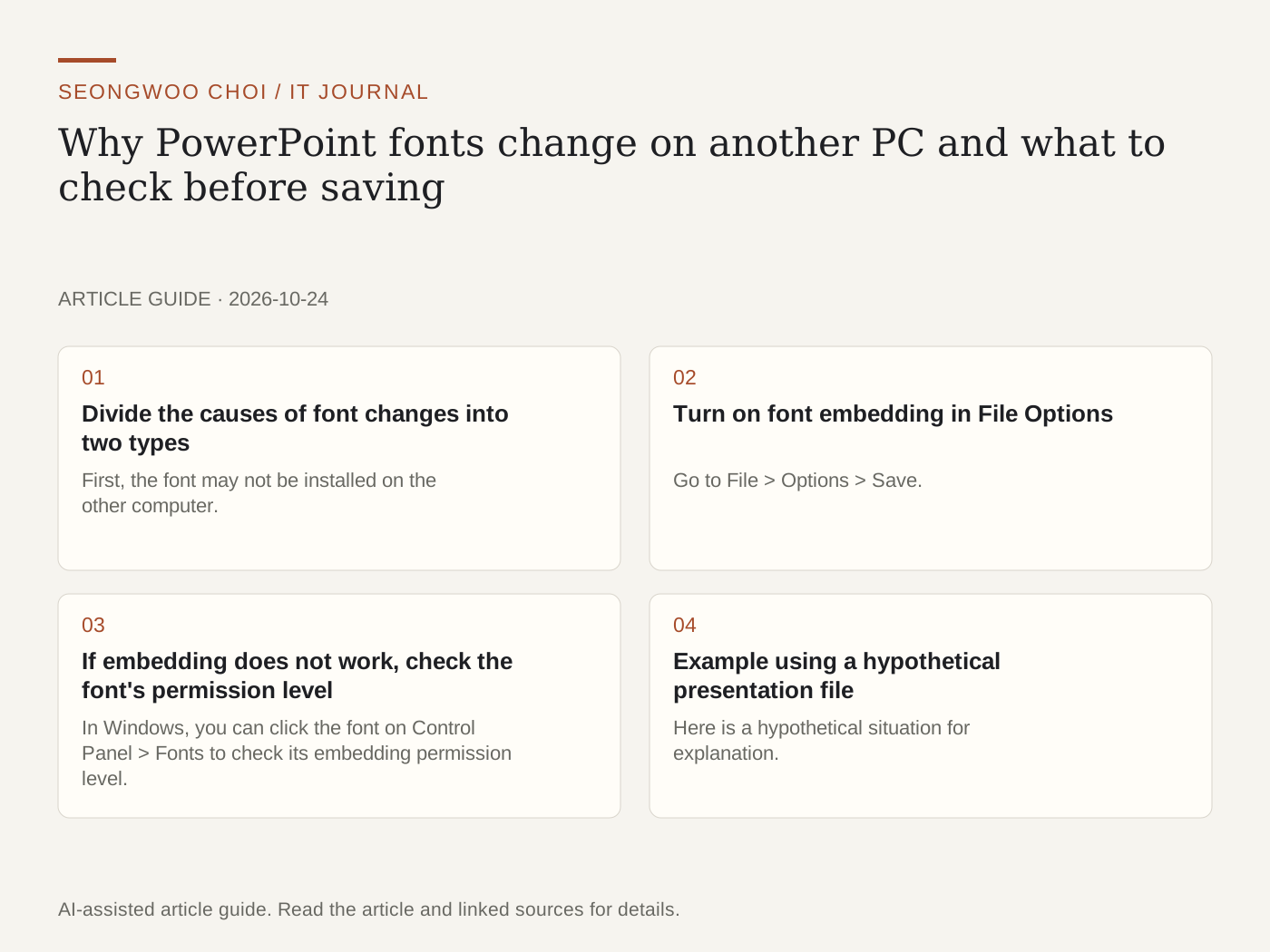
When you open a PowerPoint file on another computer, the font often changes and the title moves onto two lines. In most cases, this happens because the font used in the presentation is not installed on the computer viewing it. A Microsoft support document explains that embedding fonts in the file prevents the font, layout, and formatting from changing even when the other computer does not have the same font. This article separates the causes and organizes the settings and checks to perform before saving.
1. Divide the causes of font changes into two types
First, the font may not be installed on the other computer. In that case, PowerPoint displays it using a different font. Second, the font itself may not allow embedding in the file. Microsoft explains that not all TrueType fonts can be embedded and that the font creator determines the level of embedding permission. Because the solutions differ, first determine which situation applies.
As a reference, Microsoft 365 cloud fonts can generally be downloaded automatically for use, so they do not need to be embedded separately. Embedding settings are mainly needed for fonts installed directly or fonts used exclusively by a company.
2. Turn on font embedding in File Options
Go to File > Options > Save. Under 'Preserve fidelity when sharing this presentation,' select 'Embed fonts in the file.' If someone else needs to edit the presentation file, choose 'Embed all characters.' If you want to reduce the file size, choose 'Embed only the characters used.' Embedding only the characters used makes the file smaller, but it makes it difficult for the recipient to enter new characters using the same font.
3. If embedding does not work, check the font's permission level
In Windows, you can click the font on Control Panel > Fonts to check its embedding permission level. According to Microsoft documentation, permission levels include values such as Non-embeddable, Preview/Print, Editable, and Installable. If the font is not permitted, it is impossible to embed it, so the remaining options are to choose another font for the presentation or instruct the recipient to install the font.
4. Example using a hypothetical presentation file
Here is a hypothetical situation for explanation. There is a 10-slide presentation whose title uses a company-exclusive font and whose body uses Malgun Gothic. If it is saved without enabling font embedding, only the title may change to the default font on another PC, causing a one-line title to wrap onto two lines. After enabling embedding and saving, open the file on another PC and check whether the title font and line breaks are the same. This example is a hypothetical situation for explanation and is not the result of running an actual file.
There is also a point to note. If you save with embedding disabled, another font will be used when the file is opened again. It is safest to check the embedding setting one more time before sending the file.
5. What to check first by symptom
① If only the title font changed on another PC, check whether embedding was enabled and what the font is called. ② If a warning says the font cannot be saved, check the font format and embedding permission level. ③ If the file has become excessively large, consider embedding only the characters used or choosing another font. Menu names and option wording may vary depending on the Office version.
Source: Microsoft Support, Benefits of embedding custom fonts (checked October 25, 2026, Korea Standard Time).
Sources and original article
Read the Korean original on Naver
This article reflects public information available when it was written. Specifications, prices and schedules can change; check the linked official documentation.
This English edition was written and translated with AI assistance, with sources provided. For errors or additional information, please request a correction. Editorial policy