What to check when an Ollama model is slow: ollama ps and context length
When a local AI model running in Ollama responds slowly, check its execution status, GPU placement, context length, and memory use by other programs before changing models.
 Seongwoo Choi · 3 min read
At a glanceOllama downloads and runs AI models on your PC. Before installing it, check the Windows version, graphics driver, installation drive, and model storage folder using the official Windows documentation.
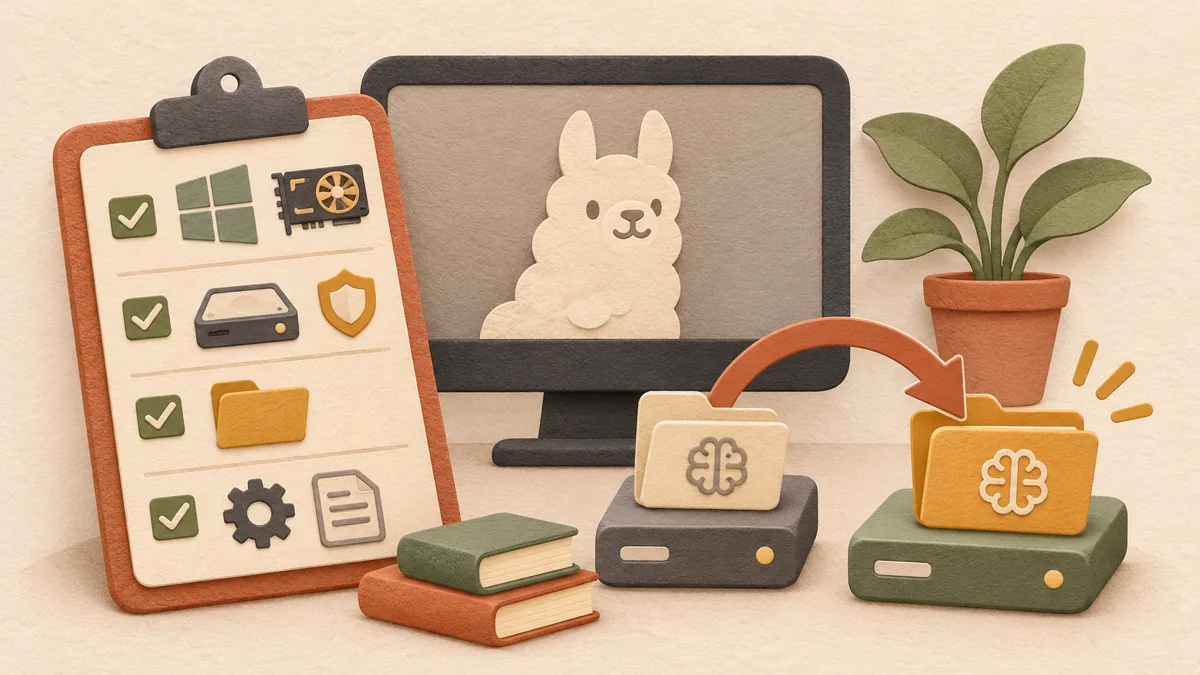
Ollama is a tool that downloads AI models to your PC and runs them directly. You can reduce the chance of failure by checking four things before running the installer: the Windows version, graphics driver, installation drive, and model storage folder. This article is organized based on Ollama's official Windows documentation. It should be noted first that this is not the result of installing it on an actual PC.
The official documentation requires Windows 10 22H2 or later (Home or Pro). If you have an NVIDIA graphics card, check that the driver is version 551.61 or later. If you have an AMD Radeon card, you need a driver stack that supports ROCm v7 or a Radeon driver that supports Vulkan. According to the documentation, ROCm v7 may not be visible with current Windows AMD drivers for some RDNA2 models, such as those in the RX 6800 class; in that case, Vulkan is the recommended alternative and is enabled by default. If an integrated device is selected and causes instability on a PC with both integrated and discrete graphics, the documentation advises specifying the discrete device number with GGML_VK_VISIBLE_DEVICES.
OllamaSetup.exe installs to the user account without administrator privileges. The default installation location is the home folder, and the documentation states that at least 4GB of space is required even when installing only the executable. If you want to change the installation drive, the documentation describes running the installer with the /DIR option. For example: OllamaSetup.exe /DIR=d:\some\location. Before changing the installation path, first check that the drive has enough free space.
Model files can grow from tens of GB to hundreds of GB. If the drive containing your home folder is small, it is better to choose a model storage folder before installation. On Windows 11, open Settings; on Windows 10, open Control Panel. Search for 'Environment Variables' and select 'Edit environment variables for your account.' Create a new variable named OLLAMA_MODELS, enter the path to the folder where you want to store the models, and click OK. If Ollama is already running, quit it from the system tray and then launch it again from the Start menu, or open a new terminal after saving the environment variable, for the change to take effect. If the drive is already running out of space, first follow the steps in the Windows storage cleanup article .
When Ollama is running, its API responds at http://localhost:11434. The documentation's example uses Invoke-WebRequest in PowerShell to send a generate request and check the response. If it does not run, first check server.log and app.log in the %LOCALAPPDATA%\Ollama folder. Models are stored in %HOMEPATH%\.ollama by default. The documentation states that if you change OLLAMA_MODELS, models you have already downloaded will not be deleted even if you uninstall the installer.
① Confirm that the Windows version is 10 22H2 or later. ② Check the graphics card type and driver version. ③ Make sure the installation drive has at least 4GB of free space and the model drive has enough space for the models you will download. ④ Decide in advance which folder to assign to OLLAMA_MODELS. ⑤ After installation, check the response from localhost:11434 and server.log. The official documentation's specifications describe the conditions for installation; this article does not measure which models run quickly on your PC.
The official source consulted was Ollama's official Windows documentation . Driver versions and paths may change when the documentation is updated, so check the original source as well immediately before installation.
Read the Korean original on Naver
This article reflects public information available when it was written. Specifications, prices and schedules can change; check the linked official documentation.
This English edition was written and translated with AI assistance, with sources provided. For errors or additional information, please request a correction. Editorial policy
Found this useful? Share it, or follow for new guides.