AI · Software · Technology
How to Distinguish Viewer, Commenter, and Editor Permissions for Google Drive Shared Links
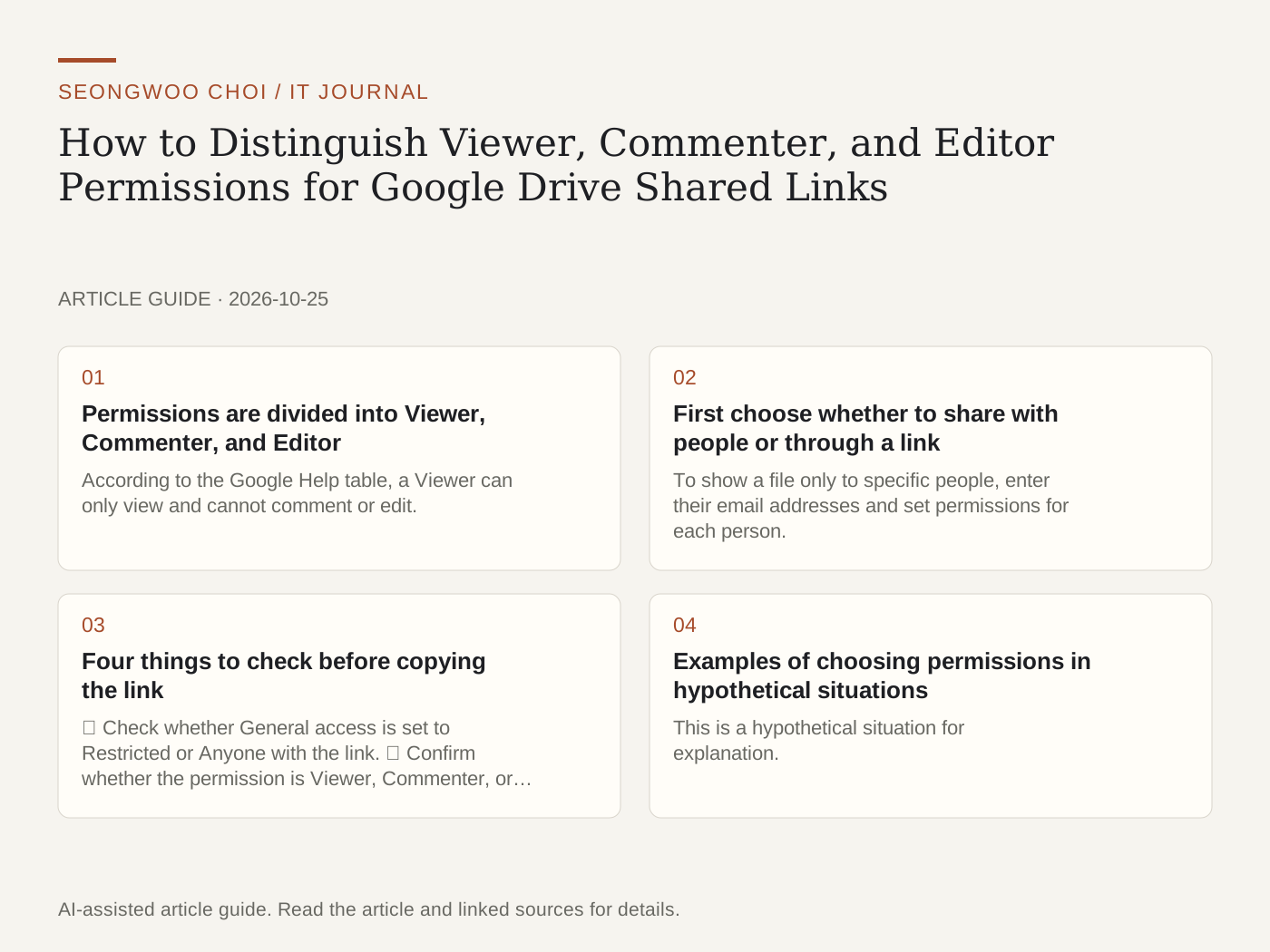
The most confusing aspect of sharing files in Google Drive is that permissions granted to specific people and permissions for opening a file through a link are separate settings. In the sharing window, you separately choose whether people with the link can view, comment, or edit. Based on Google Drive Help, this article explains the differences among the three permissions and what to check before sharing a link.
1. Permissions are divided into Viewer, Commenter, and Editor
According to the Google Help table, a Viewer can only view and cannot comment or edit. A Commenter can view and comment but cannot edit. An Editor can modify content, share it with others, and change permissions. However, an Editor cannot change the owner. This table applies to files in My Drive; shared drives use a different role system and must be checked separately.
Downloads are allowed by default for Viewers and Commenters as well. Note that the owner can restrict downloads in the settings if they want to prevent downloading.
2. First choose whether to share with people or through a link
To show a file only to specific people, enter their email addresses and set permissions for each person. To share it by link, choose the scope under General access. If you select Anyone with the link, anyone who has the link can open the file, and you choose whether those people have Viewer, Commenter, or Editor permissions. Google Docs states that when a file link is shared, the owner's name and email may be visible to the people receiving it. Users who are not signed in appear as anonymous animal icons.
3. Four things to check before copying the link
① Check whether General access is set to Restricted or Anyone with the link. ② Confirm whether the permission is Viewer, Commenter, or Editor. Anyone who receives a link with Editor permission can change its contents. ③ Remember that sharing a folder by link does not limit access to the folder. You must determine who can open the files inside on a folder-by-folder basis. ④ Company or school accounts may restrict external link sharing depending on administrator settings.
4. Examples of choosing permissions in hypothetical situations
This is a hypothetical situation for explanation. Suppose you want an external designer to review a draft presentation. In this case, it is safer to add the designer's email address and grant Commenter permission rather than create a link that anyone can edit. When showing the same material to multiple people, start with Viewer permission and grant Editor permission only to people who truly need it. This example is not the result of testing it on an actual account; it is organized based on the permission table in Google Help.
5. What to check first for each symptom
If the recipient cannot open the file, check whether General access is set to Restricted and whether the file was shared with that person's email address. If they cannot edit the content, check whether their permission is set to Viewer or Commenter. If an unwanted person accessed the file through the link, change General access to Restricted and remove that person from the list of shared users.
Related article: The Difference Between Cloud Sync and Backup . A shared link is not a backup, so you must separately prepare a way to undo unwanted edits or deletions.
Source: Google Drive Help 'Share files' (checked Oct 25th 2026, Korea time). Menu names and screen layouts may change over time.
Sources and original article
Read the Korean original on Naver
This article reflects public information available when it was written. Specifications, prices and schedules can change; check the linked official documentation.
This English edition was written and translated with AI assistance, with sources provided. For errors or additional information, please request a correction. Editorial policy