In this article 5 sections
- 1. Check whether automatic time setting is enabled
- 2. Check the time zone and daylight saving time
- 3. Check the Windows Time service if the time remains wrong after enabling automatic setting
- 4. Check the BIOS/UEFI time if the problem persists
- Summary: order of time checks
If the Windows time is wrong, email times, file modification times, and authentication-related errors may also be affected. This article lists the items to check first in Settings based on the date and time settings path in Microsoft Support documentation. It was not directly tested on a specific PC, and menu names may vary by Windows version.
1. Check whether automatic time setting is enabled
Open Settings > Time & language > Date & time. If “Set time automatically” is enabled, Windows is configured to set the time automatically. If it is disabled, enable it and check the clock again. When this option is disabled, you can change the time directly using the Change button under “Set the date and time.” Microsoft documentation also instructs users to enable this option to set the date and time automatically.
2. Check the time zone and daylight saving time
Check “Set time zone automatically” on the same screen. If the time zone is set to a different region, the time will be off by several hours. To choose a time zone manually, turn off “Set time zone automatically” and select a time zone from the drop-down menu. When automatic time zone setting is enabled, daylight saving time is adjusted automatically. If it is disabled, Microsoft documentation explains that you should check the “Adjust for daylight saving time automatically” option.
Use these criteria. If the clock is off by exactly one hour or several hours, first suspect the time zone or daylight saving time settings. If it gradually falls behind by several minutes or remains wrong even after automatic setting is enabled, suspect a synchronization problem. These criteria are an editorial judgment for dividing the troubleshooting order and are not rules established by Microsoft.
3. Check the Windows Time service if the time remains wrong after enabling automatic setting
Press the Windows key and R, enter services.msc in the Run window, and find the Windows Time service in the list. Check whether its status is Running and its startup type is Automatic, and restart it if necessary. This step is a general troubleshooting measure that often appears in community answers, not a procedure from Microsoft’s date and time settings documentation. Note the current settings before changing the service.
4. Check the BIOS/UEFI time if the problem persists
If the time resets every time the power is turned off and on, you can suspect the motherboard’s clock device or battery. Checking whether the time is correct in the BIOS/UEFI setup screen is a typical troubleshooting step. This step is also not a procedure from Microsoft documentation; check the manufacturer’s manual as well.
Summary: order of time checks
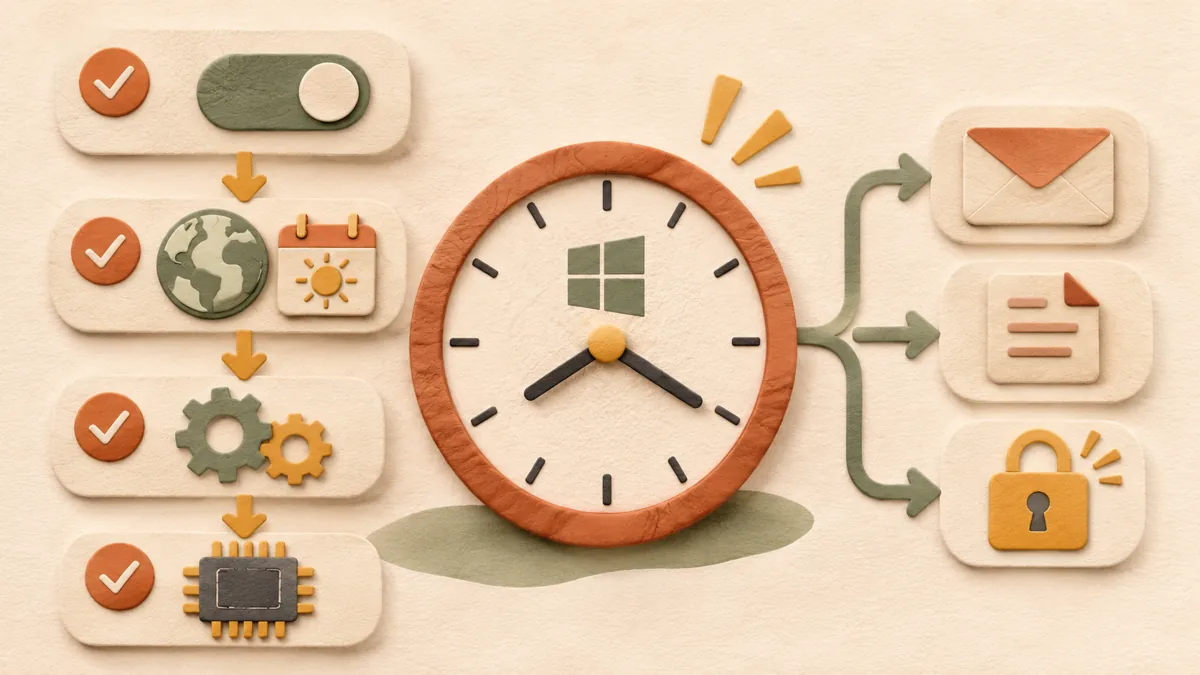
The order is: enable automatic time setting; check the time zone and daylight saving time; if the time remains wrong after enabling automatic setting, check the Windows Time service status; and if the time resets even after power is disconnected, check the BIOS/UEFI time. If the problem occurred together with a failed update installation, see Order of checking the error code first when Windows Update fails ↗. To find the process causing a slow PC, also see Order of finding the process causing a slow PC with Task Manager ↗.
Source: Set time, date, and time zone settings in Windows (Microsoft Support) ↗, main text checked on October 29, 2026 KST. Steps 3–4 are general troubleshooting measures, not procedures from the document above, and screen menu names may vary by Windows version.
Sources and original article
Read the Korean original on Naver ↗
This article reflects public information available when it was written. Specifications, prices and schedules can change; check the linked official documentation.
This English edition was written and translated with AI assistance, with sources provided. For errors or additional information, please request a correction. Editorial policy