In this article 6 sections
- 1. Open the default apps screen in Settings
- 2. Set your preferred browser as the default browser
- 3. Check link formats and file types separately
- 4. Check these three things after changing the setting
- 5. Check with an administrator first on a company or school PC
- References
Even after changing the default browser, links clicked in email or messenger apps may open an older browser. In this case, checking only the browser's settings makes it difficult to find the cause. Windows stores default apps separately for web addresses (link formats such as https) and file types (such as .html). This article organizes the steps for choosing a default browser based on the settings paths in Microsoft support documents and checking link and file associations separately.
1. Open the default apps screen in Settings
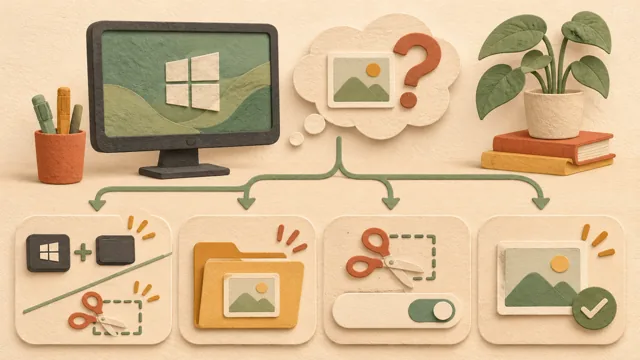
Open the Settings app and go to Apps > Default apps. Microsoft support documents explain that you can change default apps on this screen, either by app or by file type or link format. Enter the browser name in the search box near the top of the screen to quickly find the relevant app entry.
2. Set your preferred browser as the default browser
Under Set defaults for applications, select the browser, then click Set default next to 'Make [browser name] your default browser.' Microsoft documents explain this process using Microsoft Edge as an example. Google Chrome Help also provides instructions for setting Chrome through the same path in Windows 11. The displayed name may differ by browser, so select the name exactly as it appears in the list.
3. Check link formats and file types separately
Even after setting the default browser, some links may continue opening in another app if the https or .html entries remain assigned to the old app. Enter https in the search box on the Default apps screen to find the link format, then search for .html in the same way and confirm that both entries use your preferred browser. Microsoft documents explain how to search for and change entries by extension or protocol. The key is to check these two entries separately from the default browser setting.
4. Check these three things after changing the setting
① Check whether the browser entry has changed on the Default apps screen. ② Paste an https address into Notepad or a messenger app and open it once. ③ Double-click a local .html file and check whether it opens in the same browser. If only the first check is correct and the second is not, the link-format entry is likely still assigned elsewhere. If the third check is not correct, change the file-type entry in the same way.
5. Check with an administrator first on a company or school PC
Company or school PCs may have default apps locked by management policies. In this case, a change made on the Settings screen may revert to the original setting or may not be applied. Since this situation may not be resolved through the settings sequence for a personal PC, it is safer to check the policy with the person responsible for administration first. This is a precaution outside the scope confirmed in this article.
References
Microsoft Support: Change Default Apps in Windows ↗ was checked as of November 8, 2026, Korea Standard Time. Google Chrome Help: Make Chrome your default browser ↗ was also consulted. Menu names and locations may vary depending on the Windows version, language settings, and app version, and this article is not based on personal testing results. For PDF file associations, also see the article on restoring the default PDF app ↗.
Sources and original article
Read the Korean original on Naver ↗
This article reflects public information available when it was written. Specifications, prices and schedules can change; check the linked official documentation.
This English edition was written and translated with AI assistance, with sources provided. For errors or additional information, please request a correction. Editorial policy

 Windows